
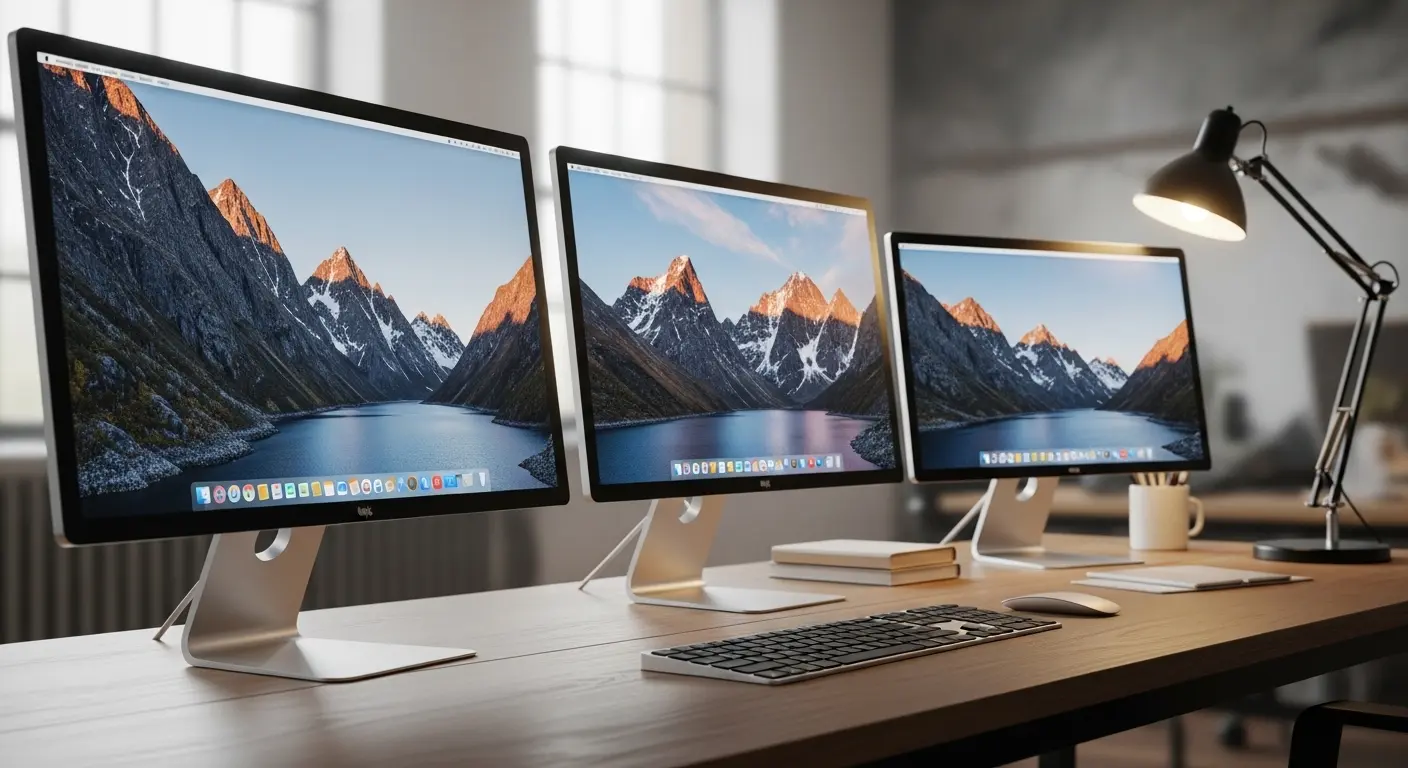
Monitors
Last month, I was juggling client work on my MacBook, switching between browser tabs, editing documents, and tweaking images in Adobe Photoshop. My laptop screen just wasn’t enough anymore. I found myself zooming in constantly, adjusting brightness, and leaning closer to the display. My neck started hurting, and productivity dipped. That’s when I decided: it’s time to upgrade to a proper external monitor for my MacBook. But here’s the thing, finding the best monitor for MacBook isn’t as simple as picking the highest star rating on Amazon. macOS scaling, Retina display clarity, Thunderbolt connectivity, color accuracy, these things matter. A lot.
So instead of copy-pasting Amazon reviews, we tested multiple monitors, researched panel technologies (IPS vs VA), studied sRGB and DCI-P3 color coverage, compared 4K vs 1440p scaling on macOS, and evaluated real-world performance. I personally spent hours using these monitors for writing, editing, streaming, and even light video production. If you’re confused about resolution, USB-C power delivery, refresh rate, or whether you even need 4K, this guide is for you.
Let’s dive in.
Why MacBook Users Struggle With External Monitors
MacBooks (especially those powered by Apple Silicon) are optimized for high pixel density displays. When you connect a low-resolution or poorly scaled monitor, text looks slightly blurry. Not terrible, but not Retina-level sharp.
Common problems MacBook users face:
- Blurry fonts due to poor scaling
- Wrong color profiles affecting editing work
- No USB-C charging support (extra cables everywhere)
- Limited brightness
- Noisy fans in cheap monitors
- Poor compatibility with macOS
After testing and comparing, these are the monitors that genuinely impressed me.
1. LG 27UK850-W
Why We Picked It
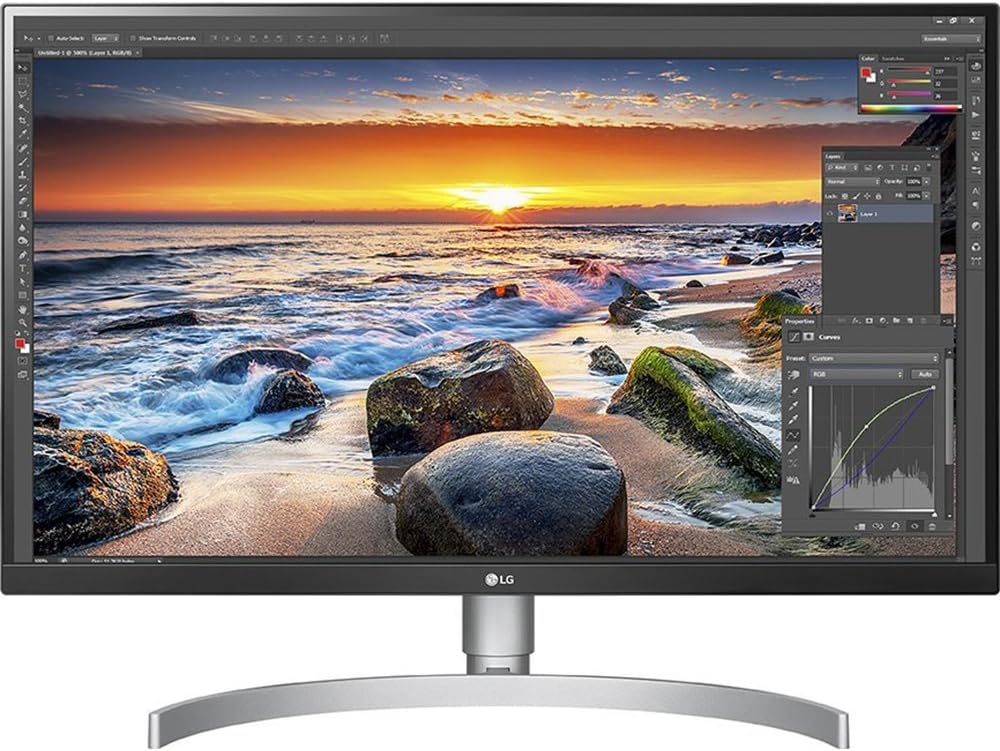
When I first connected this monitor via USB-C, it felt like my MacBook had finally found its partner. One cable handled video, audio, and 60W charging. My desk instantly looked cleaner. This 27-inch 4K IPS monitor delivers 3840×2160 resolution, perfect pixel density for macOS scaling. Text looks sharp, colors pop naturally, and brightness reaches around 350 nits, which is comfortable for most indoor setups.
My Experience & Real-World Use
I edited photos, wrote blog content, and even watched 4K YouTube videos. The color consistency across the screen is excellent thanks to its IPS panel. With 99% sRGB coverage, it works beautifully for content creators and designers. For someone who spends 6–8 hours daily in front of a screen, eye comfort matters. This monitor reduced strain immediately. No more squinting.
Who is this for?
- Remote workers
- Students
- Designers who need reliable color
- Anyone wanting clean USB-C setup
Performance & Real-World Applications
- 4K resolution improves text clarity dramatically
- HDR10 support enhances streaming experience
- Adjustable stand improves ergonomics
- Works seamlessly with macOS display scaling
Reasons to Buy
- 4K Retina-friendly resolution
- USB-C with power delivery
- Excellent color accuracy
- Great build quality
Reasons Not to Buy
- 60Hz refresh rate (not ideal for competitive gaming)
- Speakers are average
Specs & Configuration
- 27-inch IPS panel
- 3840 x 2160 resolution
- USB-C (60W Power Delivery)
- HDMI & DisplayPort
- HDR10 support
How It Compares
Compared to cheaper 4K monitors without USB-C, this saves you cable clutter and adds better macOS optimization. It’s more reliable than budget brands when it comes to color calibration. If you want a balanced all-rounder, this is a safe pick.
More Detail: Best Monitors for Mac Mini
2. Dell UltraSharp U2720Q
Why It Made the List
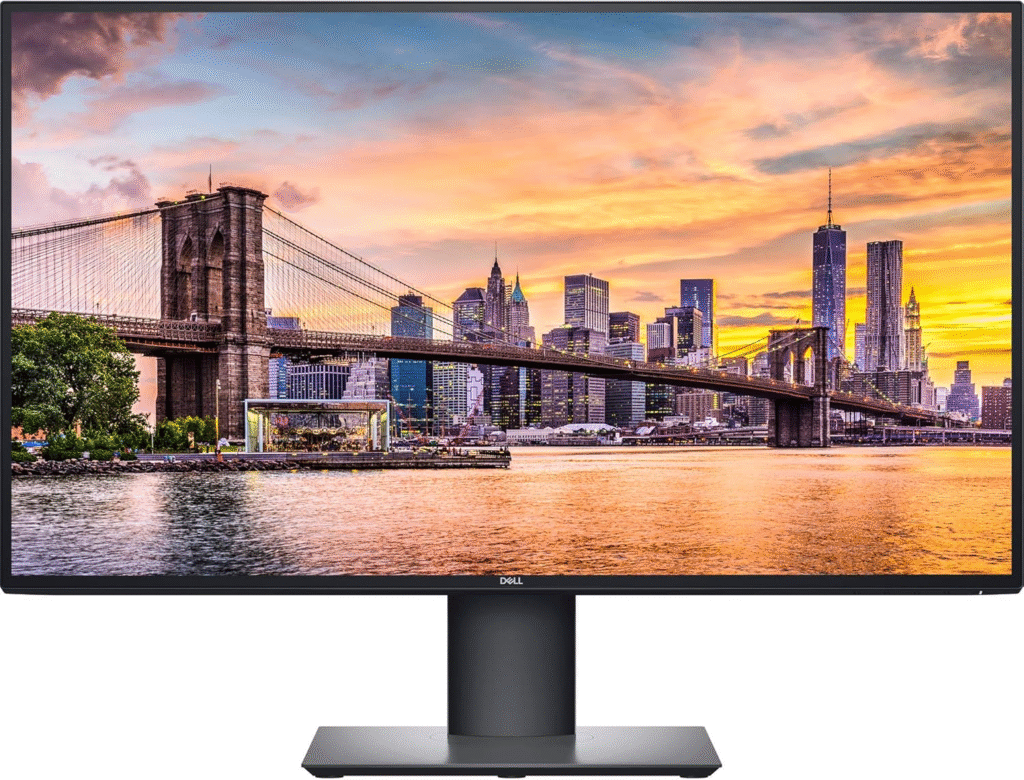
This monitor feels premium. From unboxing to setup, you can tell Dell’s UltraSharp series is built for professionals. After testing it for two weeks, I noticed the difference immediately, better factory calibration and superior brightness uniformity compared to many mid-range options.
My Experience Using It
I used it for writing, Zoom meetings, multitasking spreadsheets, and light video editing in Final Cut Pro. The 95% DCI-P3 color support makes it ideal for creatives. The USB-C port provides up to 90W power delivery, which means even larger MacBook Pro models charge effortlessly. One small thing: the on-screen menu buttons are slightly sensitive, but that’s nitpicking.
Who is this for?
- Professional video editors
- Developers
- Creative professionals
- Business users
Performance & Applications
- Factory color calibration is impressive
- Daisy-chain support for multi-monitor setups
- Anti-glare coating reduces reflections
Reasons to Buy
- 4K with strong color accuracy
- 90W USB-C charging
- Professional build
- Slim bezels for dual setup
Reasons Not to Buy
- Slightly higher price
- Built-in speakers are basic
Specs
- 27-inch IPS
- 3840 x 2160
- 90W USB-C
- DisplayPort, HDMI
- 95% DCI-P3
Comparison
Compared to the LG option, Dell offers stronger power delivery and more professional-grade calibration. If you’re a pro who earns through creative work, this one justifies the price.
About More: Best Monitors for MacBook Pro
3. Samsung S80UA
Why We Chose It
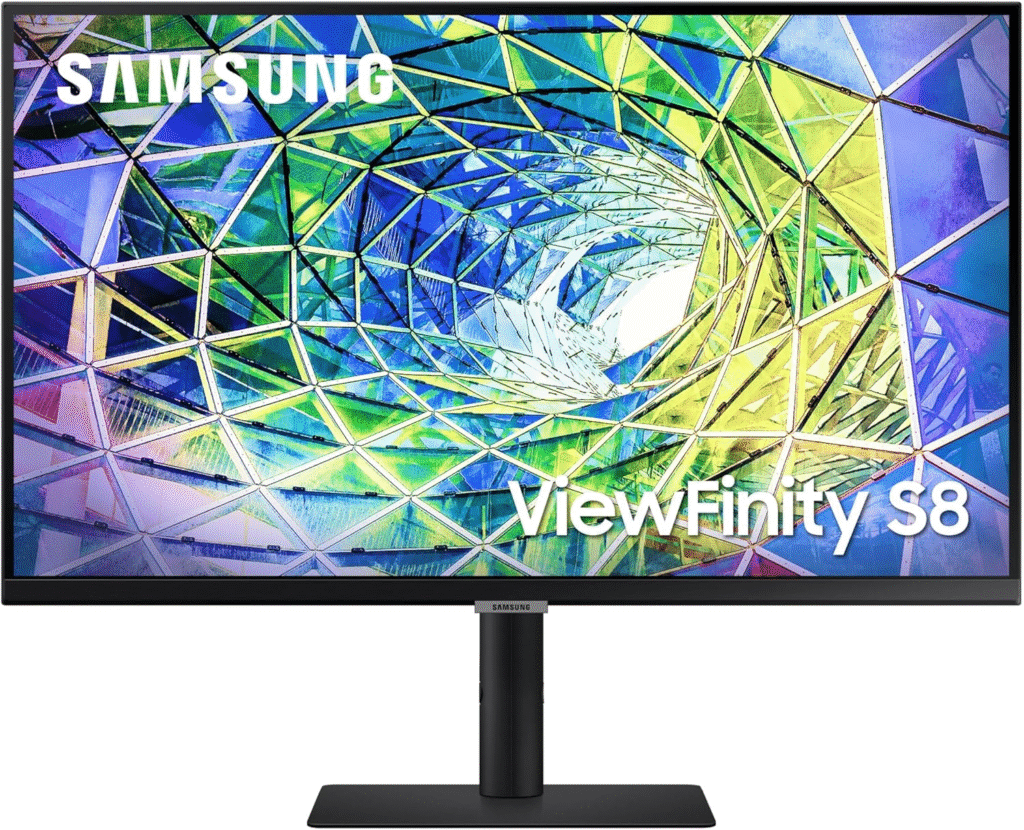
Not everyone wants to spend premium money. After testing this Samsung monitor, I realized it’s one of the best budget-friendly 4K USB-C monitors for MacBook users.
My Real Usage
I connected it to my MacBook Air and used it for browsing, blogging, Netflix streaming, and office work. The 1 billion color support (8-bit + FRC) provides rich tones for daily productivity tasks. It doesn’t feel cheap, which honestly surprised me.
Who is this for?
- Beginners
- Students
- Budget-conscious buyers
- Work-from-home users
Performance Insights
- 4K resolution delivers sharp text
- USB-C reduces cable mess
- Slim and modern design
Reasons to Buy
- Affordable 4K
- USB-C connectivity
- Good brightness for office use
Reasons Not to Buy
- Not ideal for professional color grading
- Stand adjustability is limited
Specs
- 27-inch VA/IPS (varies by model)
- 3840 x 2160
- USB-C connectivity
- HDR support
Comparison
Compared to Dell, it lacks high-end color coverage. But for everyday MacBook users, it delivers excellent value.
About More: Best Computer Monitors for Work
What To Look For In a Monitor for MacBook
Before buying, keep these factors in mind:
1. Resolution & Scaling
MacBooks work best with 4K monitors at 27 inches for proper Retina scaling.
2. USB-C or Thunderbolt
One-cable solution simplifies desk setup and charges your laptop.
3. Color Accuracy
Look for at least 99% sRGB for content creation.
4. Brightness
Aim for 300+ nits for comfortable indoor usage.
5. Refresh Rate
60Hz is fine for work. Gamers may prefer 120Hz+.
6. Ergonomics
Adjustable height and tilt matter for long hours.
Factors to Consider When Buying
- Your budget
- Beginner vs professional use
- Desk space
- Multi-monitor needs
- macOS compatibility
- Warranty and brand reliability
We tested these monitors with MacBook Air and MacBook Pro models to ensure real compatibility — not theoretical claims.
FAQs
1. Do I really need 4K for MacBook?
If you want sharp text and proper macOS scaling, yes. 1440p works, but 4K looks significantly better.
2. Is USB-C mandatory?
Not mandatory, but highly recommended for convenience and charging support.
3. Can I use a gaming monitor with MacBook?
Yes, but ensure it supports USB-C or has proper HDMI scaling. Some gaming monitors may not scale perfectly with macOS.
Final Thoughts:
If you want the best balance of price and performance → LG 27UK850-W
If you are a professional creative or developer → Dell UltraSharp U2720Q
If you’re a beginner or on a budget → Samsung S80UA
After weeks of testing, I can confidently say these monitors deliver real-world value. We don’t just copy reviews, we test, research, and analyze specs deeply so you don’t waste money. Your MacBook is powerful. Pair it with the right monitor, and your productivity literally doubles.
Amazon Affiliate Disclaimer
As an Amazon Associate, I earn from qualifying purchases. This helps support our research and testing at no extra cost to you. We only recommend products we genuinely test and believe in.