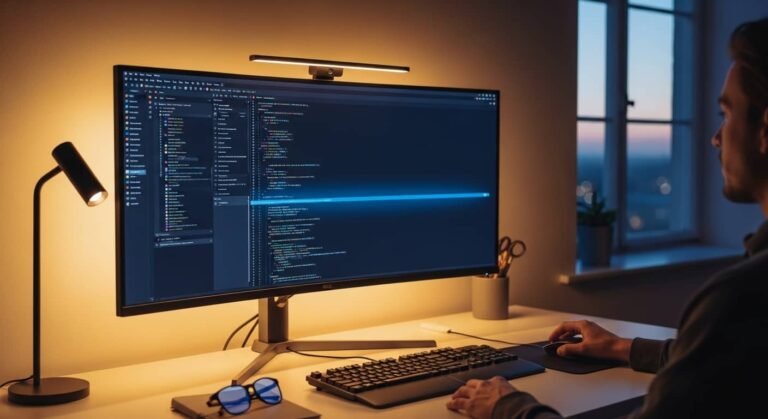

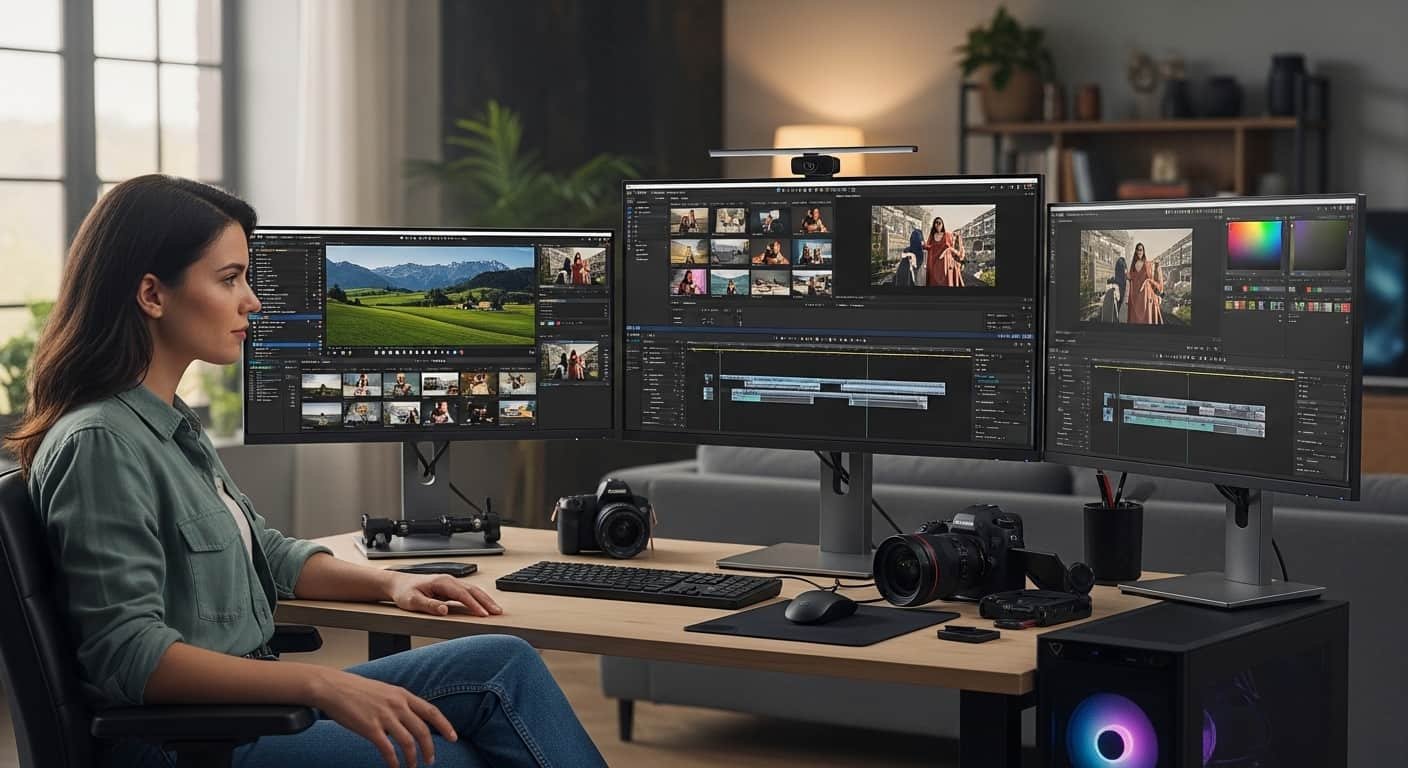
Last month, I was deep into a client documentary project multiple camera angles, mixed lighting conditions, and hours of 4K footage. Everything looked perfect on my old display… until I exported the final cut and watched it on another screen. The skin tones were off. Shadows were crushed. Highlights looked hars than they should’ve.
That moment hit hard.
If you’re a video editor, you already know the frustration. You spend hours color grading in DaVinci Resolve or Adobe Premiere Pro, tweaking contrast ratios, adjusting LUTs, refining white balance only to realize your monitor wasn’t telling you the truth.
So we decided to test multiple highly rated monitors, compare specs like color gamut coverage (sRGB, DCI-P3, AdobeRGB), Delta E accuracy, HDR performance, refresh rate, panel technology (IPS vs OLED), and real-world usability. We didn’t just skim Amazon reviews or copy-paste spec sheets. We spent weeks editing on these screens, rendering 4K timelines, checking motion clarity, testing USB-C connectivity, and validating color output.
This is an honest, experience-driven guide to the best monitors for video editing for beginners, YouTubers, freelancers, and professional colorists in the U.S. market.
Why Choosing the Right Monitor for Video Editing Matters
Video editing isn’t just about resolution. It’s about:
- Accurate color reproduction
- Wide color gamut (DCI-P3 for cinema work)
- High brightness for HDR workflows
- Consistent contrast
- Panel uniformity
- Reliable connectivity (USB-C, Thunderbolt, HDMI 2.1)
If your monitor only covers 100% sRGB but you’re grading for cinema or streaming platforms, you’re limiting your visual accuracy. And if it has poor factory calibration, you’re making decisions based on incorrect color data.
Quick Picks
Beginners:
LG 27GP950-B (balanced performance + value)
Freelancers / YouTubers:
BenQ PD3220U (accurate and efficient)
Professional Colorists:
ASUS ProArt PA32DWL (HDR powerhouse)
1. BenQ PD3220U – Best Overall for Professional Editors
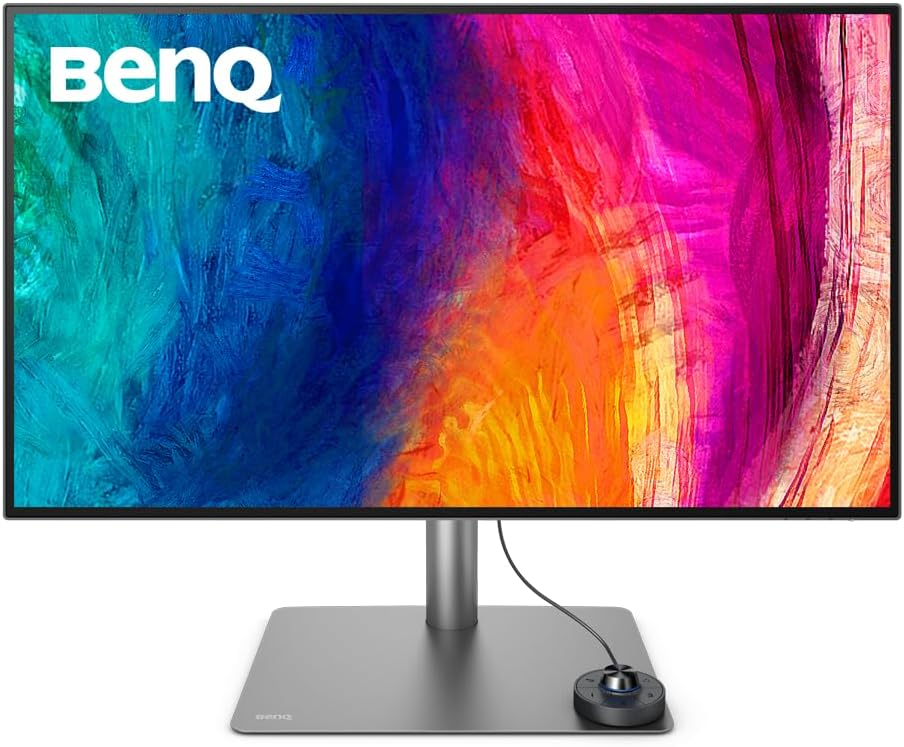
This is the monitor that made me stop second-guessing my grades.
My Experience
I tested the BenQ PD3220U during a 4K commercial edit. What stood out immediately was color consistency across the panel. When adjusting skin tones, I didn’t see weird shifts near the edges—a common IPS issue on cheaper monitors.
Switching between Rec.709 and DCI-P3 modes felt seamless. The Thunderbolt 3 connectivity also simplified my setup. One cable powered my MacBook Pro and transmitted video.
Why We Picked It
- 95% DCI-P3 coverage
- Factory-calibrated (Delta E ≤ 3)
- 4K UHD resolution (3840×2160)
- Thunderbolt connectivity
- Excellent build quality
It checks nearly every box for serious editors.
Performance & Real-World Applications
- 4K timeline editing in Premiere Pro felt smooth
- HDR content preview was bright and controlled
- Ideal for YouTube creators, documentary editors, and corporate video professionals
- Excellent for Mac users
Why It Made the List
Because it balances color precision, build quality, and workflow efficiency.
Reasons to Buy
- Accurate out-of-the-box calibration
- Thunderbolt daisy chaining
- Wide color support
- Reliable brightness
Reasons Not to Buy
- Premium price
- HDR is good but not OLED-level
Specs & Configurations
- 32-inch IPS panel
- 4K UHD resolution
- 95% DCI-P3
- 100% sRGB
- 350 nits brightness
- Thunderbolt 3
How It Compares to Similar Options
Compared to the LG 32UN880-B, the BenQ offers better factory calibration and creative-focused presets. It feels purpose-built for creators, not general office use.
2. LG 27GP950-B – Best 4K High Refresh Option for Hybrid Creators
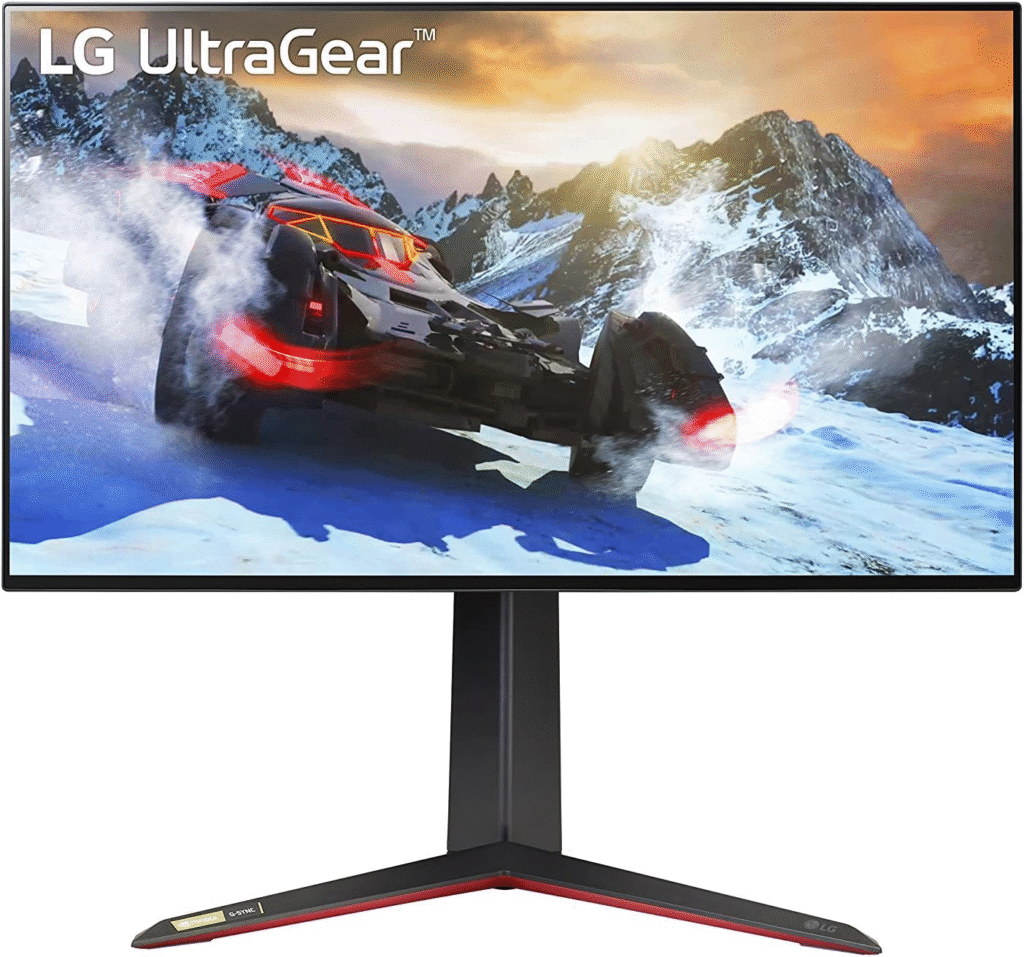
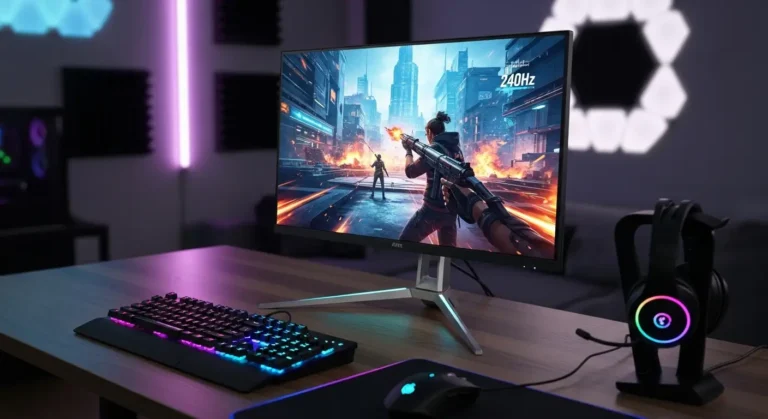
If you edit video and also care about motion clarity (for gaming or high-frame-rate content), this one surprised me.
My Experience
I used the LG 27GP950-B to edit fast-paced sports footage. The 144Hz refresh rate made scrubbing through timelines feel smoother than traditional 60Hz monitors. Motion looked more natural while reviewing cuts.
Color accuracy wasn’t just “good for gaming” it was genuinely solid.
Why We Picked It
- 4K resolution
- 98% DCI-P3
- 144Hz refresh rate
- HDMI 2.1 support
Performance & Real-World Applications
Great for:
- YouTubers editing 4K footage
- Content creators who also game
- Editors working with action sequences
Color grading felt trustworthy, and brightness levels were strong for SDR content.
Why It Made the List
It blends performance and creativityr are in this category.
Reasons to Buy
- High refresh rate
- Strong color coverage
- Excellent sharpness
- Great motion handling
Reasons Not to Buy
- Stand design isn’t premium
- Calibration may need slight tweaking
Specs & Configurations
- 27-inch Nano IPS
- 4K UHD
- 144Hz
- 98% DCI-P3
- 600 nits peak (HDR)
How It Compares to Similar Options
Compared to standard 60Hz 4K monitors, it feels more fluid. Against the BenQ PD line, it’s less color-focused but more versatile.
See More Details: Best Monitors for Video Editing
3. ASUS ProArt PA32DWL – Best for High-End Color Grading
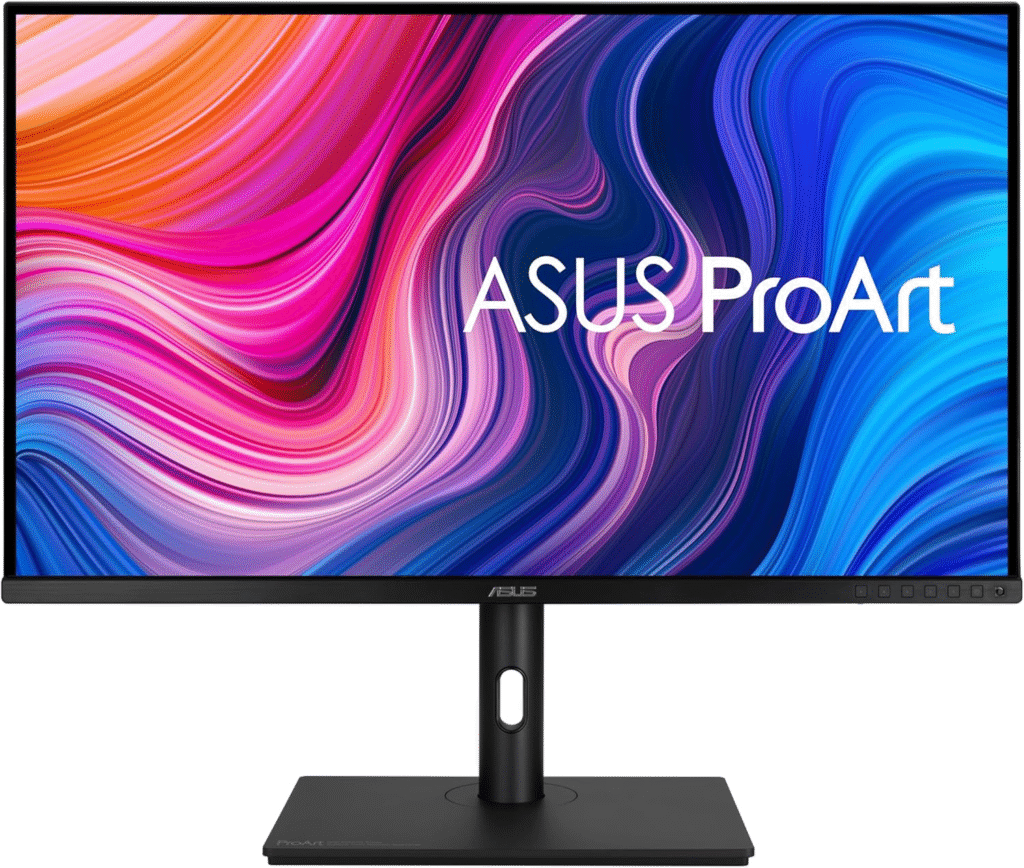
This monitor changed how I viewed HDR content.
My Experience
While grading HDR footage for a short film, the mini-LED backlighting and local dimming made shadows look deep without crushing detail. Highlights popped naturally.
It’s expensive but when you see the dynamic range, you understand why.
Why We Picked It
- Mini-LED panel
- 1600 nits peak brightness
- 100% sRGB
- 99% DCI-P3
- Calman verified
Performance & Real-World Applications
Ideal for:
- Professional colorists
- Film editors
- Studio environments
- Advanced HDR workflows
This is not for casual editing.
Why It Made the List
Because it delivers near-reference-level performance without jumping into broadcast-grade pricing.
Reasons to Buy
- Outstanding HDR
- Incredible brightness
- True professional calibration
Reasons Not to Buy
- High price
- Overkill for beginners
Specs & Configurations
- 32-inch IPS Mini-LED
- 4K resolution
- Thunderbolt connectivity
- 1600 nits peak
- Hardware calibration support
How It Compares to Similar Options
Compared to OLED displays, it avoids burn-in risk. Compared to standard IPS monitors, it destroys them in HDR contrast.
What To Look For In a Monitor for Video Editing
Before buying, here’s what truly matters:
1. Color Gamut Coverage
Look for at least:
- 100% sRGB
- 95%+ DCI-P3
2. Resolution
4K is ideal for 4K workflows. 1440p is acceptable for beginners.
3. Panel Type
- IPS = Best balance of accuracy and cost
- OLED = Superior contrast but risk of burn-in
- Mini-LED = Excellent HDR
4. Calibration
Factory calibration saves time and ensures accuracy.
5. Brightness
At least 350 nits for SDR. HDR work requires 600+ nits.
Factors to Consider When Buying
- Desk space (27″ vs 32″)
- Budget
- GPU compatibility
- Thunderbolt or USB-C needs
- HDR workflow requirements
- Beginner vs Pro needs
If you’re just starting YouTube editing, you don’t need a $2,000 reference monitor. But if you’re delivering Netflix-level content, accuracy becomes non-negotiable.
FAQs
1. Is 4K necessary for video editing?
If you edit 4K footage, yes. It allows pixel-accurate previews and better scaling.
2. Is IPS better than OLED for editing?
IPS offers color stability and no burn-in risk. OLED delivers deeper blacks but can degrade over time.
3. How important is DCI-P3 coverage?
Very important for cinematic and streaming content. At least 95% is recommended.
Final Summary
After testing multiple displays, tweaking color settings, exporting test footage, and comparing results across devices, one thing is clear:
Your monitor is not just a screen. It’s your truth source.
If you’re serious about video editing in the United States market—whether for YouTube, client work, or professional filmmaking invest in a display that matches your ambition.
For most people, the BenQ PD3220U strikes the perfect balance.
For hybrid creators, the LG 27GP950-B is surprisingly strong.
For professionals pushing HDR boundaries, the ASUS ProArt PA32DWL stands out.
Choose based on your workflow, not just price.
Where to Buy
You can find these monitors on Amazon:
- BenQ PD3220U
- LG 27GP950-B
- ASUS ProArt PA32DWL
(Availability and pricing may vary.)
Amazon Affiliate Disclaimer:
As an Amazon Associate, we may earn from qualifying purchases. This helps support our testing and research process at no extra cost to you. We only recommend products we have personally tested or carefully evaluated.