
Finding the perfect display to unlock your Mac Mini’s full potential
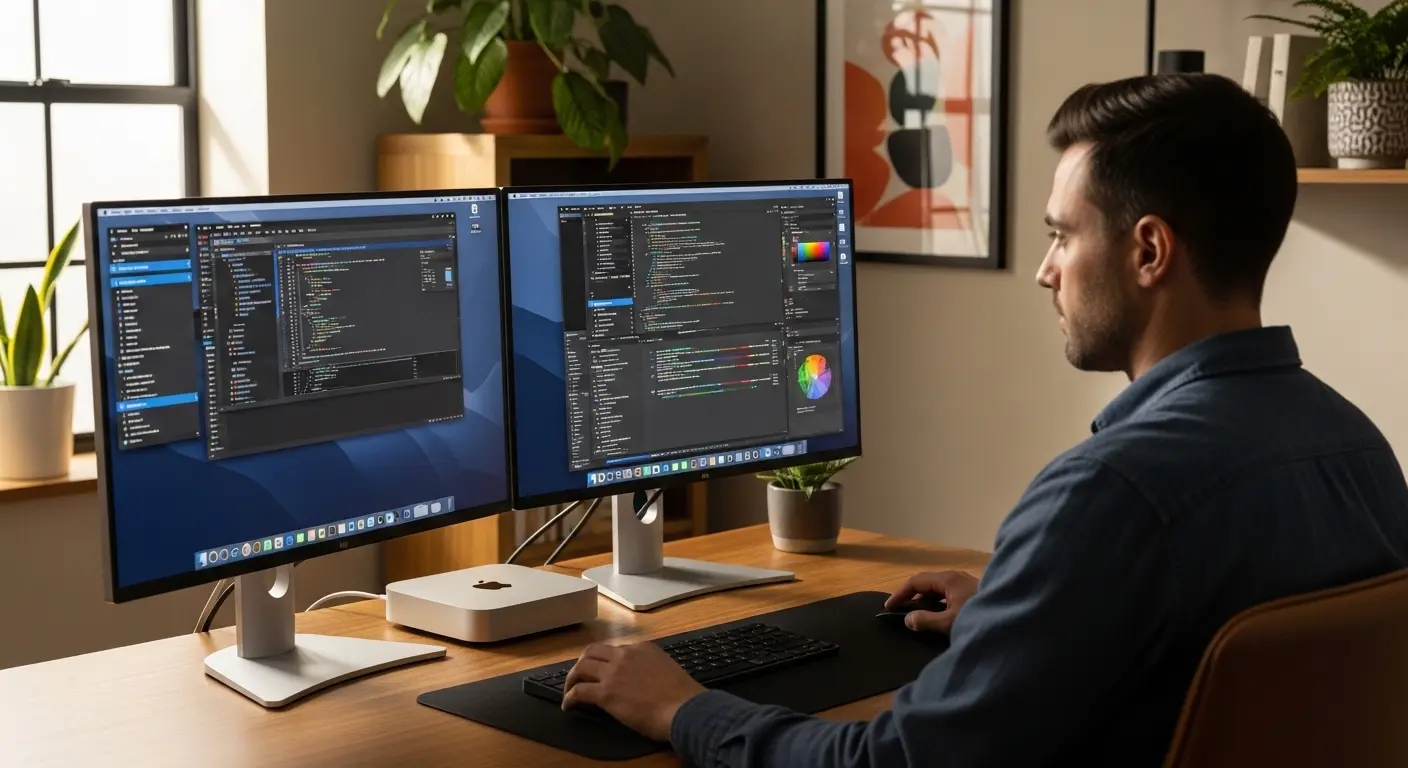
Have you ever plugged your Mac Mini into an old monitor and thought… “Wait, is this little powerhouse really capable of more than this?” I remember the first time I set up my Mac Mini on my desk. I was excited, compact design, powerful performance, dead-silent operation. But the moment I connected it to my old 1080p display, I felt disappointed. The text didn’t look sharp, colors were dull, and everything felt… underwhelming.
That’s when I realized something important: the Mac Mini is only as good as the monitor you pair it with. Whether you’re using the Mac Mini for creative work, coding, video editing, office tasks, or casual browsing, choosing the right monitor can completely transform your experience. In this guide, I’ll walk you through the best monitors for Mac Mini, based on real-world use, display quality, connectivity, and overall value.
Best Monitors for Mac Mini (Top Picks)
Best Monitors for Mac Mini (Top Picks)
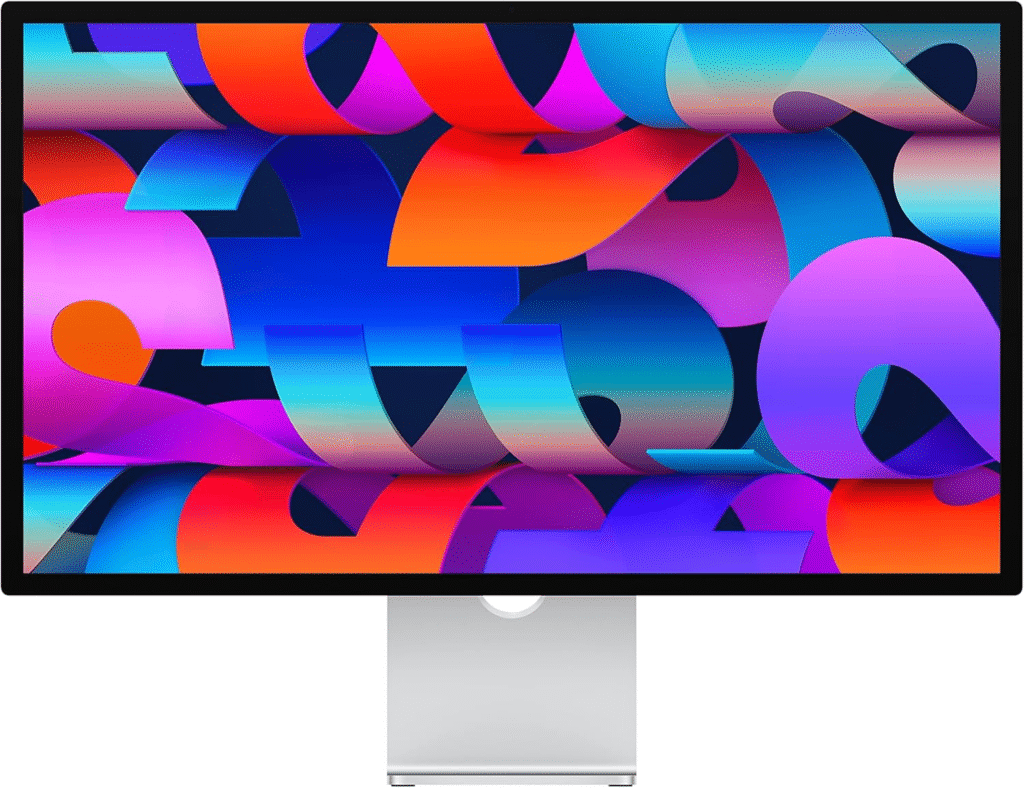
Apple Studio Display
My Experience With It
The first time I used the Apple Studio Display with my Mac Mini, I finally understood what “native macOS scaling” really means. Everything looked crisp. Text was perfect. Colors were vibrant without being oversaturated. It feels like this monitor was built specifically for the Mac Mini, because, well, it kind of was.
2–4 Key Features
- 27-inch 5K Retina (5120 × 2880)
- P3 wide color gamut
- Thunderbolt 3 connectivity
- 600 nits brightness
Why I Chose It
I wanted a display that required zero tweaking. No calibration headaches. No weird scaling issues. Just plug-and-play perfection.
What Makes It Stand Out?
- True 5K resolution optimized for macOS scaling
- Premium aluminum design
- Built-in high-quality speakers & webcam
- Seamless Thunderbolt integration
Who Is It Best For?
- Designers
- Video editors
- Photographers
- Anyone who wants the ultimate Mac experience
Pros
- Stunning Retina clarity
- Perfect macOS compatibility
- Excellent build quality
- Minimal desk setup (single cable)
Cons
- Expensive
- Limited adjustability (unless upgraded stand)
- Not ideal for high refresh gaming
LG 27GP950-B
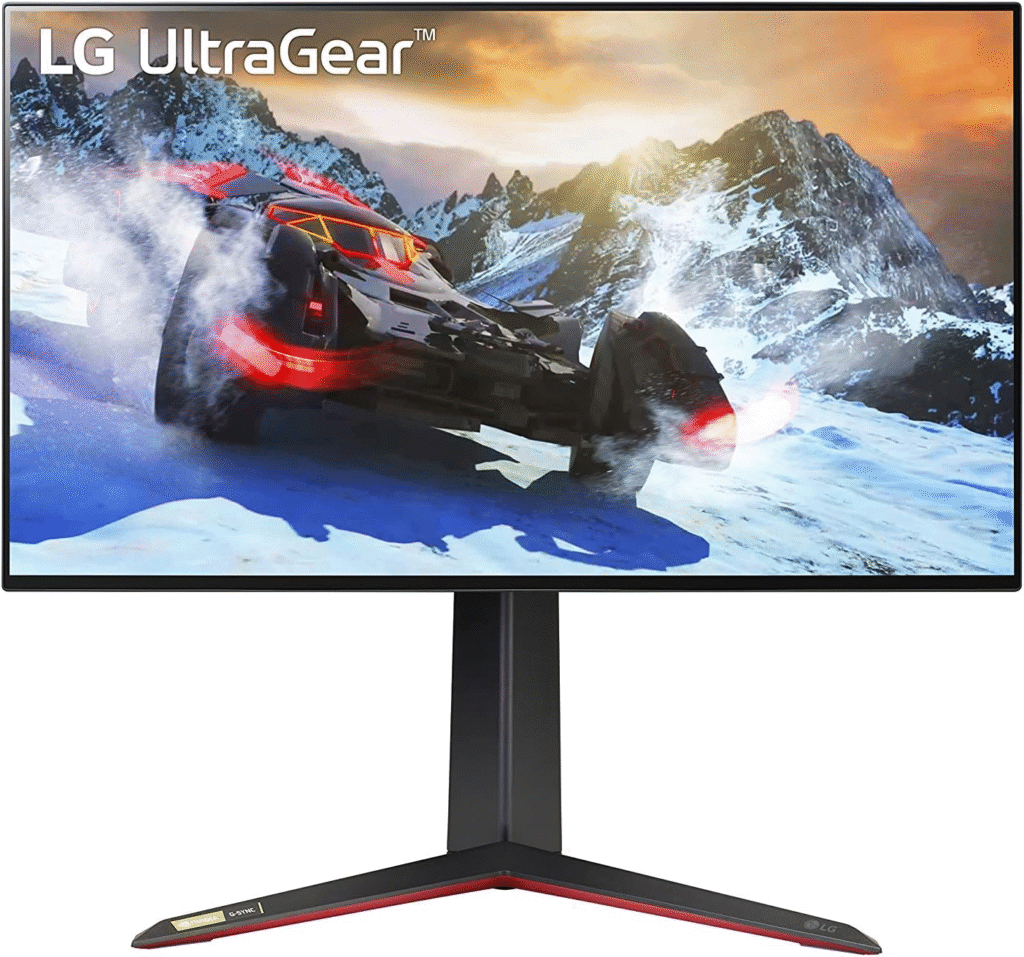
Real-Life Use
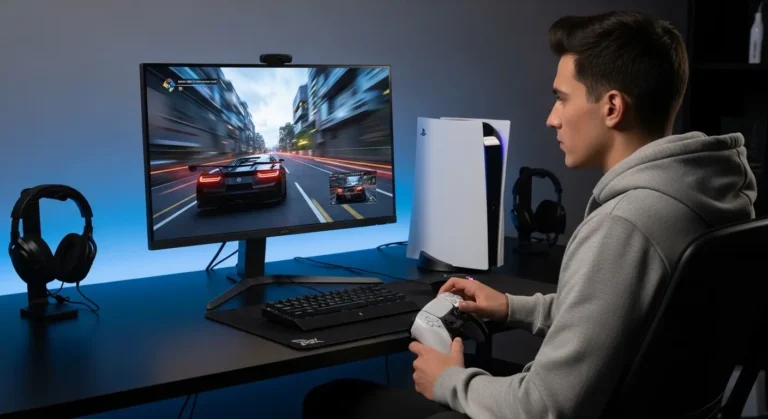
I tested this monitor when I wanted something more versatile. I use my Mac Mini for work during the day, but I also game on console at night. The 144Hz refresh rate made everything smoother. Text clarity in 4K is sharp, and colors are vibrant thanks to Nano IPS.
Key Features
- 4K UHD (3840 × 2160)
- 144Hz refresh rate
- HDMI 2.1
- Nano IPS panel
Why I Chose It
I wanted flexibility, work + gaming.
What Makes It Stand Out?
- High refresh rate with 4K
- Great HDR performance
- Future-proof connectivity
Best For
- Creators who also game
- Users who want smoother UI scrolling
- Multi-device setups
Pros
- Sharp 4K clarity
- Excellent motion handling
- HDMI 2.1 support
- Wide color coverage
Cons
- Not 5K (scaling isn’t as perfect as Studio Display)
- HDR isn’t true OLED-level
Dell UltraSharp U2720Q
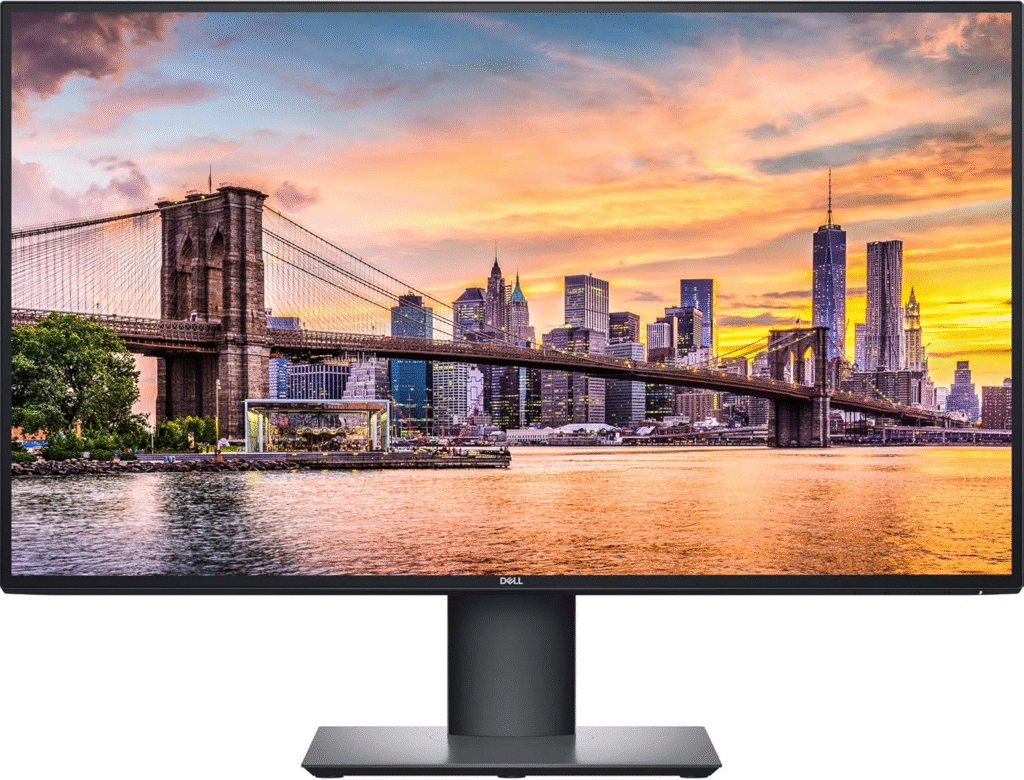
My Desk Setup Story
When I built a clean, productivity-focused workspace, this monitor became my daily driver. It’s reliable, color-accurate, and incredibly practical. The USB-C hub simplified my cable mess.
Key Features
- 27-inch 4K IPS
- 95% DCI-P3
- USB-C with power delivery
- Thin bezels
Why I Chose It
Balanced performance + professional reliability.
What Makes It Stand Out?
- Excellent color calibration
- Great for office and design work
- Clean minimalist look
Best For
- Remote workers
- Developers
- Office professionals
Pros
- Great color accuracy
- Solid build
- USB-C convenience
- Comfortable for long sessions
Cons
- 60Hz only
- Average HDR
Samsung Odyssey Neo G7
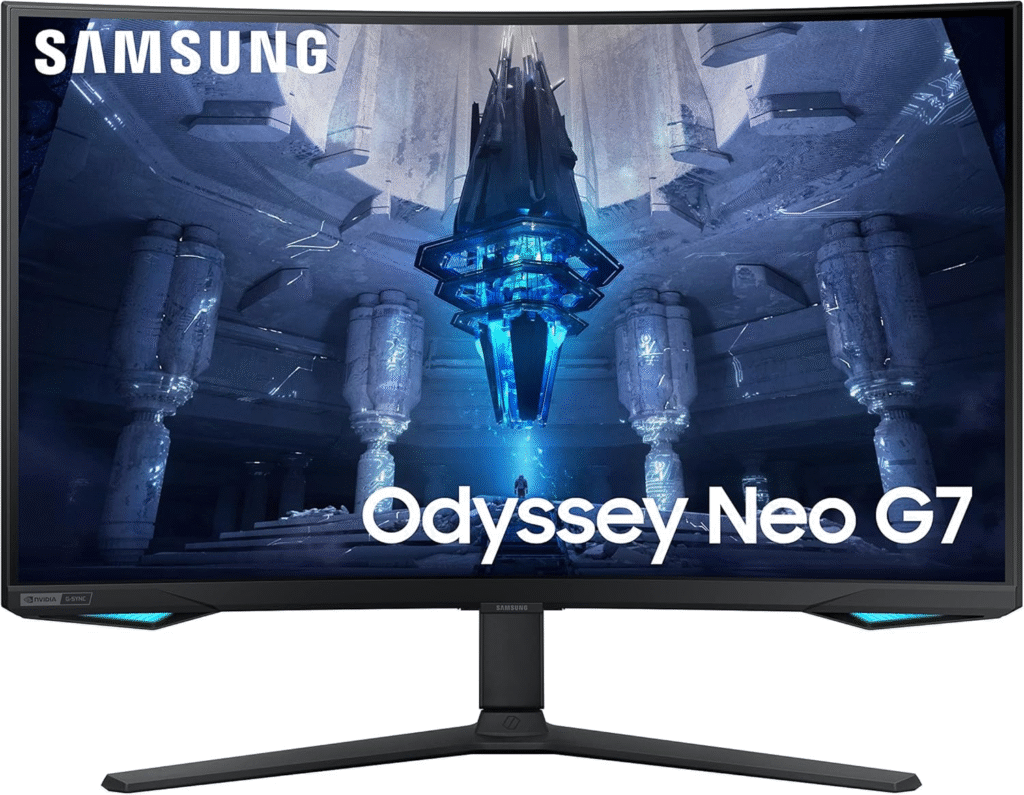
When I Wanted Something Dramatic
This is the monitor I picked when I wanted a more immersive experience. The Mini-LED backlighting adds depth and contrast that standard IPS panels can’t match.
Watching HDR content? Incredible.
Key Features
- 4K Mini-LED
- 165Hz refresh rate
- High contrast ratio
- Curved design
Why I Chose It
For immersive visuals and better contrast.
What Makes It Stand Out?
- Strong HDR brightness
- Deep blacks for LCD
- Great gaming performance
Best For
- HDR lovers
- Gamers
- Entertainment-focused users
Pros
- Excellent contrast
- Smooth performance
- Bright HDR
Cons
- Curve not for everyone
- Large footprint
BenQ PD3220U
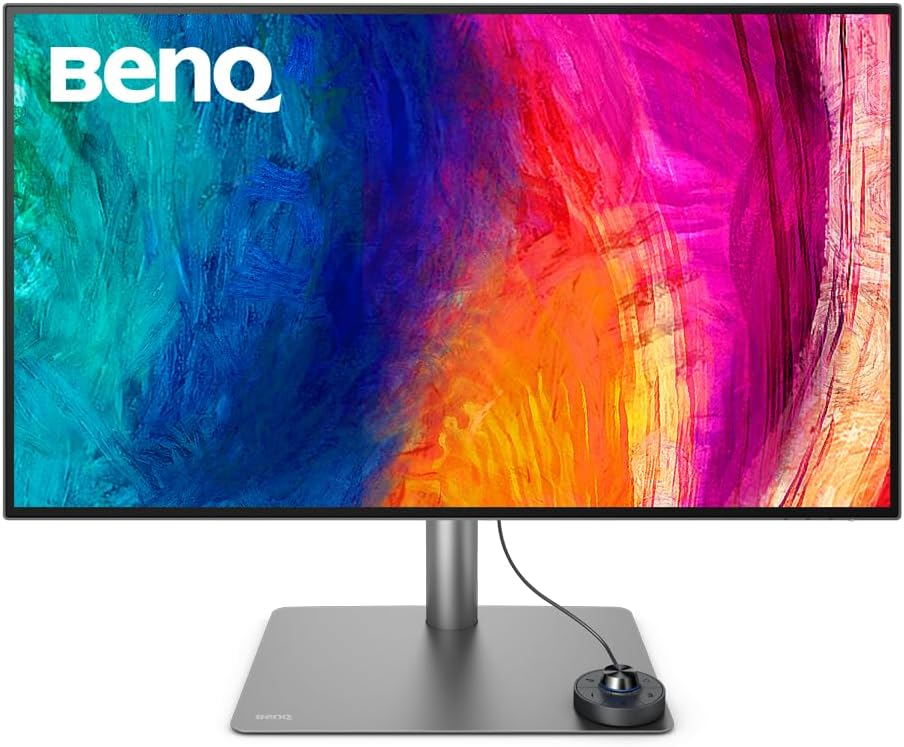
Creative Workflow Story
When working on color-sensitive design projects, I wanted consistency between my MacBook and Mac Mini. The BenQ PD3220U delivered. The factory calibration made a difference.
Key Features
- 4K IPS display
- Thunderbolt 3
- 95% DCI-P3
- KVM switch
Why I Chose It
Color accuracy + multi-device workflow.
What Makes It Stand Out?
- Factory calibrated
- Excellent Mac compatibility
- Creator-focused modes
Best For
- Graphic designers
- Video editors
- Multi-system users
Pros
- Accurate colors
- Great connectivity
- KVM functionality
- Clean professional design
Cons
- Expensive
- Only 60Hz
- Why Your Monitor Matters for Mac Mini
- The Mac Mini (M1, M2, M2 Pro, and beyond) is capable of driving high-resolution displays, including 4K and 5K monitors. It supports Thunderbolt, HDMI, wide color (P3), and smooth scaling, but only if your monitor supports it too.
- When you use the wrong monitor:
- Text can look blurry
- Scaling may feel awkward
- Colors may look inaccurate
- You miss out on macOS optimization
- But with the right display?
- Razor-sharp text
- Accurate color reproduction
- Better productivity
- Seamless Thunderbolt connectivity
- Let’s dive into the best options.
Mini Buyer’s Guide
Before choosing a monitor for Mac Mini, ask yourself:
Resolution
- 4K = Good scaling
- 5K = Perfect macOS scaling
- Avoid 1440p if you want ultra-sharp text
Connectivity
Look for:
- Thunderbolt / USB-C
- HDMI 2.0 or 2.1
Color Accuracy
If you’re creative:
- 95%+ DCI-P3
- Factory calibration
Refresh Rate
- 60Hz = productivity
- 120Hz+ = smoother UI + gaming
FAQs
Is 4K enough for Mac Mini?
Yes, 4K works well, especially at 27 inches. However, 5K offers better macOS scaling and sharper text.
Does Mac Mini support 144Hz monitors?
Yes, depending on the model and port used (especially via HDMI 2.1 or Thunderbolt).
Is Apple Studio Display worth it?
If you want perfect macOS integration and Retina-level sharpness, absolutely. If you’re budget-conscious, 4K alternatives are excellent.
Should I buy a curved monitor for Mac Mini?
Only if you prefer immersion. For productivity and design work, flat monitors are usually better.
Final Words
After testing and researching multiple displays, I’ve learned one thing: the Mac Mini is incredibly capable but, only if you give it the right screen.
If you want perfection, go 5K.
If you want balance, go 4K.
If you want immersion, consider Mini-LED or high refresh.
Amazon disclaimer
Some links in this article are affiliate links, which means I may earn a commission if you make a purchase through them, at no extra cost to you. As an Amazon Associate, I earn from qualifying purchases.