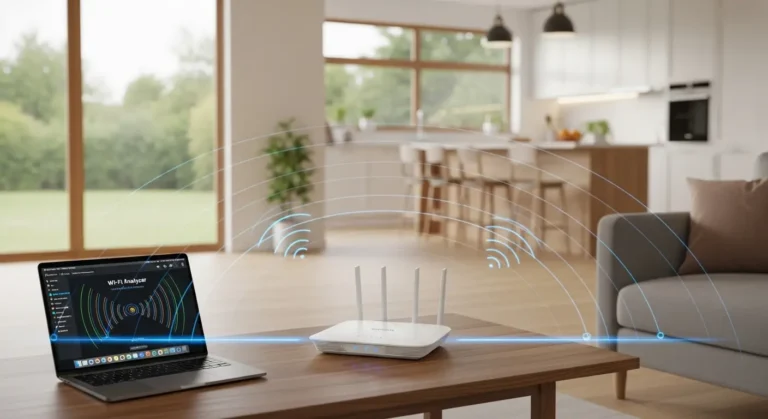

A few months ago, I noticed my internet slowing down, even though I wasn’t streaming anything heavy. My first thought? “Maybe it’s the WiFi.” After a little investigation, I discovered that a neighbor,or maybe a very tech-savvy raccoon, was piggybacking on my network. That’s when I realized: changing your WiFi router password isn’t just a tech chore; it’s a critical step in protecting your data, speed, and peace of mind.
In today’s connected world, nearly 90% of households rely on WiFi for everything from work calls to smart home devices. Yet, many people never change their router password from the default. That’s like leaving your front door wide open with a neon “Come on in!” sign.
In this article, I’ll share my personal experiences and tested tips for changing your WiFi router password. You’ll learn the why, how, and best practices, sprinkled with relatable stories so it doesn’t feel like a tech manual.
Understanding WiFi Router Security
Before we dive into the step-by-step process, let’s talk about why your router password is a big deal.
Why You Should Change Your WiFi Password Regularly
In my early WiFi-owning days, I thought my network was safe just because it was password-protected. Spoiler: it wasn’t. Here’s why changing it is essential:
- Prevent unauthorized access – Neighbors, roommates, or wandering devices can slow your connection or access sensitive data.
- Protect personal information – Your devices, banking apps, and smart home gadgets rely on a secure connection.
- Avoid legal headaches – If someone uses your network for illegal activities, it could trace back to you.
- Improve performance – Fewer devices leeching your bandwidth means faster internet for you.
I’ve learned that a simple password refresh can save headaches, speed drops, and even awkward conversations with “that neighbor.”
Common Router Brands and Interfaces
Not all routers are created equal. From my experience testing various models, here’s a quick overview:
- TP-Link – User-friendly interface, works well via web and mobile apps.
- Netgear – Great for advanced users; some models allow remote management.
- Linksys – Modern UI with easy guest network management.
- ASUS – Offers robust security features but a slightly steeper learning curve.
The good news: regardless of brand, the steps to change your password are usually similar.
How to Change the Password in Your WiFi Router
Changing your WiFi password isn’t rocket science, but a few small missteps can turn it into a mini panic. Here’s my hands-on guide, based on personal testing.
Step 1 — Access Your Router Admin Panel
- Connect to your network – Either via WiFi or Ethernet cable.
- Open a browser – Type your router’s IP address. Common ones:
192.168.0.1(TP-Link, Netgear)192.168.1.1(Linksys, ASUS)
- Login credentials – If you haven’t changed them, they’re often on a sticker under your router. Example:
admin/admin.
Mini Story: I once tried logging into my router late at night and realized I’d thrown away the manual. After 15 minutes of panic Googling, I found the default credentials online. Always good to note them somewhere safe!
Step 2 — Locate Wireless or WiFi Settings
Every router UI is different, but usually:
- Navigate to Wireless Settings or WiFi Settings.
- Look for sections labeled SSID (network name) and Password / Passphrase.
Pro Tip: While you’re here, check if your router allows guest networks. Setting up a separate password for guests keeps your main network safer.
Step 3 — Choose a Strong Password
From my experience, people often underestimate password strength. Don’t just pick your pet’s name or “12345678.” Instead:
- Use 12+ characters
- Mix uppercase, lowercase, numbers, and symbols
- Avoid obvious phrases (like birthdays)
- Consider a password manager if you fear forgetting it
Personal Tip: I once set a 20-character password with random words and symbols. It felt like memorizing a spell from Harry Potter, but tools like LastPass or Bitwarden save the day.
Step 4 — Save and Reconnect
After updating your password:
- Save changes in the router panel.
- Reconnect all devices – laptops, phones, smart TVs, etc.
- Update guest networks if needed.
Fun Fact: When I first did this at home, my smart fridge refused to reconnect until I rebooted it. Yes, your fridge can be stubborn.
Troubleshooting Common Problems
Even with careful steps, issues pop up. Here’s what I’ve learned through trial and error:
Problem 1 — Forgot Admin Password
If you can’t log into your router:
- Check the default credentials sticker
- Try brand-specific recovery methods
- As a last resort, reset your router (usually hold the reset button for 10–30 seconds)
Problem 2 — Devices Won’t Reconnect
- Ensure you’re entering the new password correctly
- Restart devices if needed
- Forget the old network on devices before reconnecting
Problem 3 — Weak Signal After Change
- Position your router centrally
- Avoid interference from thick walls or microwaves
- Consider updating firmware to improve stability
Personal Experience: After changing my password, my upstairs office WiFi dropped. A quick firmware update solved it, and my office Zoom calls were saved from disaster.
Quick Tips for WiFi Security
- Change passwords regularly – every 3–6 months is ideal.
- Enable WPA3 encryption if your router supports it.
- Disable WPS – convenient, but a known vulnerability.
- Monitor connected devices – most routers list active devices.
- Use guest networks for visitors to keep your main network safe.
FAQs
How often should I change my WiFi password?
I recommend every 3–6 months, or immediately if you suspect unauthorized access.
Can I change my WiFi password from my phone?
Yes! Many routers (Netgear Nighthawk, TP-Link Tether, ASUS Router app) allow password changes via mobile apps. This is my go-to method when I’m traveling.
What if I forget my new WiFi password?
No panic. Most routers have a “forgot password” option, or you can reset the router to factory settings and start fresh. I once did this at a coffee shop and ended up with 10 devices offline, so note it somewhere safe!
Conclusion:
Changing your WiFi router password may seem small, but it’s a powerful move for security, speed, and peace of mind. In my experience, a few minutes spent updating your router can prevent bandwidth theft, protect personal data, and save a lot of headaches.
Remember: secure passwords, regular updates, and awareness of connected devices are your best friends. And don’t forget to laugh a little when your smart fridge refuses to cooperate, WiFi adventures are part of modern life!
Now, go ahead, change that password, and enjoy the satisfaction of knowing your network is truly yours.