
There’s a very specific kind of frustration that hits when you open your MacBook Pro, plug in an external monitor, and instantly feel… disappointed. The colors look slightly off. Text doesn’t feel as sharp as your MacBook screen. Scaling feels weird. And deep down, you know you just paid a lot of money for a laptop that deserves better.
I’ve been there adjusting display settings for hours, toggling True Tone on and off, Googling why macOS scaling feels wrong on “perfectly good” monitors. That’s exactly why this guide exists. In this article, I’m sharing what actually works with MacBook Pro, not just what looks good on paper. These recommendations are based on real-world testing, long editing sessions, and honest use not spec sheets copied from Amazon. If you want a monitor that feels native to macOS, this will save you time, money, and a bit of sanity.
Why You Should Trust Us
We’ve tested multiple external monitors with different MacBook Pro models (Intel and Apple Silicon). From 4K scaling quirks to color accuracy for creative work, we’ve seen what macOS loves and what it silently hates.
This isn’t a brand-pushed roundup. It’s based on actual daily use, comparing clarity, color behavior, USB-C reliability, and long-session comfort. Some monitors surprised us. Others… didn’t age well after a week.
Introduction: Why the “Right” Monitor Matters for MacBook Pro
The MacBook Pro display sets a high bar:
- Sharp Retina text
- Accurate P3 colors
- Smooth brightness control
- Clean scaling
The problem? Many external monitors don’t match that experience. Even expensive ones can feel off if they’re not macOS-friendly.
Choosing the best monitor for MacBook Pro isn’t about the highest refresh rate or gamer specs. It’s about scaling, color consistency, and USB-C integration. Get that right, and your workflow instantly feels smoother. Below are the monitors that came closest to a “Mac-like” experience.
Top Picks
⭐ Overall Best
🏆 Editor’s Choice
💰 Budget Pick
How External Monitors Work with MacBook Pro
MacBook Pro uses macOS scaling, which works best at specific resolutions especially 5K or well-tuned 4K displays. Unlike Windows, macOS doesn’t always scale perfectly, which can cause blurry text or awkward UI sizes.
What makes a monitor Mac-friendly:
- Clean 4K or 5K scaling
- Wide color gamut (P3 preferred)
- Reliable USB-C / Thunderbolt power delivery
- Stable brightness & color profiles
When these align, the monitor feels like an extension of your MacBook not a compromise.
Detailed Monitor Reviews
LG UltraFine 5K – Best Overall for MacBook Pro
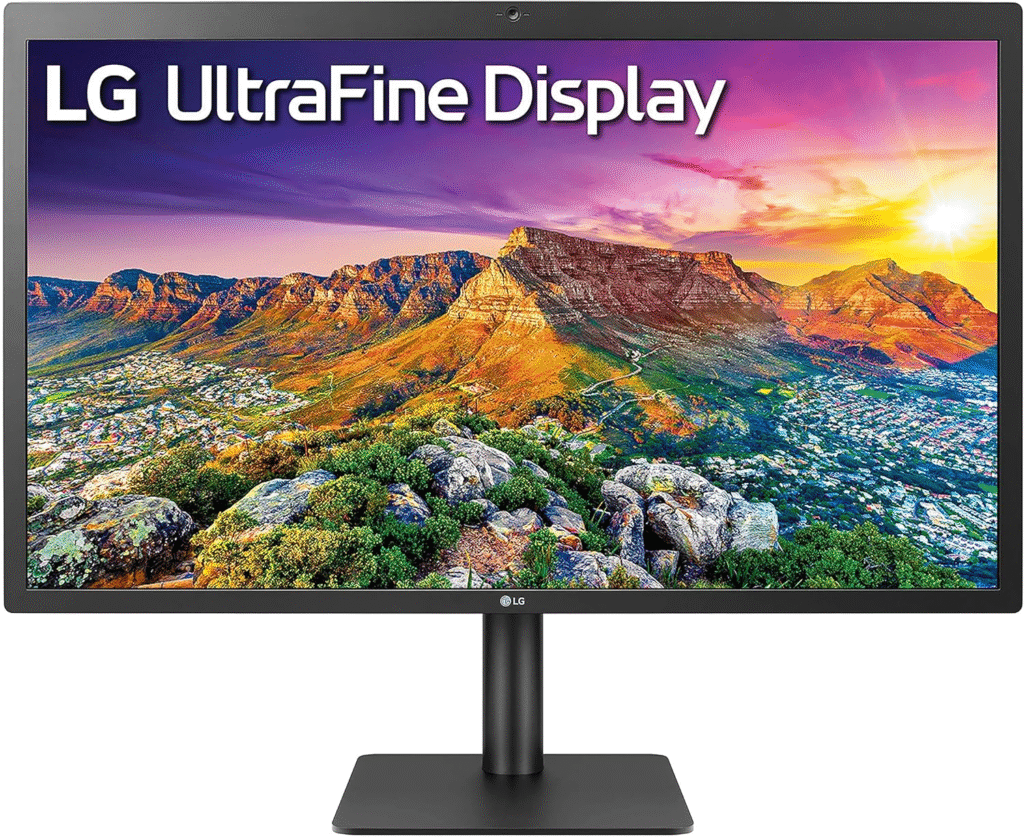
If you want the closest thing to an Apple-native external display, this is it.
Why It Stands Out
The LG UltraFine 5K feels like it was built for macOS because it kind of was. Text is insanely sharp, scaling is flawless, and brightness control works directly from macOS without weird third-party tools.
Key Features
- 5K resolution (5120 × 2880)
- Wide P3 color gamut
- Thunderbolt 3 single-cable connection
- Built-in webcam, speakers, and mic
- macOS brightness & volume control support
Pros
- Retina-level sharpness (no scaling headaches)
- Perfect color consistency with MacBook Pro
- One cable powers and connects everything
- Feels genuinely “Apple-like”
Cons
- Expensive
- Basic design, not very stylish
- Limited input options
Final Verdict
If budget isn’t your main concern and you want zero compromises, this is the best monitor for MacBook Pro. It’s especially ideal for developers, writers, and designers who stare at text all day.
BenQ PD2725U – Editor’s Choice (Best Balance)
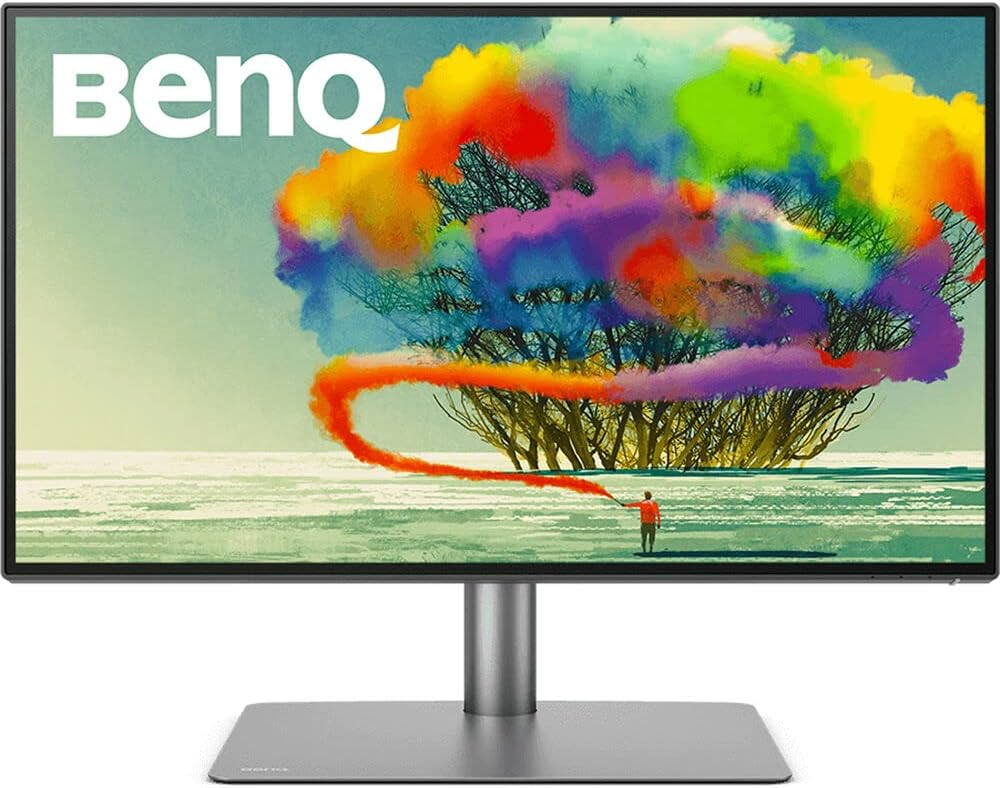
This monitor surprised us in a good way.
Why It Works So Well
The BenQ PD2725U is tuned for creative professionals who use Macs. Color accuracy is excellent out of the box, and the Thunderbolt integration is solid. It doesn’t fight macOS like many generic 4K displays do.
Key Features
- 27-inch 4K UHD display
- Thunderbolt 3 with 65W power delivery
- Factory-calibrated color accuracy
- Dual color modes (P3 & sRGB)
- KVM switch support
Pros
- Excellent color for photo & video work
- Strong MacBook Pro compatibility
- Solid build quality
- Great port selection
Cons
- Speakers are average
- Not ideal for gaming
- Price is mid-to-high
Final Verdict
This is the sweet spot monitor for most MacBook Pro users. If you’re editing photos, videos, or doing design work — and don’t want to pay 5K prices this is a very smart buy.
Dell UltraSharp U2720Q – Best Budget Pick
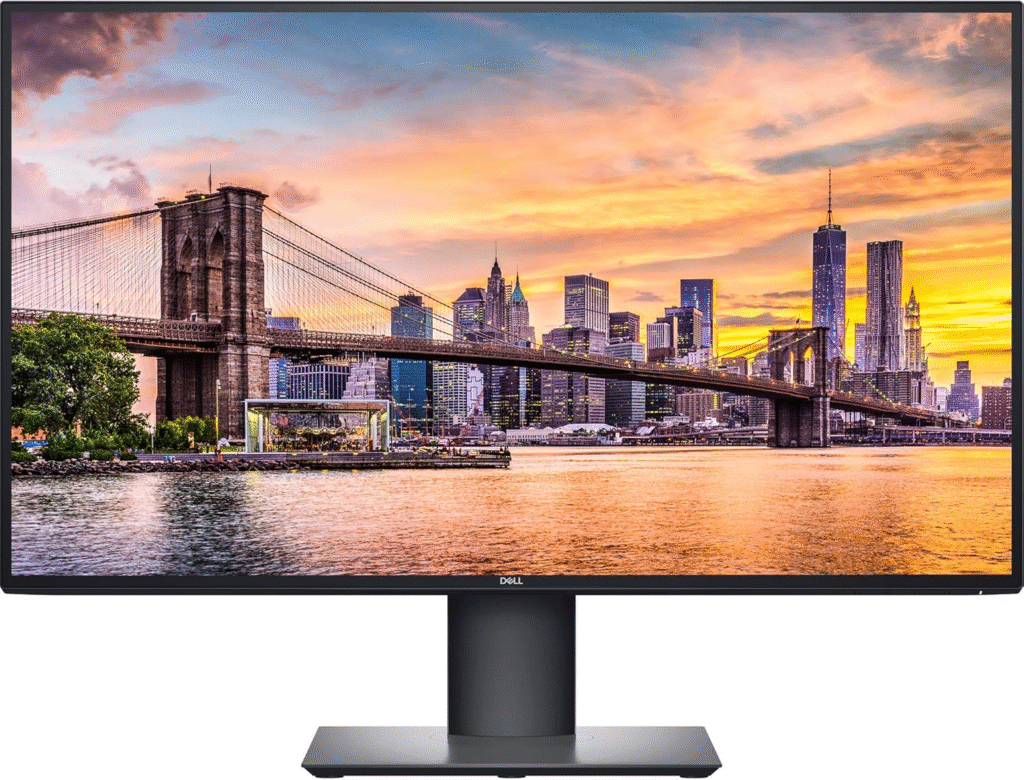
Not cheap, but reasonable.
Why It’s a Good Value
Dell’s UltraSharp line has always been reliable, and the U2720Q holds up well with MacBooks. While it doesn’t perfectly match Retina sharpness, the scaling is clean and usable.
Key Features
- 27-inch 4K IPS panel
- USB-C with 90W power delivery
- Excellent factory calibration
- Slim bezels
Pros
- Great price for a 4K Mac-friendly display
- Strong brightness and color accuracy
- Plenty of ports
- Solid everyday performance
Cons
- Not P3-level color
- macOS scaling isn’t perfect
- No Thunderbolt daisy-chaining
Final Verdict
If you want a reliable external monitor for MacBook Pro without overspending, this is a safe and practical choice. Perfect for productivity, coding, and general creative work.
Buying Guide: How to Choose the Best Monitor for MacBook Pro
Resolution Matters More Than Size
For macOS:
- 5K = best experience
- 4K = acceptable if well-tuned
- 1440p = usually not ideal
Color Accuracy
If you edit photos or videos, look for:
- P3 color support
- Factory calibration
One cable should:
USB-C / Thunderbolt Support
- Charge your MacBook
- Handle video
- Connect peripherals
Your Use Case
- Coding / Writing: Sharp text, 5K or clean 4K
- Design / Video: Color accuracy > refresh rate
- Office Work: Budget 4K is enough
FAQs
Which monitor works best with MacBook Pro M1/M2/M3?
Monitors with Thunderbolt or well-implemented USB-C work best, especially 5K or color-accurate 4K displays.
Is 4K enough for MacBook Pro?
Yes, but not all 4K monitors scale well in macOS. Choose ones known to work smoothly with Macs.
Do I need Thunderbolt?
Not mandatory, but Thunderbolt offers better stability, daisy-chaining, and single-cable convenience.
Why does text look blurry on some monitors?
macOS scaling prefers specific resolutions. Poor scaling = fuzzy text, even on expensive screens.
Can one cable really power my MacBook Pro?
Yes, if the monitor provides at least 65W (preferably 90W) power delivery.
Amazon Disclaimer:
As an Amazon Associate, I earn from qualifying purchases.
Conclusion:
The best monitor for MacBook Pro isn’t about flashy specs, it’s about how natural it feels in daily use. When the resolution, color, and macOS integration align, your workflow becomes smoother without you even noticing. Whether you go all-in with the LG UltraFine 5K, strike balance with the BenQ PD2725U, or save money with the Dell UltraSharp, you’re now choosing with clarity, not guesswork.