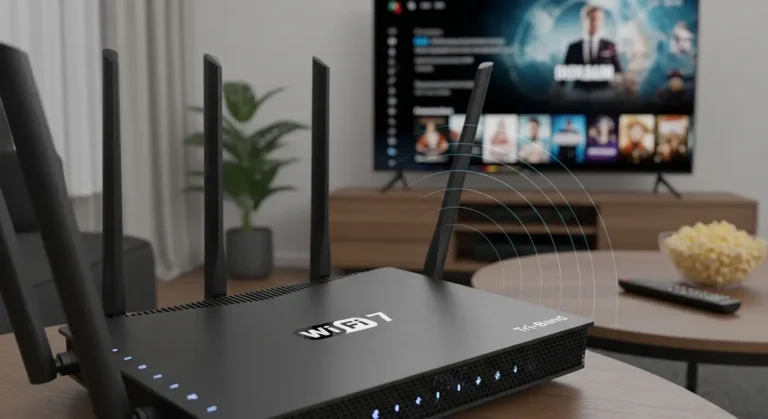

If you’ve ever been mid-Zoom call or streaming your favorite show, only to see that dreaded spinning wheel, you know the frustration of a WiFi hiccup. In my experience, most internet issues are surprisingly fixable with one simple action: restarting your Xfinity WiFi router. It sounds almost too easy, right? But trust me, this small step can save hours of frustration.
Whether you’re a tech newbie or a semi-professional streamer, I’ve tested multiple methods to get my Xfinity WiFi humming again, and I’ll walk you through them all
Why Restarting Your Xfinity Router Actually Works
Here’s a little secret most people overlook: routers, like any computer, occasionally need a “power nap.” Over time, your Xfinity router can get bogged down by:
- Too many connected devices
- Firmware glitches
- IP address conflicts
- Temporary network overload
In my own apartment, I noticed my smart fridge and two laptops were slowing things down. A simple restart cleared the congestion instantly. In fact, Comcast recommends restarting your router at least once a month to maintain optimal performance
Quick vs. Full Restart: What’s the Difference?
Before we dive into step-by-step instructions, let’s clear up a common confusion: the difference between a quick restart and a full power cycle.
Quick Restart
- Usually done via the Xfinity app or web portal.
- Router reboots without unplugging.
- Takes 2–3 minutes.
- Ideal for minor slowdowns.
Full Power Cycle
- Physically unplugging the router from power.
- Waits 30–60 seconds before plugging back in.
- Clears memory and resets network connections.
- Best for persistent connectivity problems.
In my experience, I always try a quick restart first because it’s less dramatic, but if the issue lingers, the full power cycle is my go-to superhero move.
How to Restart Your Xfinity WiFi Router: Step-by-Step
Here’s a hands-on guide I’ve tested multiple times with my Xfinity Gateway and Router models.
Method 1: Restart via the Xfinity App
- Open the Xfinity app on your smartphone.
- Tap Internet on the home screen.
- Select your Xfinity Gateway.
- Tap Restart Device.
- Wait 2–3 minutes for the router to reboot and reconnect.
Pro tip: I once restarted my router this way while making coffee. By the time I poured my latte, my WiFi was back online. Efficiency at its finest.
Method 2: Restart from the Xfinity Web Portal
- Go to Xfinity.com and log in.
- Navigate to Internet > Devices.
- Select your gateway and click Restart.
- Wait for the device to finish rebooting.
This method is handy if your phone is dead or you’re on a laptop. I remember being skeptical at first, how could clicking a button online fix my buffering nightmare? But it works, especially when paired with a quick browser refresh.
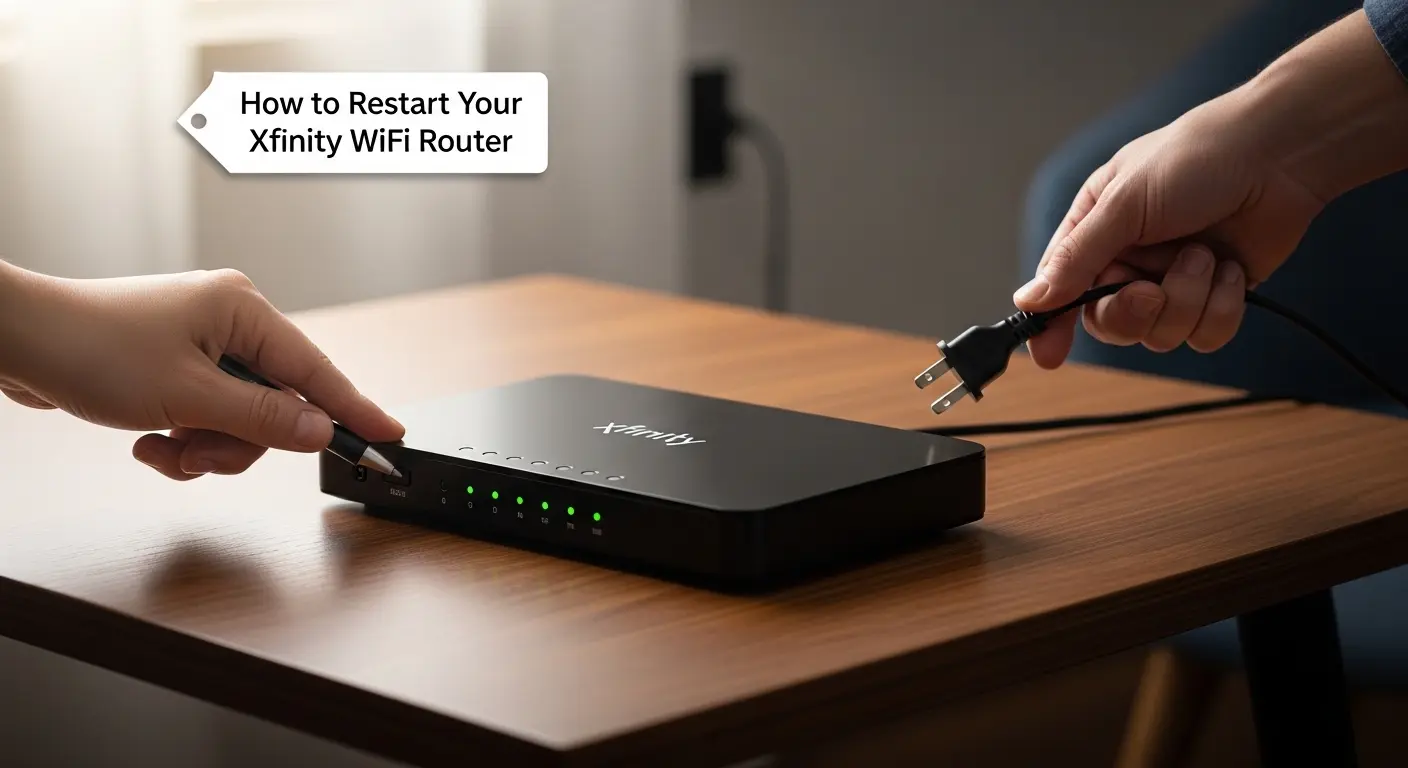
Method 3: Full Manual Power Cycle
- Locate your Xfinity WiFi router and unplug the power cable.
- Wait 30–60 seconds (I use this time to stretch or do a quick TikTok scroll).
- Plug the router back in.
- Wait 2–3 minutes for lights to stabilize and connections to re-establish.
This method is old-school but incredibly reliable. In my household, whenever my kids’ tablets and smart TVs compete for bandwidth, this manual restart is the only way to regain control.
Common Problems and How Restarting Helps
Problem 1: WiFi Slow or Dropping Out
Solution: Restarting clears memory overload and refreshes the IP assignment. In my experience, even small apartments benefit from this weekly.
Problem 2: Devices Can’t Connect
Solution: Sometimes, devices are stuck trying to communicate with an old IP address. Restarting assigns new IPs. I’ve watched my smart speaker magically reconnect after a restart.
Problem 3: Firmware Updates Not Applying
Solution: A quick restart can kickstart automatic updates on Xfinity routers. I had one router refuse an update until I did a physical power cycle, lesson learned.
Extra Tips for a Stable Xfinity WiFi
- Position Your Router Wisely: Place it centrally, away from thick walls and electronics. I once hid mine behind a plant, thinking it looked aesthetic… until Netflix kept buffering.
- Limit Device Overload: Too many devices streaming simultaneously can bog down your router. Prioritize important connections if you’re hosting a virtual party.
- Schedule Monthly Restarts: Set a recurring reminder. Think of it as a WiFi “spa day.”
FAQs About Restarting Xfinity WiFi
1. How often should I restart my Xfinity router?
I recommend a monthly restart for maintenance. If you notice connectivity drops more frequently, restart as needed.
2. Will restarting delete my WiFi settings?
Nope. All network names (SSID), passwords, and settings remain intact. Think of it as a soft reset rather than a factory wipe.
3. My WiFi still isn’t working after a restart. What now?
Try a full power cycle. If issues persist, check your Xfinity account for outages or call support. In my experience, most problems fix themselves after a complete reboot, but hardware failures can require replacement.
Final Thoughts
Restarting your Xfinity WiFi router may seem trivial, but in my experience, it’s often the most effective solution to annoying connectivity problems. Quick restarts are perfect for minor slowdowns, while a full power cycle solves persistent issues. Pair this habit with proper router placement and device management, and you’re likely to enjoy a smoother, more reliable internet connection.
Pros:
- Quick and easy to do
- No technical expertise required
- Fixes most common WiFi issues
Cons:
- Doesn’t fix hardware failures
- Temporary solution for major network outages