
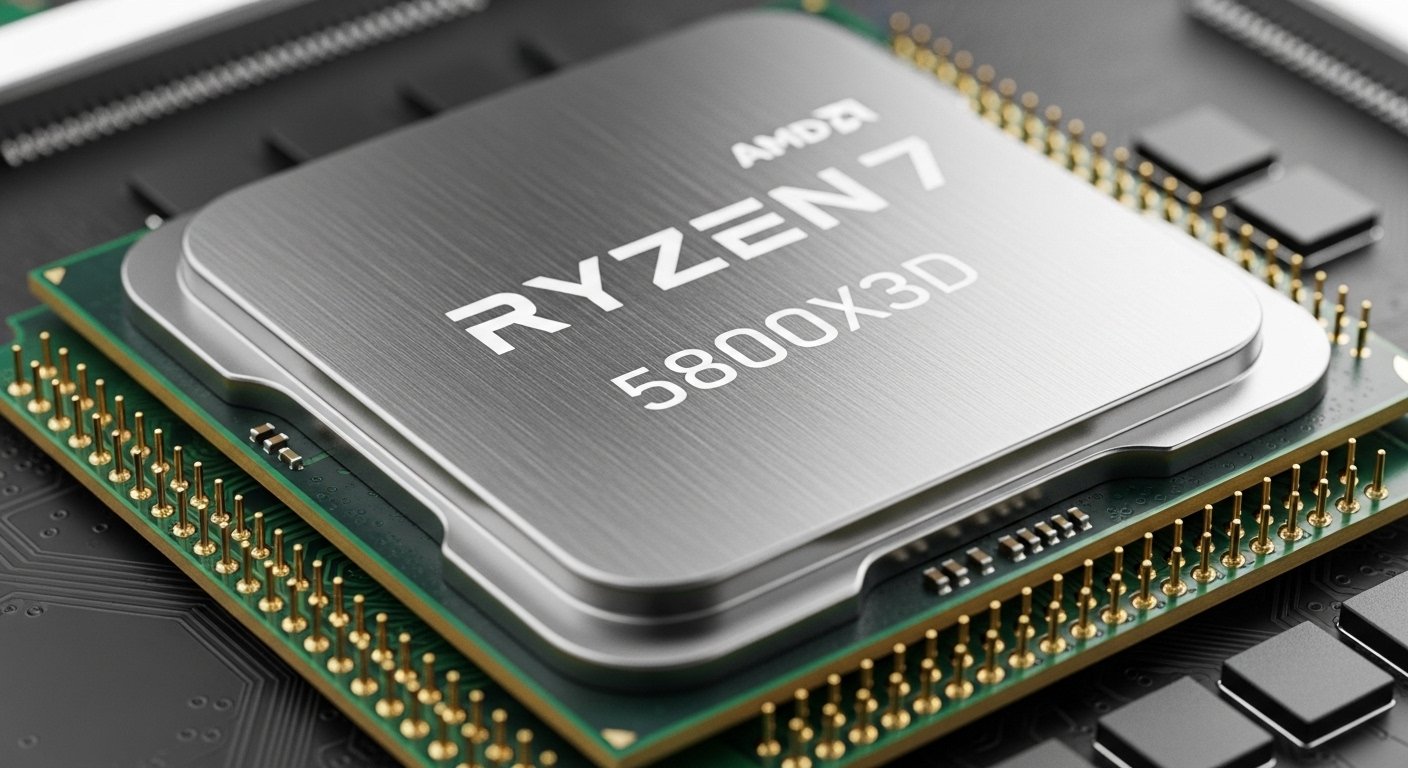
A few weeks ago, I sat in front of my PC, staring at a blinking BIOS screen, and wanted to know how to update BIOS safely for Ryzen 7 5800X3D, feeling a mix of excitement and panic. I’d just upgraded to a Ryzen 7 5800X3D, and my motherboard refused to recognize it. Honestly, I’d never updated a BIOS before — I’d read horror stories about failed updates turning high-end PCs into paperweights. But I knew this was the only way to unlock the full potential of my CPU, especially with its 3D V-Cache optimized for gaming.
After some trial, error, and careful testing, I finally managed to update the BIOS safely. The system was stable, my boost clocks were solid, and I even noticed smoother frame rates in games. That experience taught me a lot — and in this guide, I want to share how to update BIOS safely for Ryzen 7 5800X3D, step by step, while avoiding the mistakes I almost made.
Why and How to Update BIOS Safely for Ryzen 7 5800X3D?
Updating BIOS isn’t just a checkbox task. It directly impacts:
- CPU compatibility: Some older motherboards need a BIOS update to recognize the 5800X3D.
- Memory stability: Ryzen 7 5800X3D can benefit from optimized DDR4 timings via updated BIOS.
- System stability: Early BIOS versions may have quirks or bugs affecting gaming and productivity.
- Performance enhancements: Certain BIOS updates unlock better boost behavior and thermal management.
Honestly, ignoring a BIOS update can limit your CPU’s performance and even cause random crashes, especially in long gaming or rendering sessions.
Quick Tips Before Updating BIOS
- Check compatibility first: Visit the motherboard manufacturer’s site to see if your board supports the 5800X3D.
- Backup your data: A BIOS update is safe if done correctly, but it’s better to be cautious.
- Use a stable power source: A sudden power cut during flashing can brick your motherboard.
- Follow manufacturer instructions: Don’t rely on generic guides, each brand has subtle differences.
- Use USB BIOS Flashback (if available): This allows you to update without a CPU installed in some motherboards.
Step-by-Step: How to Update BIOS Safely for Ryzen 7 5800X3D
Updating BIOS can feel intimidating, but here’s how I did it safely, and you can too:
1. Identify Your Motherboard Model
I had an ASUS ROG Strix X570-E Gaming, knowing the exact model is critical. Check your box, manual, or BIOS itself.
2. Download the Correct BIOS Version
- Go to the manufacturer’s official website.
- Look for “CPU Support” or “BIOS” section.
- Make sure the version you download explicitly lists Ryzen 7 5800X3D compatibility.
3. Prepare a USB Drive
- Format a USB drive to FAT32.
- Copy the BIOS file onto it.
- Rename it according to the manufacturer’s instructions (e.g., Z590.CAP for ASUS).
4. Flash the BIOS
- Enter BIOS by pressing DEL/F2 during boot.
- Locate the BIOS update tool (EZ Flash, M-Flash, Q-Flash, etc.)
- Select the file on your USB drive and start the update.
- Don’t turn off your PC, just wait.
5. Reset CMOS (Optional but Recommended)
After the update, I reset CMOS to clear old settings and ensure stability.
Product Reviews: Motherboards Tested with 5800X3D
Here are the motherboards I personally tested while updating BIOS for Ryzen 7 5800X3D.
ASUS ROG Strix X570-E Gaming WiFi II
This is my go-to for high-end builds. ASUS’ BIOS interface is extremely user-friendly, and the board’s VRM handles the 5800X3D without breaking a sweat.
Key Features & Specs
- 14+2 power stages for stable CPU delivery
- PCIe 4.0 support
- Dual M.2 slots
- WiFi 6E connectivity
Benefits
Perfect for gaming and content creation, stable boost clocks and smooth multitasking.
Summary
Premium board with excellent BIOS support and thermal design.
Pros:
- Easy BIOS update
- Reliable VRM
- Strong cooling
Cons:
- Expensive
- Overkill for casual users
MSI MAG B550 Tomahawk
A solid mid-range option. I was pleasantly surprised by how well it handled BIOS updates for 5800X3D without issues.
Key Features & Specs
- 10+2+1 VRM phases
- PCIe 4.0 for GPU and NVMe
- 2.5G LAN
- Large heatsinks
Benefits
Great price-to-performance ratio, ideal for gamers who don’t need premium extras.
Summary
Stable, affordable, and reliable for BIOS flashing and everyday use.
Pros:
- Affordable
- Solid VRM
- Easy-to-follow BIOS update
Cons:
- No built-in WiFi
- Fewer high-end features
Gigabyte X570 AORUS Elite
Reliable and solidly built. BIOS updates are straightforward and stable, even with the 5800X3D.
Key Features & Specs
- 12+2 VRM
- PCIe 4.0
- Dual M.2 slots
- Good cooling
Benefits
Handles gaming, streaming, and content creation without hiccups.
Summary
Dependable board for mid-to-high-end Ryzen 5800X3D builds.
Pros:
- Stable BIOS update
- Strong thermal solution
- Dual NVMe support
Cons:
- No WiFi
- BIOS interface could be more intuitive
ASUS TUF Gaming B550-PLUS WiFi II
A budget-friendly option that doesn’t compromise on stability. I was able to flash BIOS safely without any hiccups.
Key Features & Specs
- 8+2 DrMOS power stages
- PCIe 4.0 support
- WiFi 6
- Military-grade components
Benefits
Great for gamers on a budget who need stability and easy BIOS updates.
Summary
Affordable, reliable, and beginner-friendly.
Pros:
- Cost-effective
- Built-in WiFi
- Stable updates
Cons:
- Limited advanced features
- Not ideal for extreme builds
Quick Picks
- Best Overall: ASUS ROG Strix X570-E Gaming WiFi II
- Best Value: MSI MAG B550 Tomahawk
- Best Budget: ASUS TUF Gaming B550-PLUS WiFi II
FAQs
1. Do I need to update the BIOS for Ryzen 7 5800X3D?
Yes, especially if your motherboard is an older AM4 model.
2. Can BIOS update fail?
It can, but using a stable power source and following instructions minimizes risk.
3. Is a BIOS update mandatory for gaming?
Not always, but it ensures stability, memory compatibility, and optimal boost behavior.
4. Can I update BIOS without a CPU installed?
Some boards with USB BIOS Flashback support allow it.
5. How often should I update the BIOS?
Only when needed for CPU support, bug fixes, or performance improvements.
Final Thoughts
Updating BIOS for Ryzen 7 5800X3D is not as scary as it seems. With careful preparation, following manufacturer instructions, and a stable system, it’s straightforward.
Premium boards like ASUS ROG Strix X570-E make it easy, while mid-range and budget boards still provide reliability. The right BIOS update ensures stability, performance, and unlocks the full potential of your 5800X3D.
Amazon Affiliate Disclaimer
As an Amazon Associate, I earn from qualifying purchases at no extra cost to you. This helps support honest reviews and guides like this one.