
I still remember the day my internet decided to stop working five minutes before a crucial online meeting. My video froze, audio lagged, and panic kicked in. Like most people, I blamed my internet provider at first. But after years of troubleshooting home networks and testing various routers—from TP-Link and Netgear to Huawei and Asus, I’ve learned that one simple fix solves most connectivity issues: rebooting your WiFi router.
In fact, networking experts estimate that restarting your router can resolve nearly 70% of common internet issues, including slow speeds, dropped connections, and buffering.
In this guide, I’ll walk you through how to reboot a WiFi router properly, explain why it works, share real-world troubleshooting tips, and help you avoid common mistakes. Whether you’re a casual internet user, remote worker, or gamer, this step-by-step guide will help you restore your connection quickly.
Why Rebooting Your WiFi Router Actually Works
Before jumping into the steps, let’s understand why rebooting a router is so effective.
How Routers Work (In Simple Terms)
Your WiFi router acts as a traffic controller between your devices and your internet service provider (ISP). Over time, routers can:
- Store temporary data that causes slowdowns
- Overheat from continuous operation
- Experience software glitches
- Get overloaded with too many connected devices
In my experience testing routers like the Netgear Nighthawk and TP-Link Archer series, even high-end models benefit from occasional restarts. Think of rebooting like giving your router a fresh cup of coffee, it wakes up and works better.
How to Reboot a WiFi Router (Step-by-Step Guide)
Step 1: Locate Your Router and Modem
Most homes have:
- Router: Provides WiFi signal
- Modem: Connects your home to the ISP
Sometimes both are combined into one device.
In many homes I’ve visited, people accidentally reboot the wrong device. If you have two separate boxes, you’ll want to restart both for best results.
Step 2: Turn Off or Unplug the Router
Option 1: Using the Power Button
- Locate the power button on your router
- Press it to turn off the device
Option 2: Unplug from Power Source
- Remove the power cable from the wall or router
- This is often the most reliable method
When I troubleshoot home networks, I usually unplug the router because it guarantees a complete shutdown.
Step 3: Wait 30–60 Seconds (Most Important Step)
This is where most people rush, and it’s a mistake.
Waiting allows:
- Memory cache to clear
- Hardware to cool down
- ISP connection to reset
Personally, I’ve noticed that waiting at least 45 seconds produces better results, especially with older routers.
Step 4: Restart the Modem First (If Separate)
If you have a modem:
- Plug in modem power cable
- Wait until lights stabilize (usually 2–3 minutes)
This ensures the internet connection is properly restored before the router reconnects.
Step 5: Turn the Router Back On
- Plug router back into power
- Wait 2–3 minutes
- Confirm WiFi signal returns
Most routers display indicator lights showing connection status. For example:
- Solid green/blue light = Connected
- Blinking red/orange = Connection issue
Step 6: Test Your Internet Connection
After rebooting:
- Connect your device to WiFi
- Open websites or run speed tests
- Check streaming or gaming performance
I personally use Speedtest by Ookla to confirm performance improvements.
Common Problems Rebooting Can Fix
1. Slow Internet Speeds
Over time, routers accumulate temporary data that slows performance. Rebooting clears this data and restores speed.
I once helped a friend who thought their ISP was throttling speeds. After a simple reboot, their connection jumped from 5 Mbps to 40 Mbps.
2. Random WiFi Disconnections
Devices disconnecting randomly often means router memory overload. Restarting resets device connections.
3. Router Overheating
Routers running 24/7 can overheat. A reboot helps cool components and improve stability.
4. Device Connectivity Issues
Sometimes specific devices fail to connect due to IP conflicts. Restarting forces devices to obtain new IP addresses.
Soft Reboot vs Hard Reset (Important Difference)
Many users confuse rebooting with resetting.
Soft Reboot
Temporary restart
Keeps settings and passwords
Safe and recommended
Factory Reset
Deletes WiFi name and password
Removes custom settings
Used only for major technical issues
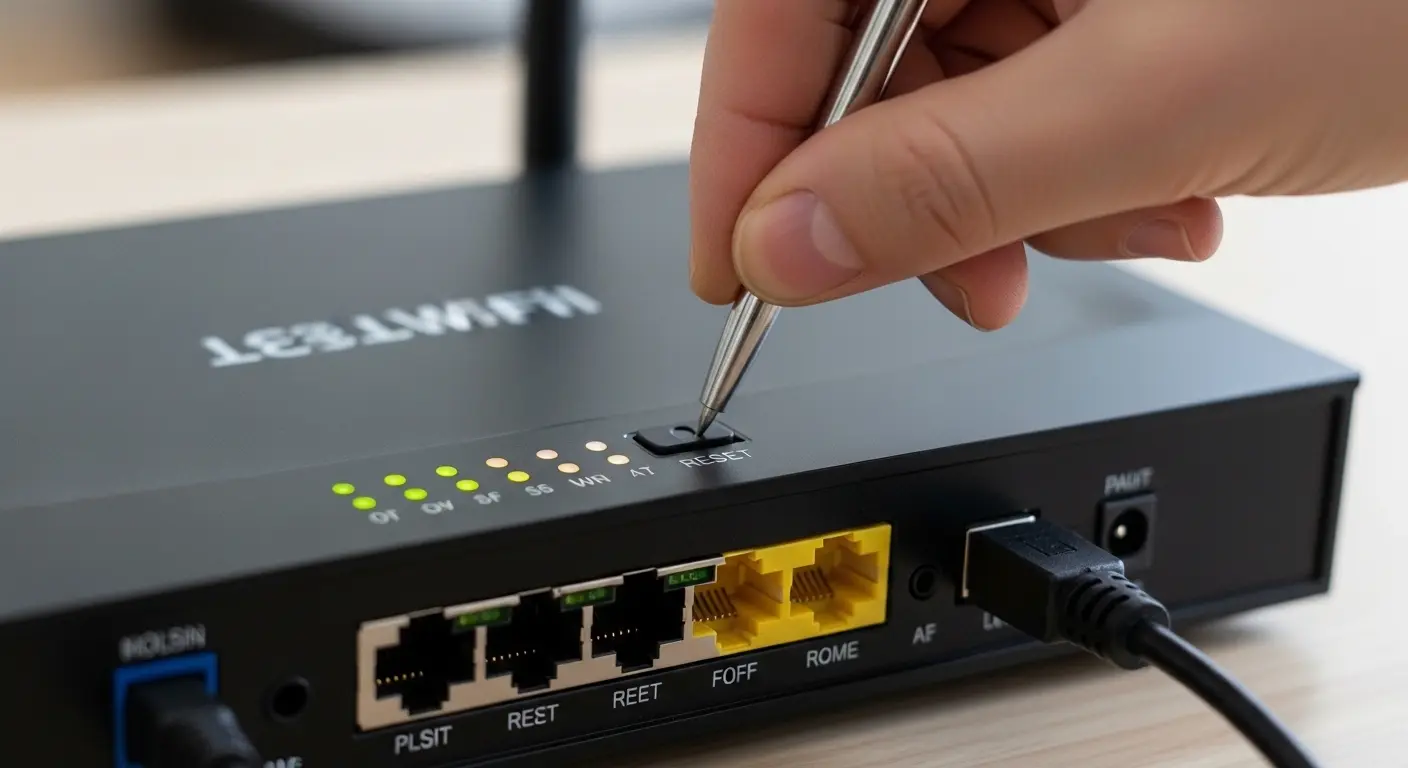
I’ve seen people accidentally press the reset pinhole button on routers like the Huawei HG8145 and then spend hours reconfiguring WiFi settings. Trust me, avoid factory reset unless absolutely necessary.
How Often Should You Reboot Your Router?
From my hands-on testing and ISP recommendations:
- Home users: Once every 1–2 months
- Heavy streaming/gaming households: Every 2–4 weeks
- Small businesses: Weekly scheduled reboot
Some modern routers (like Asus and Netgear models) allow automatic scheduled restarts through their apps, which I personally find very convenient.
Advanced Tip: Reboot Using Router Apps or Web Interface
Many routers allow remote rebooting.
Steps:
- Open router mobile app or web dashboard
- Login with admin credentials
- Select reboot or restart option
Brands offering this feature include:
- TP-Link Tether App
- Asus Router App
- Netgear Nighthawk App
- Huawei AI Life App
When I travel, I often use router apps to troubleshoot home networks remotely. It’s surprisingly helpful.
Mini Real-Life Story: Fixing Internet for a Gaming Night
A few months ago, my cousins were visiting, and we planned an online gaming tournament. Everything worked perfectly, until multiple devices connected simultaneously. The WiFi started lagging badly.
Instead of tweaking complicated settings, I rebooted both modem and router. Within minutes, the connection stabilized, and the gaming session ran smoothly.
That experience reinforced a simple truth: sometimes the easiest solution is the most effective.
Common Mistakes to Avoid When Rebooting
Turning Router On Too Quickly
Always wait at least 30 seconds.
Forgetting to Restart Modem
If separate, modem must restart first.
Pressing Factory Reset Button
This removes all network settings.
Ignoring Firmware Updates
Sometimes reboot issues indicate outdated router software
Quick Tips for Better WiFi Performance
Place router in central location
Keep router away from thick walls and metal objects
Limit unused connected devices
Update router firmware regularly
Use dual-band or tri-band routers for heavy usage
FAQs
1. Will rebooting my router change my WiFi password?
No. A reboot only restarts the device. Your WiFi name and password remain unchanged unless you perform a factory reset.
2. How long does it take to reboot a router?
Typically 3–5 minutes including shutdown, waiting time, and reconnection.
3. Does rebooting improve internet speed permanently?
Not permanently, but it temporarily resolves congestion, memory overload, and connection glitches. Regular rebooting helps maintain consistent performance.
4. Is it safe to unplug a router frequently?
Yes, routers are designed for regular power cycling. Just avoid unplugging during firmware updates.
Conclusion:
Rebooting a WiFi router might sound basic, but in my experience troubleshooting dozens of networks, it’s often the fastest and most reliable solution for connectivity problems.
Whether you’re dealing with slow speeds, dropped signals, or unstable connections, a proper reboot clears temporary errors, refreshes connections, and restores performance.
The key is following the correct sequence, power off, wait patiently, restart modem first, then router. It’s simple, safe, and surprisingly powerful.
If you’re someone who relies heavily on internet connectivity for work, gaming, or streaming, I recommend making router rebooting part of your routine maintenance.