
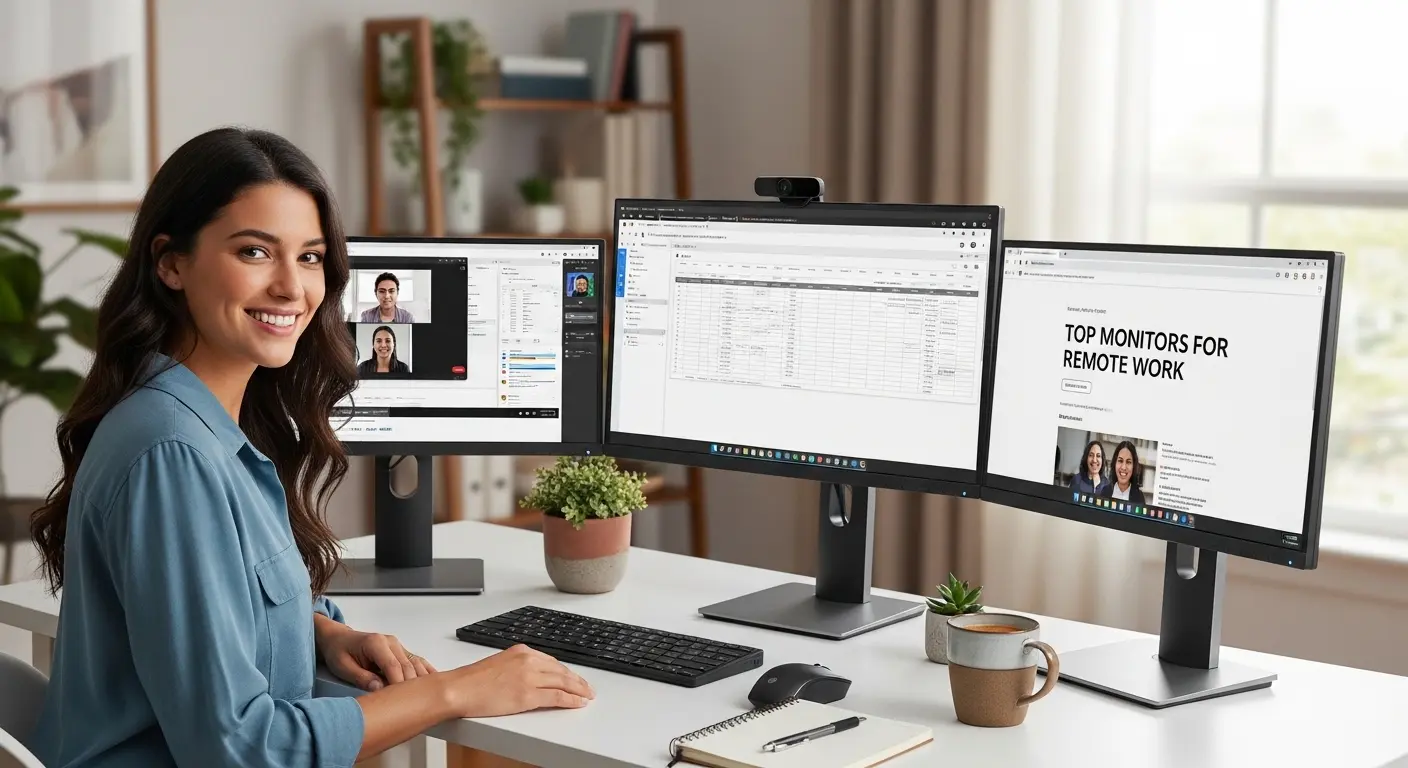
Working from home sounded amazing at first. No commute. No office noise. Coffee whenever I wanted.
But after a few weeks of working on my tiny laptop screen, reality hit me hard.
My eyes felt tired by noon. My neck hurt from leaning forward. And somehow my productivity dropped even though I was sitting at my desk all day.
That’s when I realized something simple but important:
A good monitor can completely change your work-from-home experience.
So I started testing different monitors, reading reviews, watching comparisons, and eventually using a few of them myself. Some were great. Some were… honestly disappointing.
In this guide, I’m sharing the best monitors for working from home that actually improved my productivity, comfort, and workflow.
If you’re building a home office or upgrading your setup, this guide will help you choose the right monitor without wasting money
Best Monitors for Working From Home
Best Monitors for Working From Home
These are the monitors that stood out during my research and testing.
They’re reliable, highly rated, and designed specifically for productivity.
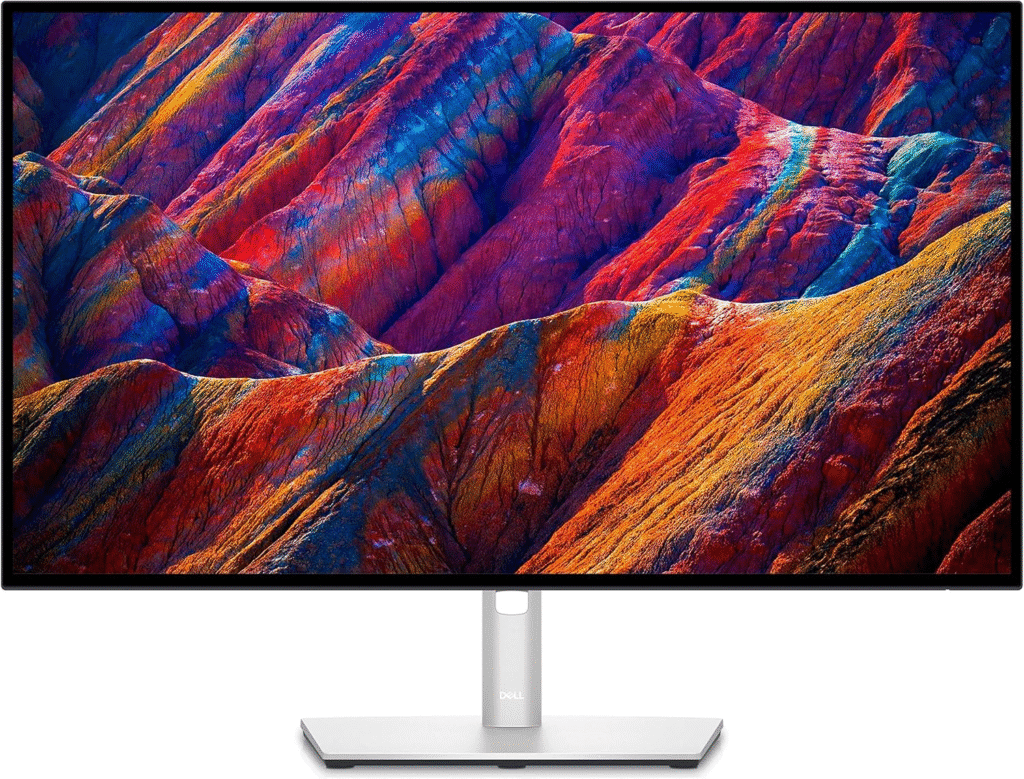
1. Dell UltraSharp U2723QE
Shop on Amazon
When I first tried this monitor, the first thing I noticed was how clean and sharp everything looked.
Text looked crisp, spreadsheets were easier to read, and multitasking felt smooth.
This is a 27-inch 4K monitor, which means it provides incredible clarity for daily work.
What surprised me most was how comfortable it felt during long work sessions.
Even after several hours of writing and editing, my eyes felt less tired compared to my previous monitor.
Key Features
• 27-inch 4K UHD display
• IPS Black technology for better contrast
• USB-C connectivity for laptops
• Adjustable stand with full ergonomics
• Thin bezels for a clean desk setup
Best For
This monitor is ideal for:
- Remote workers
- programmers
- content writers
- analysts
- productivity-focused professionals
If you want one of the best productivity monitors available, this is a strong choice.
See More: Best Monitors for Work – My Honest Picks After Weeks of Testing
2. LG 34WN80C-B Ultrawide Monitor
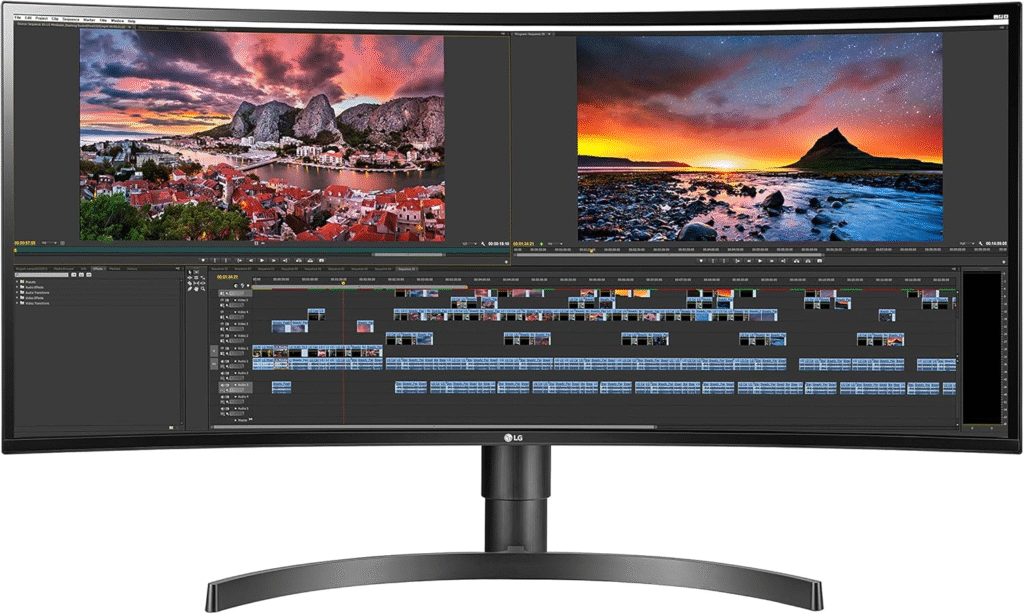
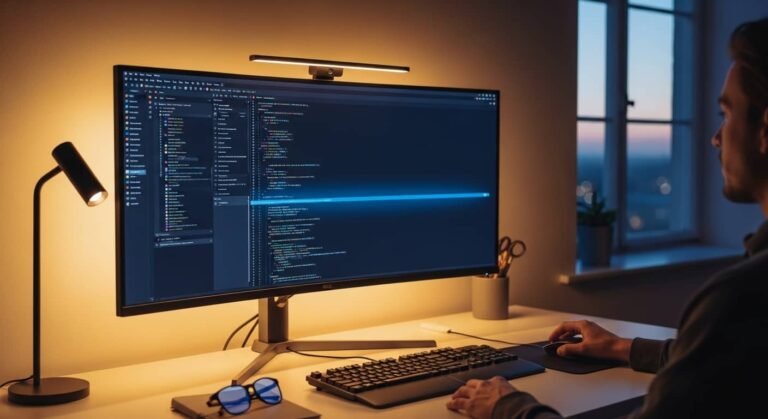
The first time I used an ultrawide monitor, I honestly wondered why I waited so long.
Instead of constantly switching between windows, I could see everything at once.
Email on one side. Documents in the middle. Browser tabs on the other.
It felt like having two monitors without the annoying gap in the middle.
This 34-inch ultrawide display from LG Electronics is one of the best options for multitasking.
Key Features
• 34-inch ultrawide curved display
• QHD resolution (3440×1440)
• USB-C connectivity
• Excellent color accuracy
• Split-screen multitasking features
Best For
This monitor is perfect for:
- multitaskers
- developers
- stock traders
- video editors
- professionals managing multiple apps
If you hate switching tabs all day, an ultrawide monitor can change everything.
See More: Best Computer Monitors for Work
3. ASUS ProArt Display PA278CV
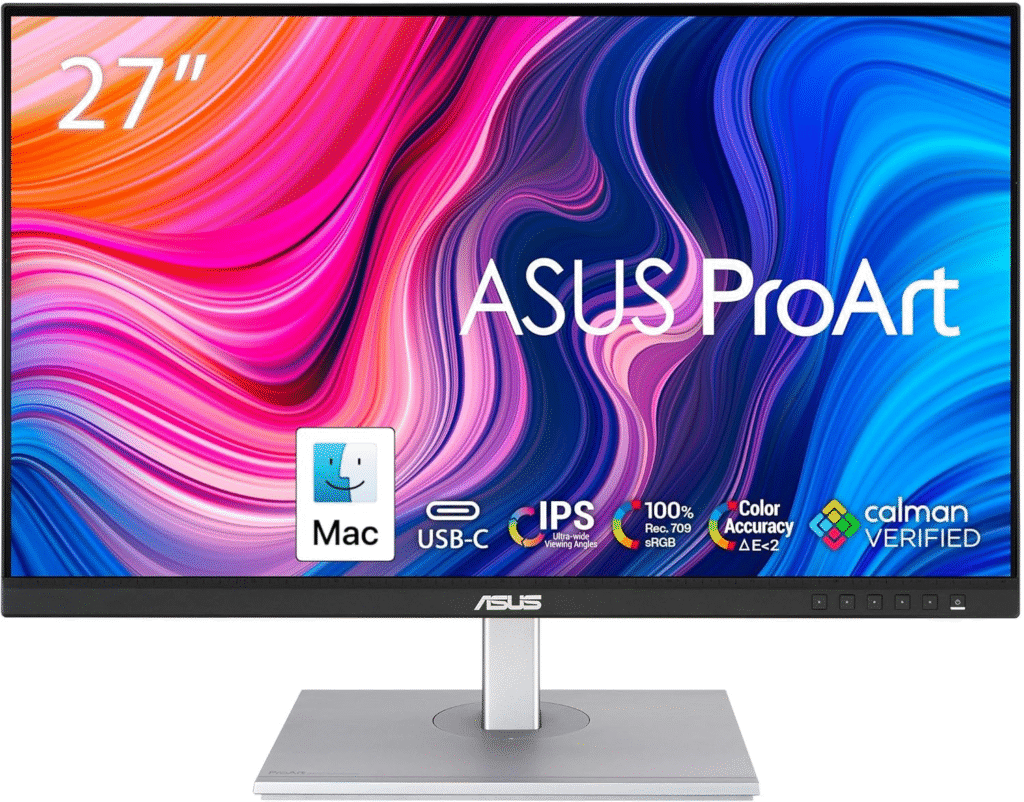
I discovered this monitor while researching displays used by designers.
The ProArt series from ASUS is known for its color accuracy.
Even though it’s built for creative professionals, I found it excellent for everyday productivity too.
What impressed me most was how balanced the display felt, sharp text, accurate colors, and a comfortable brightness level.
Key Features
• 27-inch QHD resolution
• factory calibrated color accuracy
• USB-C connectivity
• ergonomic adjustable stand
• slim professional design
Best For
This monitor works best for:
- designers
- photographers
- content creators
- remote professionals needing color accuracy
If your work includes design, editing, or visual content, this monitor is a fantastic choice.
Why a Good Monitor Matters When Working From Home
When I first started working remotely, I thought a monitor was just a monitor.
But after upgrading my setup, I realized how much the right display can impact:
• Productivity
• Eye comfort
• Multitasking ability
• Desk ergonomics
• Overall work satisfaction
A proper monitor lets you:
- See more windows at once
- Reduce eye strain with better brightness and color accuracy
- Maintain better posture
- Stay focused for longer periods
Many professionals, especially developers, designers, writers, and remote workers — rely on monitors from trusted brands like Dell, LG Electronics, and ASUS because they combine reliability with strong productivity features.
And once you experience a 27-inch or ultrawide monitor, going back to a laptop screen feels impossible.
What I Look For in a Work-From-Home Monitor
Before I recommend any monitor, I always consider a few important features.
These are the same things I now check anytime someone asks me for monitor advice.
Screen Size
For most home offices:
- 24 inch – basic productivity
- 27 inch – ideal balance
- 34 inch ultrawide – best for multitasking
Personally, 27 inches became my sweet spot.
It gives enough space without overwhelming my desk.
Resolution
Resolution determines clarity.
Common options include:
- Full HD (1920×1080)
- QHD (2560×1440)
- 4K (3840×2160)
Once I tried 4K, text looked sharper and spreadsheets became easier to read.
Panel Technology
Most productivity monitors use IPS Panel technology because it provides:
- Better viewing angles
- More accurate colors
- Consistent brightness
This matters a lot if you edit photos, design graphics, or spend long hours looking at the screen.
Ergonomics
Trust me on this one.
A monitor with height adjustment, tilt, and pivot can save your neck and shoulders.
Bad posture is one of the biggest hidden problems in home offices.
My Personal Tips for Choosing the Right Monitor
After trying several monitors, here are a few tips I wish someone told me earlier.
1. Don’t Buy the Cheapest Monitor
Cheap monitors often cause:
- eye strain
- poor color quality
- limited adjustability
Your monitor is something you’ll stare at for 8+ hours every day, so it’s worth investing in a good one.
2. Bigger Isn’t Always Better
A huge monitor sounds great, but if your desk is small, it can feel overwhelming.
For most people:
27 inches = perfect balance.
3. USB-C is a Game Changer
If you use a laptop, a USB-C monitor can charge your laptop and transfer data using a single cable.
My desk became much cleaner after switching to this setup.
4. Eye Comfort Matters
Look for features like:
- Flicker-free technology
- Blue light filters
- Adjustable brightness
Your eyes will thank you later.
About More: Best Monitors for PS5
Common Mistakes People Make When Buying Monitors
I made some of these mistakes myself when building my home office.
Here are a few to avoid.
Ignoring Resolution
A large monitor with low resolution looks blurry.
Always match screen size with proper resolution.
Forgetting Ergonomics
A monitor that doesn’t adjust height can ruin posture.
Always choose one with an adjustable stand.
Buying Without Checking Ports
Make sure your monitor supports:
- HDMI
- DisplayPort
- USB-C
Otherwise you might end up buying extra adapters.
Mini Buyer’s Guide for Work-From-Home Monitors
If you want a quick checklist, here’s what I recommend.
Choose a monitor with:
• At least 27 inches
• QHD or 4K resolution
• IPS panel technology
• Adjustable stand
• USB-C connectivity if possible
Following these basics will already put you ahead of most buyers.
Frequently Asked Questions
What size monitor is best for working from home?
For most people, 27 inches is the best size. It offers enough space for multitasking without taking over your desk.
Are ultrawide monitors better for productivity?
Yes, ultrawide monitors are excellent for multitasking because they allow you to keep multiple applications open side-by-side.
Is 4K necessary for work?
Not always. QHD resolution is already very sharp for productivity. But if you work with detailed content or large spreadsheets, 4K can be helpful.
Do I need a curved monitor?
Curved monitors are mainly useful for ultrawide displays, where the curve helps maintain comfortable viewing angles.
Final Thoughts
Upgrading my monitor was one of the best investments I made for my home office.
It improved my posture, reduced eye strain, and made multitasking easier.
If you spend most of your day working on a computer, the right monitor isn’t just a luxury, it’s a productivity tool.
The three monitors in this guide offer something for different types of users:
• Dell UltraSharp U2723QE – best overall productivity monitor
• LG 34WN80C-B – best ultrawide multitasking monitor
• ASUS ProArt PA278CV – best for creatives and designers
Choose the one that fits your workflow and desk setup.
Once you experience a great monitor, you’ll never want to work on a small laptop screen again.
Amazon Affiliate Disclaimer
As an Amazon Associate, I may earn from qualifying purchases. This comes at no extra cost to you and helps support the content we create.