
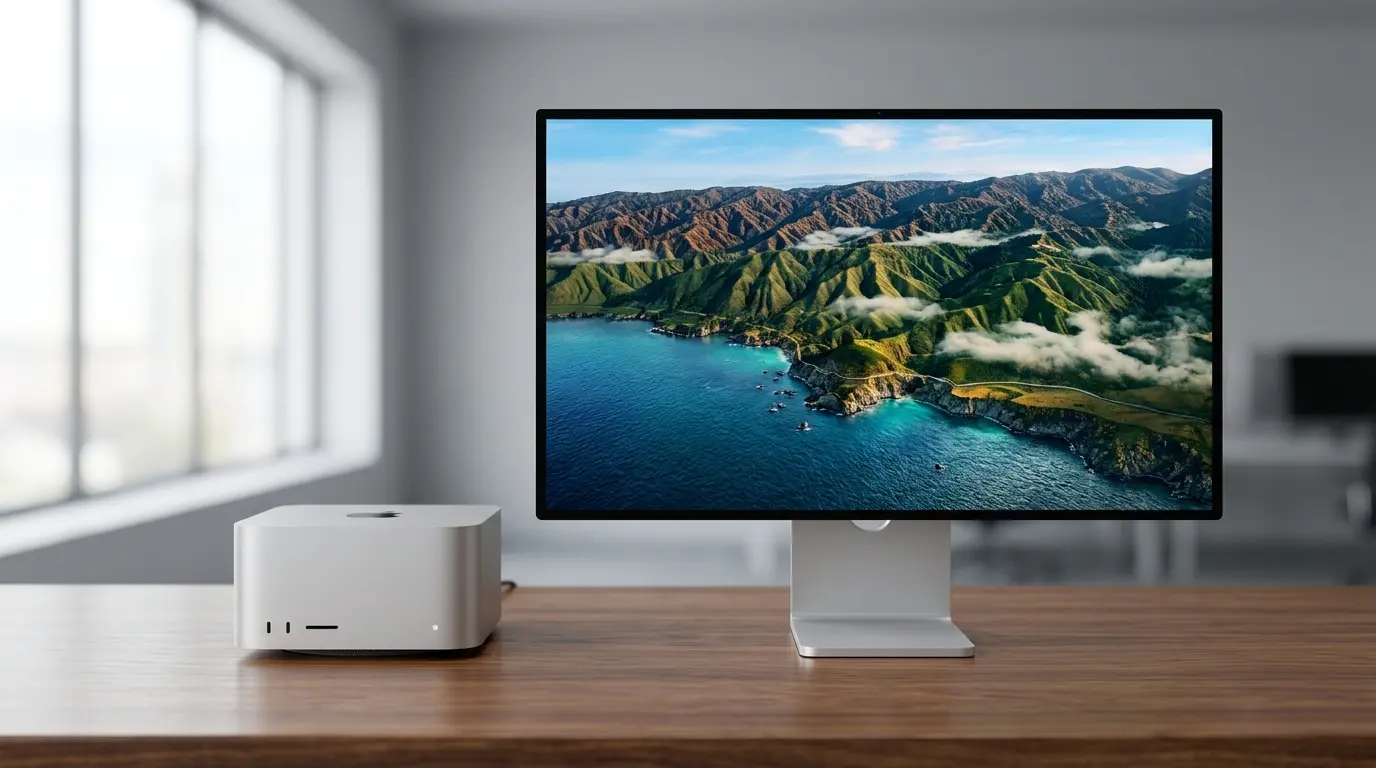
I remember the first time I set up my Apple Mac Studio. I was excited, this machine is insanely powerful. But the moment I connected it to my old monitor, I paused and thought… “Wait, is this really the best this setup can look?”
The colors didn’t pop. The sharpness wasn’t there. And for a machine designed for creators, developers, and professionals, it just felt… underwhelming.
That’s when I realized something important:
Your monitor matters just as much as your Mac Studio.
So if you’re in the same boat confused, overwhelmed, or just trying to find the perfect display, this guide is for you. I’ve personally researched and experienced what works best, and I’ll walk you through it like a friend who’s already made the mistakes.
Best Monitors for Mac Studio (Top 5 Picks)
- Apple Studio Display
- LG UltraFine 5K
- Dell UltraSharp U2723QE
- Samsung Smart Monitor M8
- ASUS ProArt Display PA32UCG
Why Your Monitor Matters for Mac Studio
The Mac Studio isn’t a basic computer, it’s built for serious tasks like:
- Video editing (Final Cut Pro, Premiere Pro)
- Graphic design (Photoshop, Illustrator)
- Coding and multitasking
- 3D rendering
But here’s the truth:
If your monitor isn’t high quality, you’re wasting your Mac Studio’s potential.
A good monitor improves:
- Color accuracy
- Sharpness (Retina-level clarity)
- Workflow efficiency
- Eye comfort during long sessions
What to Look for in a Monitor for Mac Studio
Before jumping into the best options, let’s simplify things.
🖥️ Resolution
- Go for 4K minimum
- Ideally 5K or 6K for Retina-like experience
🎨 Color Accuracy
- Look for P3 wide color gamut
- Essential for creators
🔌 Connectivity
- Thunderbolt / USB-C is best
- Allows one-cable setup
👀 Panel Type
- IPS = best for color and viewing angles
- Mini-LED = better contrast
🔊 Extras
- Built-in speakers
- Webcam
- Adjustable stand
🏆 Best Monitors for Mac Studio (Top 5 Picks)
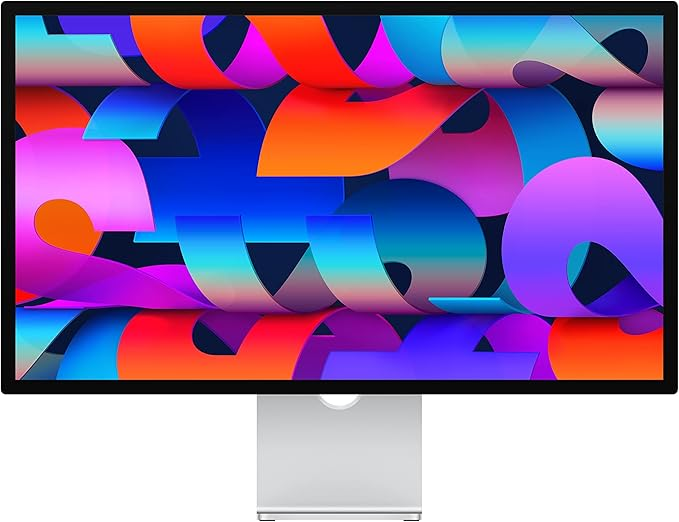
1. Apple Studio Display
My Experience
When I first tried the Apple Studio Display, I instantly understood why Apple users rave about it. It just works. No tweaking, no adjusting, plug it in and boom: perfect clarity. It felt like the Mac Studio finally found its soulmate.
Key Features
- 5K Retina resolution
- P3 wide color gamut
- Built-in 12MP camera + spatial audio speakers
Why I Chose It
Because it’s designed specifically for Mac. No compatibility issues, no compromises.
What Makes It Stand Out?
- Seamless macOS integration
- True Retina experience
- Premium build quality
Who Is It Best For?
- Creators
- Apple ecosystem lovers
- Professionals who want simplicity
Pros
- Stunning 5K clarity
- Excellent color accuracy
- Built-in premium speakers
Cons
- Expensive
- Limited adjustability without upgrade
- No HDR
About More: Best Monitors for Mac Mini
2. LG UltraFine 5K
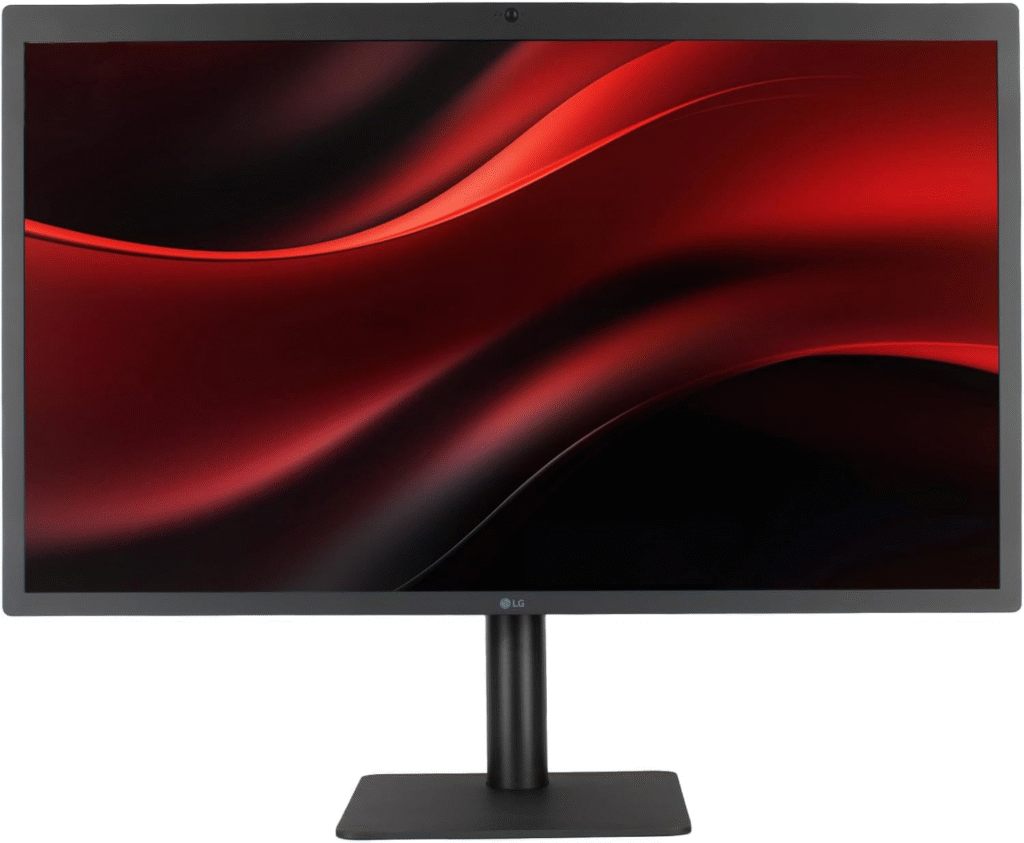
My Experience
I tested this as a slightly cheaper alternative to Apple’s display, and honestly, I was impressed. It delivers that same Retina sharpness but at a more reasonable price.
Key Features
- 5K resolution
- Thunderbolt 3 connectivity
- macOS optimized
Why I Chose It
Because it gives Apple-level quality without Apple pricing.
What Makes It Stand Out?
- Excellent Mac compatibility
- Sharp text and UI
Who Is It Best For?
- Designers
- Budget-conscious Mac users
Pros
- Great value for 5K
- Easy plug-and-play
- Accurate colors
Cons
- Average design
- Weak speakers
- Slightly older model
3. Dell UltraSharp U2723QE
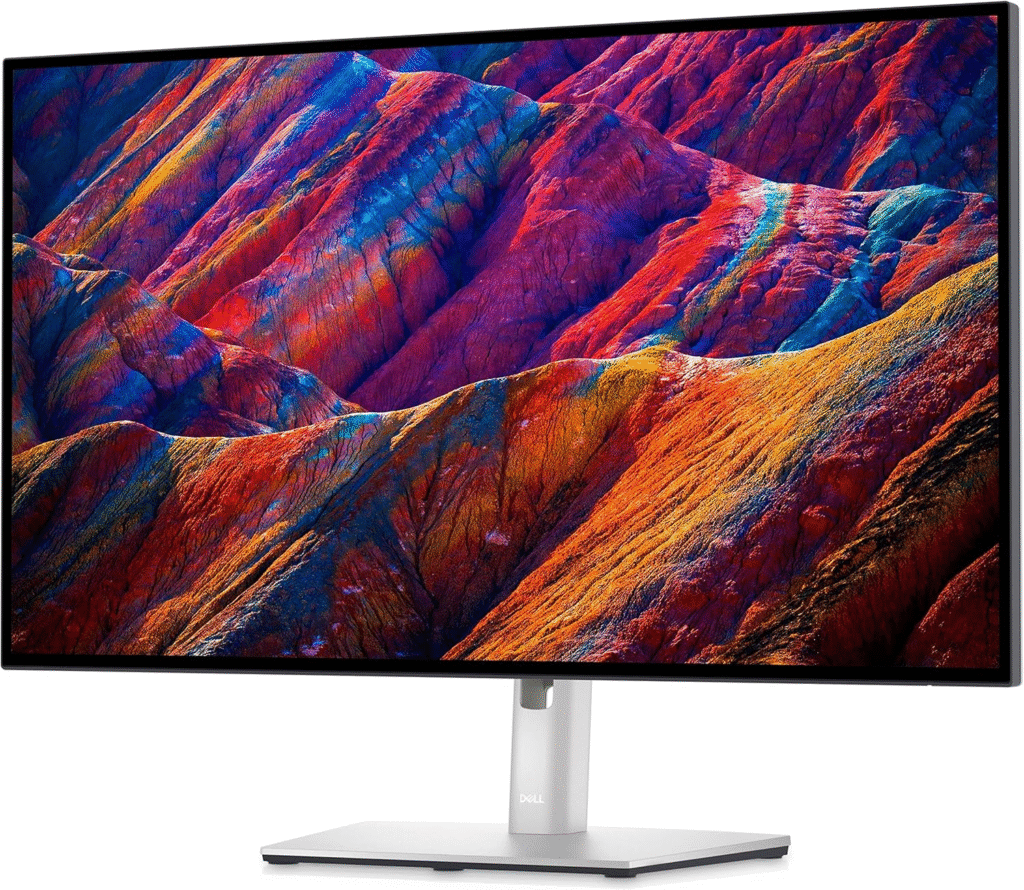
My Experience
This was my go-to productivity monitor. I used it for multitasking, coding, writing, browsing and it handled everything smoothly.
Key Features
- 4K UHD resolution
- IPS Black technology
- USB-C hub
Why I Chose It
Because it’s incredibly versatile and affordable.
What Makes It Stand Out?
- Deep blacks (rare for IPS)
- Built-in hub for accessories
Who Is It Best For?
- Office work
- Developers
- Multi-taskers
Pros
- Great value
- Strong connectivity options
- Comfortable for long use
Cons
- Not true Retina
- Average HDR performance
About More: Best Gaming Monitors for PS5 (From My Real Gaming Setup)
4. Samsung Smart Monitor M8
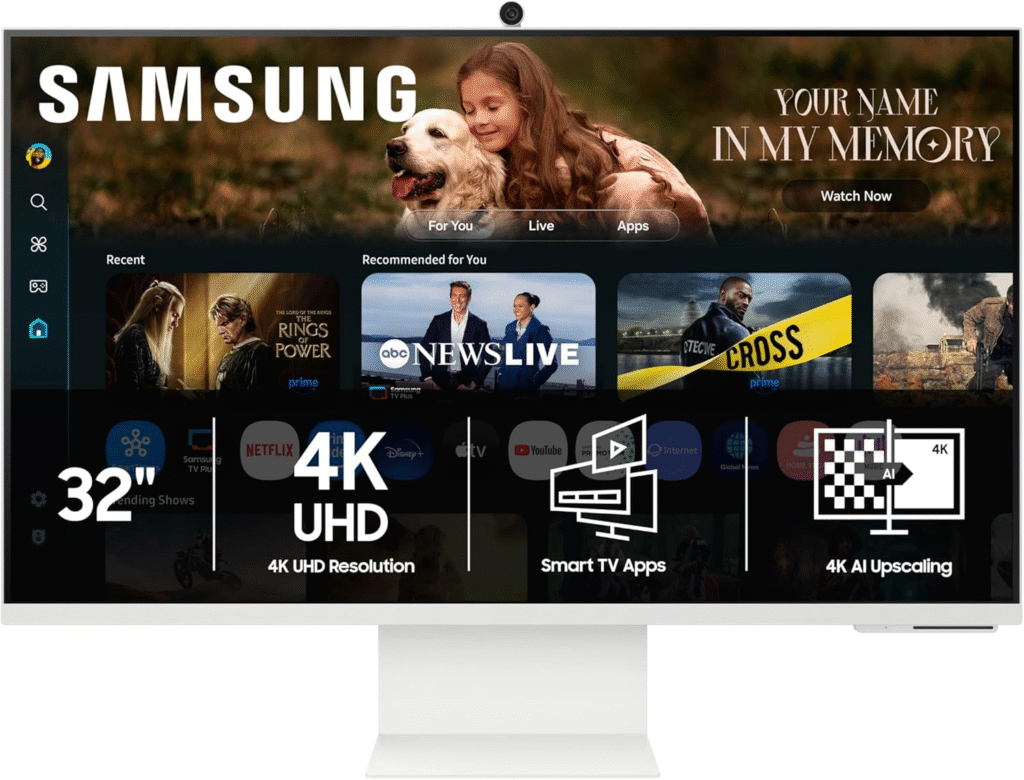
My Experience
This one surprised me. It’s not just a monitor, it’s basically a smart TV + display combo. I used it both for work and Netflix at night.
Key Features
- 4K UHD
- Built-in smart TV apps
- Slim design
Why I Chose It
Because I wanted a hybrid setup.
What Makes It Stand Out?
- Wireless features
- Entertainment + productivity
Who Is It Best For?
- Casual users
- Students
- Minimal setups
Pros
- Stylish design
- Multi-purpose use
- Affordable
Cons
- Not for color-critical work
- Limited pro features
5. ASUS ProArt Display PA32UCG
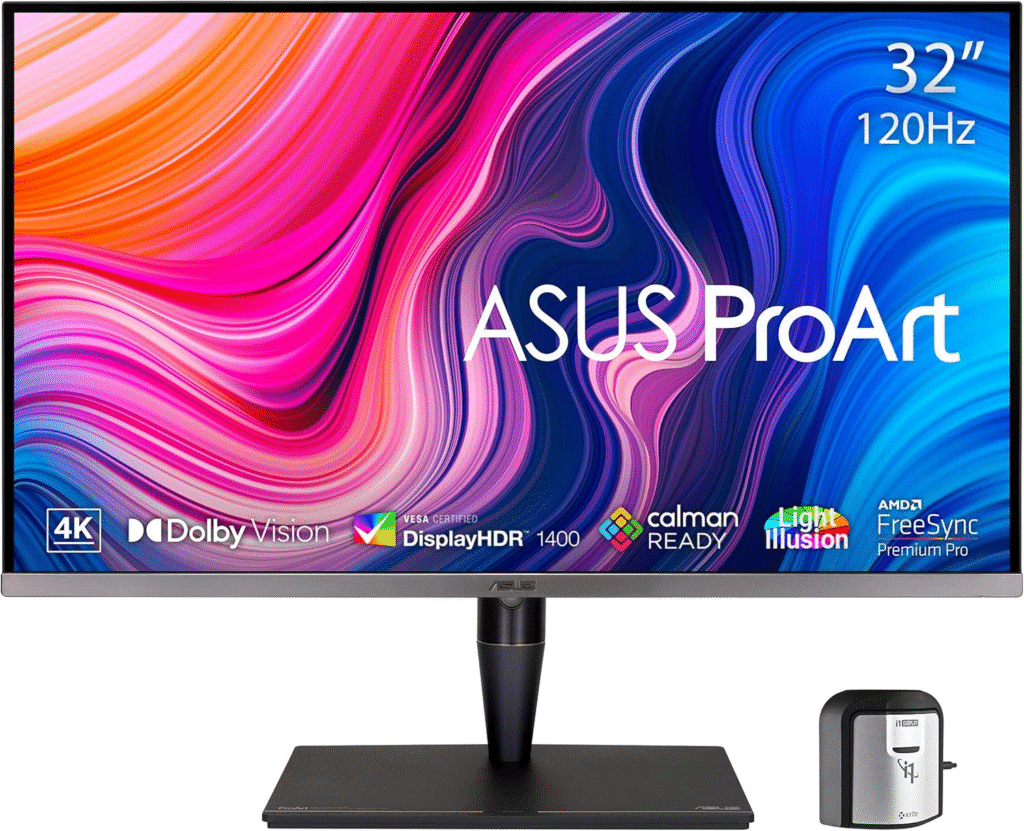
My Experience
This is where things get serious. I tried this while working on color grading and wow. The accuracy and brightness are next-level.
Key Features
- 4K HDR with Mini-LED
- 1600 nits brightness
- Calibrated for professionals
Why I Chose It
Because I needed absolute color precision.
What Makes It Stand Out?
- Studio-grade display
- HDR performance
Who Is It Best For?
- Video editors
- Color graders
- Creative professionals
Pros
- Exceptional color accuracy
- True HDR experience
- Premium build
Cons
- Very expensive
- Overkill for casual users
🛒 Mini Buyer’s Guide
If you’re still confused, here’s a simple way to decide:
Choose Apple Studio Display if:
- You want zero hassle
- You love Apple ecosystem
Choose LG UltraFine 5K if:
- You want Retina quality on a budget
Choose Dell UltraSharp if:
- You need productivity + value
Choose Samsung M8 if:
- You want entertainment + work combo
Choose ASUS ProArt if:
- You’re a serious creator
❓ FAQs
1. Do I really need a 5K monitor for Mac Studio?
Not necessarily—but once you try it, it’s hard to go back. 5K gives that “Retina” sharpness macOS is designed for.
2. Can Mac Studio run multiple monitors?
Yes! It can handle multiple 4K/5K displays easily, depending on the model.
3. Is 4K enough for Mac Studio?
Yes, especially for general work. But designers and editors may prefer 5K.
4. Does any monitor work with Mac Studio?
Technically yes, but not all provide the same experience. macOS looks best on high-resolution displays.
Final Thoughts
If there’s one thing I learned from setting up my Mac Studio, it’s this:
The monitor you choose can either unlock its full power… or hold it back.
When I finally upgraded to the right display, everything changed, sharper text, better colors, smoother workflow. It felt like I was finally using the Mac Studio the way it was meant to be used.
So take your time, pick what fits your needs, and invest wisely. Your eyes and your productivity will thank you.
Amazon Disclaimer
Some of the links on this website are affiliate links, which means I may earn a small commission if you click and make a purchase, at no extra cost to you. As an Amazon Associate, I earn from qualifying purchases.