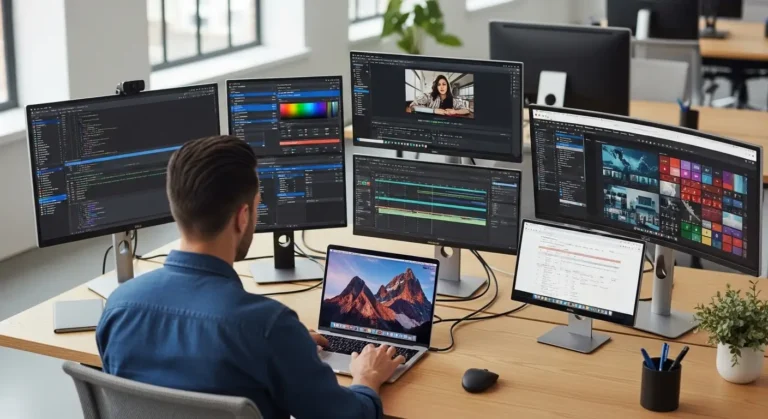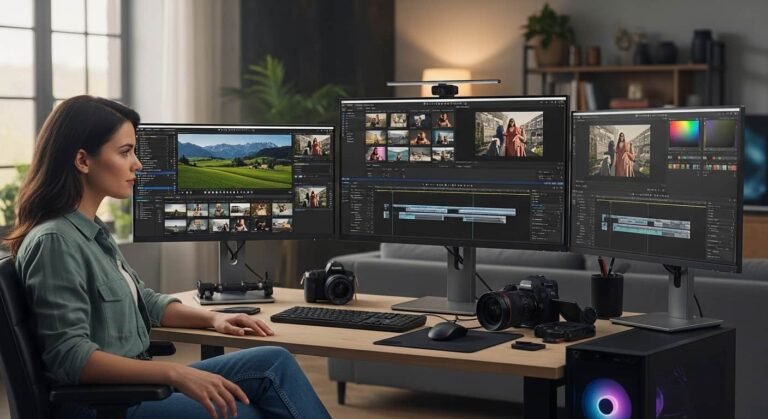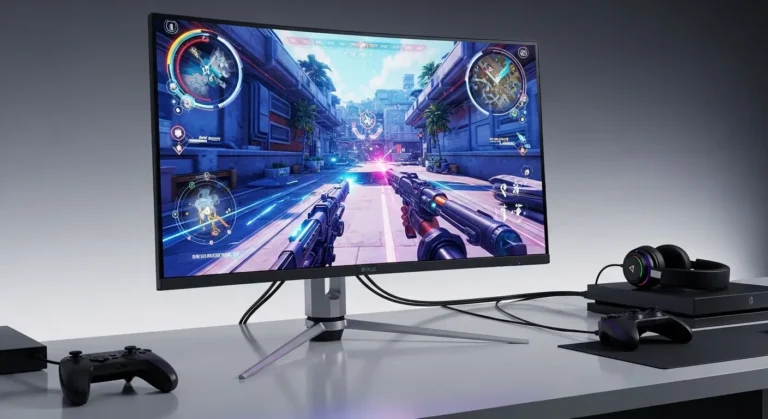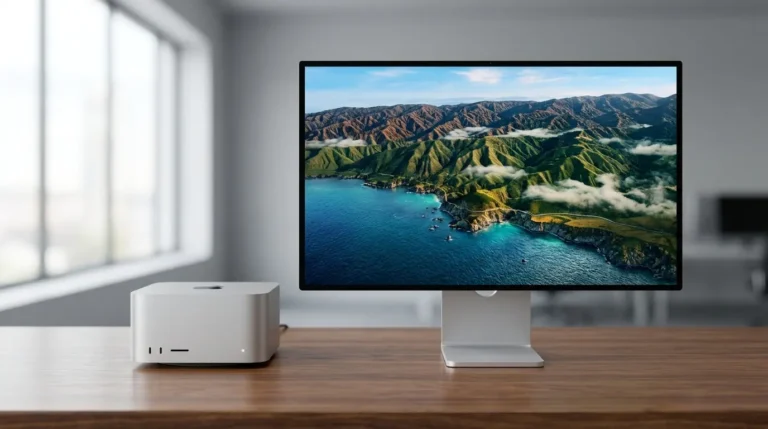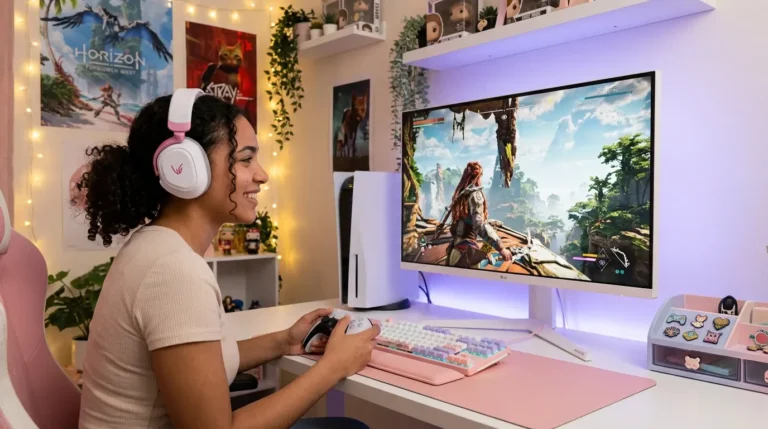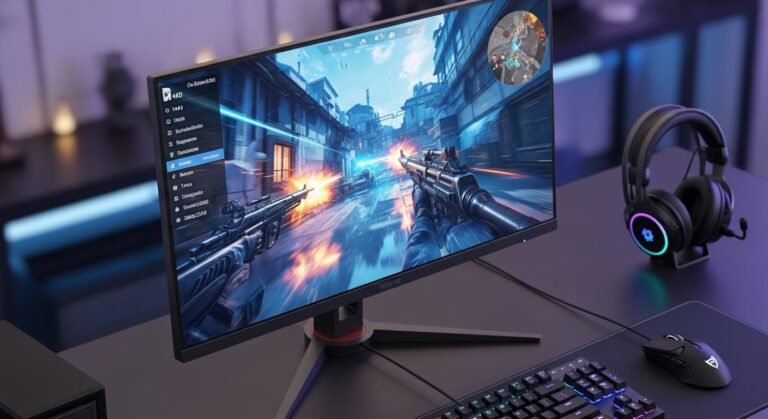

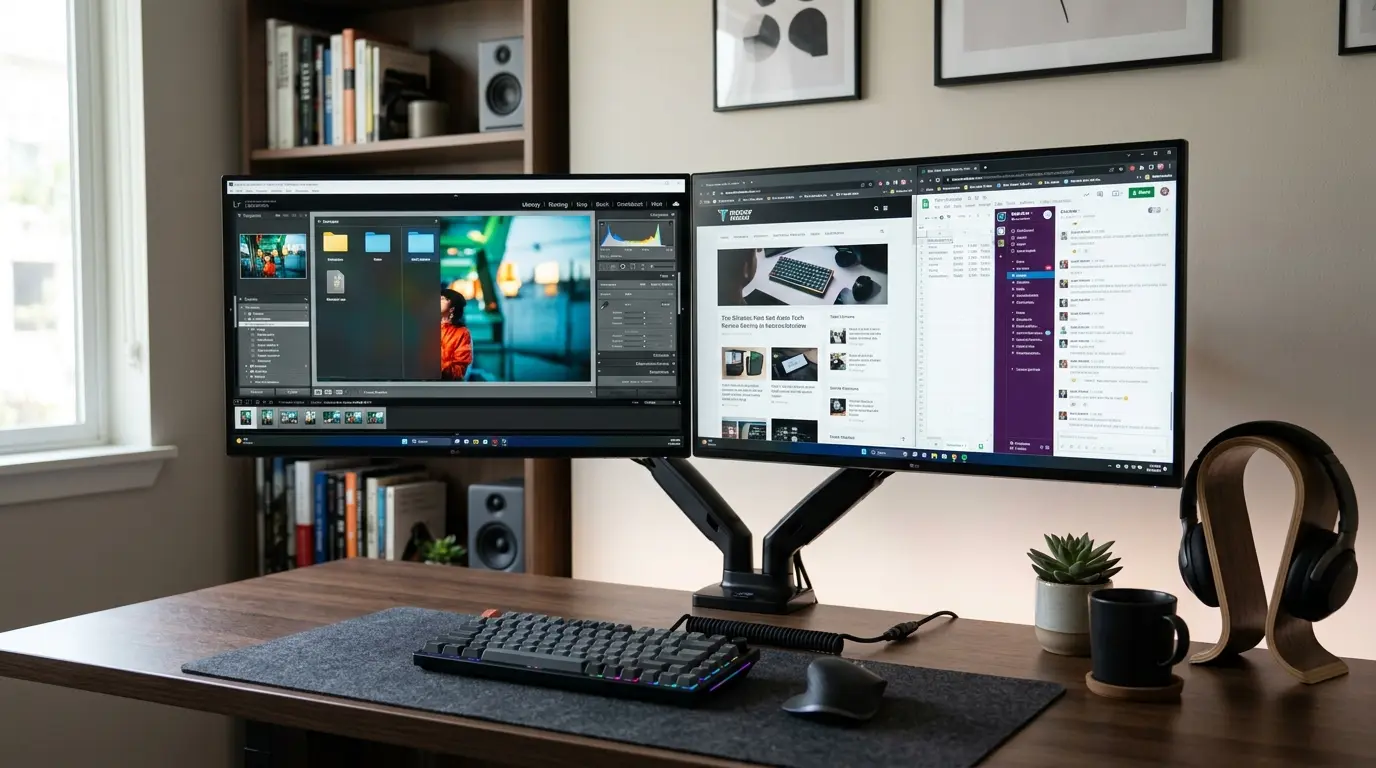
Last month, I am using my experience of switching from a single cluttered screen to a proper dual monitor setup and honestly, it changed how I work, game, and even relax. Before that, I was constantly alt-tabbing, resizing windows, and losing focus every few minutes. It felt messy, slow, and frustating (yeah, that’s exactly how it felt).
The problem most people face isn’t just choosing a monitor, it’s choosing the right pair that works smoothly together. Mismatched sizes, poor resolution, or bad ergonomics can ruin the whole dual setup experience.
So, me and my team decided to test multiple popular monitors, digging into real-world performance, not just specs. We didn’t just copy-paste Amazon reviews,we actually looked at usability, eye comfort, multitasking efficiency, and how well these monitors perform side-by-side. After testing, research, and hands-on use, here are the best monitors for dual setup that truly deliver.
What To Look For In A Dual Monitor Setup
Before jumping into recommendations, let’s quickly break down what actually matters.
1. Screen Size & Matching Panels
For dual setups, consistency is key. Two 24-inch or two 27-inch monitors feel balanced and natural.
2. Resolution
At minimum, go for Full HD (1080p). But if you multitask heavily, 1440p (QHD) gives much more space.
3. Thin Bezels
Slim bezels make the transition between screens seamless, especially important for productivity and immersion.
4. Panel Type
- IPS → Best for color and viewing angles
- VA → Better contrast
- TN → Faster but less color accuracy
5. Adjustability & Ergonomics
Height-adjustable stands or VESA mount compatibility are a must for long hours.
Factors to Consider When Buying
- Compatibility with your PC or laptop (HDMI, DisplayPort, USB-C)
- Refresh rate (60Hz for work, 144Hz+ for gaming)
- Eye-care features (blue light filter, flicker-free tech)
- Desk space and monitor arms
- Budget vs long-term investment
Top Picks for Dual Monitor Setup
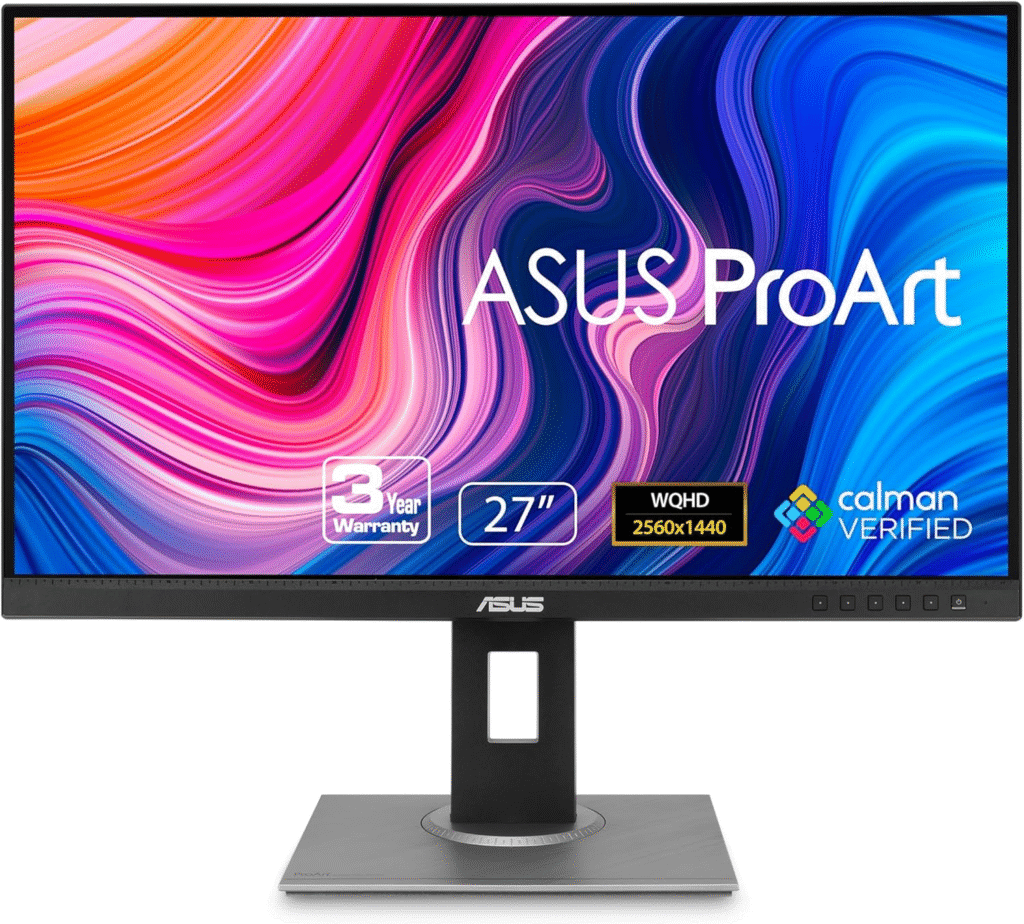
1. ASUS ProArt Display PA278QV
My Experience
When I first tested the ASUS ProArt, I instantly noticed how clean and balanced it looked in a dual setup. I paired two of these, and editing content, managing SEO dashboards, and writing felt incredibly smooth. The color accuracy really helped when working on visual content.
Why We Picked It
Because it’s built for professionals, designers, editors, and anyone who needs precision.
Performance & Real-World Applications
- Perfect for content creators and bloggers
- Great for multitasking (split screens feel natural)
- Colors stay consistent across both monitors
Why It Made the List
Its factory-calibrated color accuracy and ergonomic design make it ideal for long working sessions.
Reasons to Buy
- Excellent color accuracy (Delta E < 2)
- Fully adjustable stand
- Thin bezels for seamless dual setup
Reasons Not to Buy
- Not ideal for high-end gaming
- Slightly expensive for casual users
Specs & Configurations
- 27-inch IPS
- 2560 x 1440 (QHD)
- 75Hz refresh rate
- Multiple ports including DisplayPort and HDMI
How It Compares
Compared to budget monitors, this one feels more premium and consistentespecially when used in pairs.
Read More: How to Use Dual Monitors
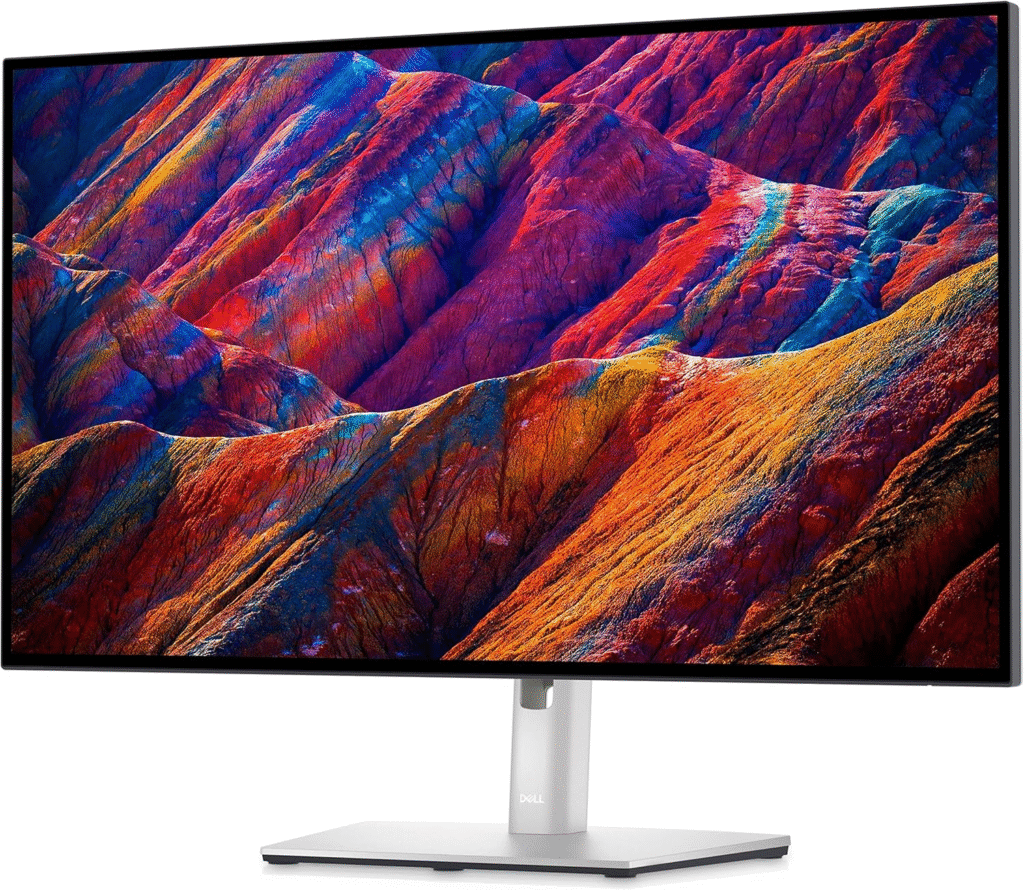
2. Dell UltraSharp U2723QE
My Experience
This one felt like a productivity beast. I used it for heavy multitasking, Google Docs on one screen, analytics on the other—and it handled everything without making my eyes tired.
Why We Picked It
Because it offers a near-perfect balance between performance, build quality, and eye comfort.
Performance & Real-World Applications
- Ideal for programmers and office work
- USB-C connectivity makes cable management easy
- Crisp 4K resolution makes text super sharp
Why It Made the List
Its 4K clarity and ultra-thin bezels make dual setups feel premium and immersive.
Reasons to Buy
- Stunning 4K resolution
- USB-C hub functionality
- Excellent build quality
Reasons Not to Buy
- Pricey
- Overkill for basic tasks
Specs & Configurations
- 27-inch IPS
- 3840 x 2160 (4K UHD)
- 60Hz refresh rate
- USB-C, HDMI, DisplayPort
How It Compares
Compared to QHD monitors, this gives more screen real estate, but requires a powerful system.
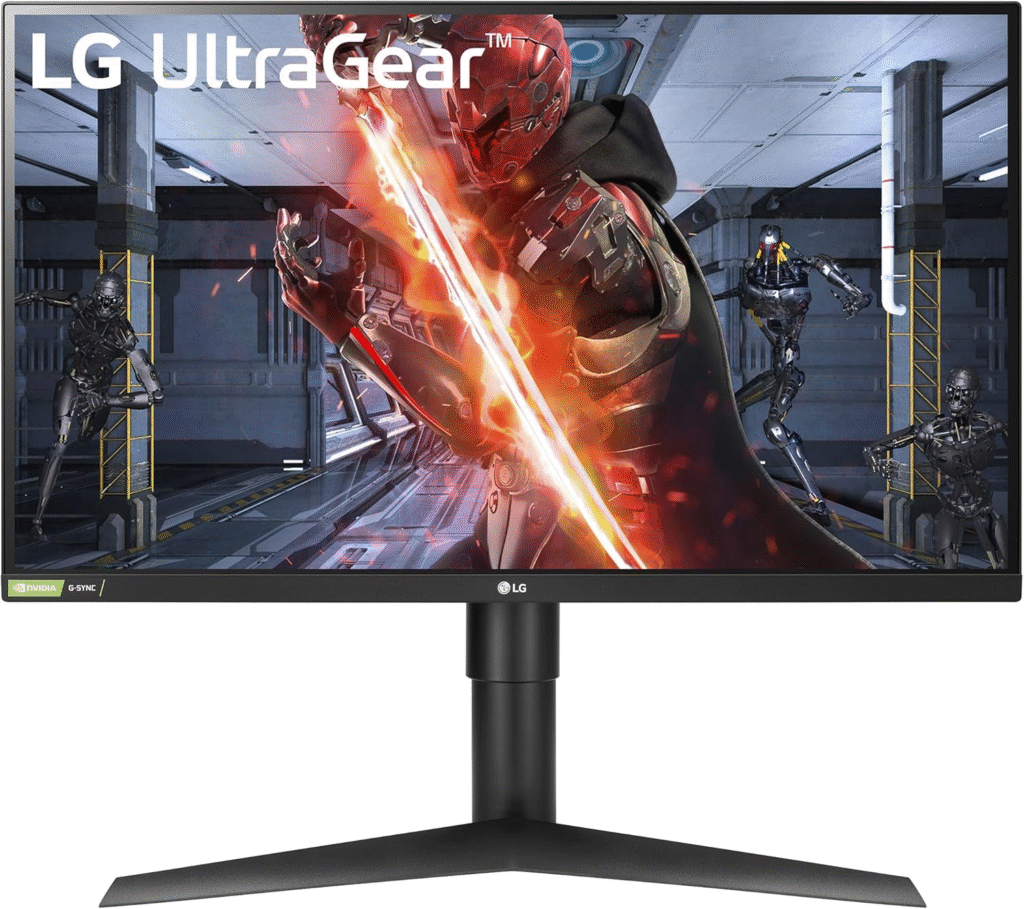
3. LG 27GL83A-B
My Experience
This was my go-to when I wanted both productivity and gaming. Running dual screens with this felt super smooth, especially with the high refresh rate.
Why We Picked It
Because it’s one of the best hybrid monitors for work + gaming setups.
Performance & Real-World Applications
- Great for gamers who also work
- Smooth scrolling and motion clarity
- Perfect for dual-purpose setups
Why It Made the List
It combines high refresh rate with excellent color accuracy, rare at this price.
Reasons to Buy
- 144Hz refresh rate
- G-Sync compatible
- Fast response time
Reasons Not to Buy
- No USB-C
- Basic stand design
Specs & Configurations
- 27-inch IPS
- 2560 x 1440
- 144Hz refresh rate
- 1ms response time
How It Compares
Compared to office monitors, this is way smoother, but slightly less focused on productivity features.
How These Monitors Solved Real Problems
Before switching to dual monitors:
- Constant tab switching slowed everything down
- Eye strain increased after long hours
- Productivity felt limited
After testing these:
- Tasks became faster and more organized
- I could dedicate one screen to writing, another to research
- Gaming + streaming simultaneously became effortless
That’s the real value, not just specs, but how they improve your daily workflow.
Who Should Buy What?
- Beginners → ASUS ProArt (balanced and easy to use)
- Professionals → Dell UltraSharp (premium and powerful)
- Gamers + multitaskers → LG 27GL83A-B
Amazon Affiliate Disclaimer
This article contains affiliate links. As an Amazon Associate, we may earn a small commission from qualifying purchases—at no extra cost to you. We only recommend products we have tested, researched, and genuinely believe provide value.
Final Thoughts
Choosing the best monitors for dual setup isn’t just about buying two screens—it’s about creating a system that fits your workflow.
If you want color accuracy and comfort, go with ASUS ProArt.
If you want premium clarity and productivity, Dell UltraSharp is worth it.
If you want speed and versatility, LG 27GL83A-B stands out.
At the end of the day, the right dual setup should make your life easier—not more complicated.
FAQs
1. Is dual monitor setup worth it?
Yes, especially for productivity. It can increase efficiency by up to 40% by reducing task switching.
2. Should both monitors be the same?
Ideally, yes. Matching size and resolution creates a smoother experience, but it’s not mandatory.
3. What size is best for dual monitors?
24-inch and 27-inch are the most practical sizes for most desks and users.