
I know how frustrating it feels when your laptop struggles to keep up with the games you love. You don’t need an expensive $10,000 rig to enjoy smooth gameplay,I’ve found practical ways to boost FPS on low-end laptops that actually work. Whether it’s tweaking software settings, managing heat, or upgrading certain components, small adjustments can make a huge difference.
Overview
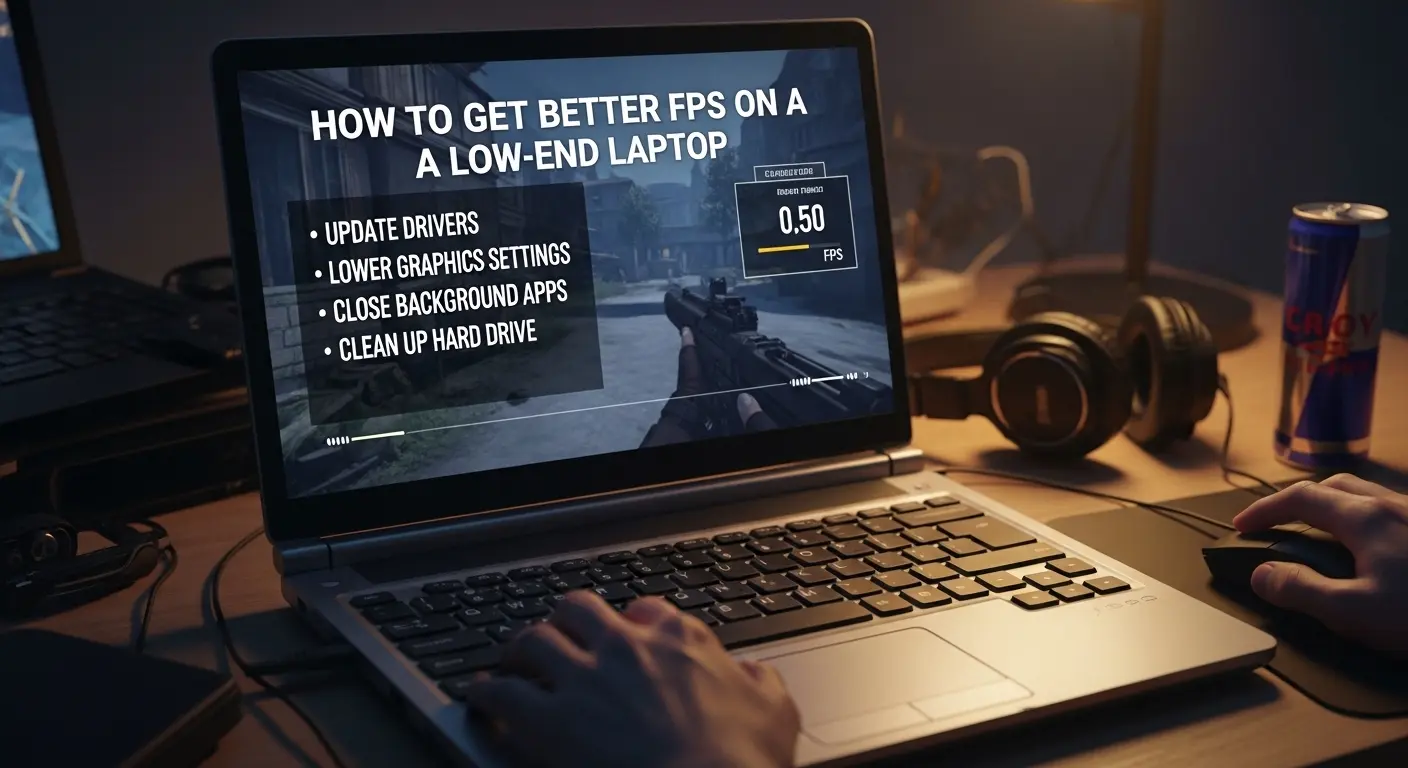
To boost FPS on a low-end laptop, I always start by setting Windows to High Performance mode, plugging in my charger, and lowering in-game graphics, especially resolution, shadows, and reflections. I make sure my graphics drivers are up to date, close unnecessary background apps, and keep my laptop on a flat surface to avoid overheating.
Essential Performance Tips
- Optimize Power Settings: Set Windows Power Options to “High Performance” and keep your laptop plugged in.
- Update Graphics Drivers: Tools like NVIDIA GeForce Experience or AMD Adrenalin help keep your GPU running efficiently.
- In-Game Settings: Lower resolution, set graphics to ‘Low,’ and turn off VSync, Anti-aliasing, and shadows.
- Manage Background Apps: Close apps via Task Manager to free up CPU and RAM.
- Use Game Mode: Windows 10/11 Game Mode prioritizes gaming processes.
- Cooling: Keep your laptop on a hard, flat surface or use a cooling pad to prevent thermal throttling.
See Everything you needs to know: Best PC Laptops
Advanced Optimizations
- Disable unnecessary startup apps.
- Adjust Windows visual effects to “best performance.”
- Turn off background recordings like Windows Game Bar.
- Consider debloating Windows by removing unused programs and clearing temporary files.
- For HDD users, defragment your drive (skip this for SSDs).
Hardware Considerations
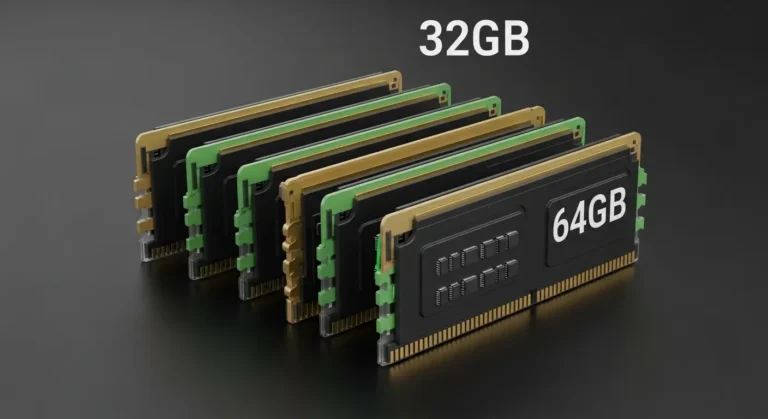
- Upgrade RAM to at least 8GB or 16GB.
- Switch from HDD to SSD for faster load times and smoother performance.
Why Is My Laptop FPS So Low?
Even modern laptops have limitations. Compact form factors often force engineers to balance power and size, which can restrict performance. Many low-end laptops rely on integrated graphics, where the CPU and GPU share resources, limiting frame rates. Heat is another factor, tight spaces in laptops make cooling harder, sometimes forcing the system to throttle performance to prevent overheating.
If your laptop is older or hasn’t been cleaned in a while, dust and debris can further reduce FPS. Identifying these bottlenecks is key before making changes or upgrades.
What Affects FPS?
FPS isn’t determined by your GPU alone. Here’s what I look at:
- CPU: Feeds data to your GPU. A weak CPU can bottleneck even a strong GPU.
- RAM: Short-term storage for ongoing processes. Too little RAM leads to stuttering and lower FPS.
- Screen Refresh Rate: If your screen can only refresh 60 times per second (60Hz), upgrading your GPU beyond 60 FPS won’t improve visible performance.
Balancing these components ensures that boosting one doesn’t leave another as a limiting factor.
What Is a Good FPS for Gaming?
FPS needs vary by game type and your expectations. Here’s my personal guideline:
- Under 20 FPS: Unplayable, extremely jarring.
- 20–30 FPS: Barely tolerable, may work for casual games.
- 30–45 FPS: Manageable for most games, smooth enough for casual play.
- 45–60 FPS: Comfortable and fluid gaming.
- 60–144 FPS: Ideal for competitive or fast-paced games.
- Over 144 FPS: High-end gaming performance.
For budget laptops, I usually aim for around 60 FPS, balancing smooth gameplay with realistic hardware limits.
Does Lowering Graphics Settings Increase FPS?
Absolutely. Reducing graphics settings is the fastest way to improve FPS without spending a dime. Modern games are visually stunning but demand a lot from your hardware. By lowering resolution, shadows, anti-aliasing, and other effects, you reduce strain on the GPU and CPU, allowing frame rates to climb.
This method works best for casual gaming, but if you want competitive performance or higher visual fidelity, further tweaks or upgrades might be necessary.
What Should I Upgrade for Better FPS?
If you’re ready to spend a little, these upgrades make the biggest difference:
- RAM: Adding memory helps handle larger game data and multitasking. Dual-channel configurations are ideal.
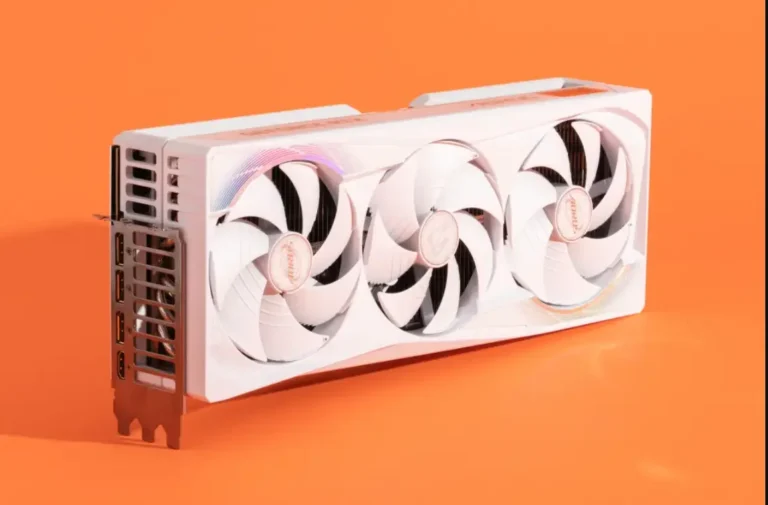
- GPU: An external GPU (eGPU) can dramatically boost FPS but can be expensive.
- Storage: Moving to an SSD improves loading times and reduces system lag.
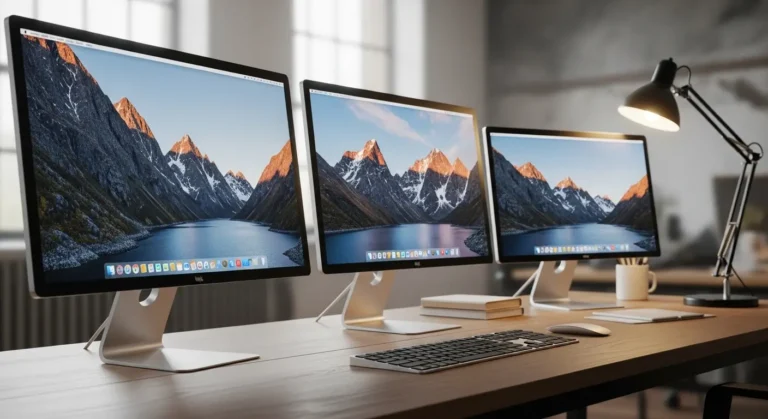
- Monitor: Ensure your screen’s refresh rate matches your GPU output. A 60Hz monitor won’t show more than 60 FPS.
Sometimes, the most cost-effective option is a budget desktop PC, which allows for more powerful, upgradeable components at lower prices.
Does a Cooling Pad Improve FPS?
Yes, indirectly. Overheating reduces performance, and a cooling pad can prevent thermal throttling. While it won’t magically increase FPS, keeping your GPU and CPU cooler allows the laptop to maintain its maximum potential, especially during longer gaming sessions.
Flat surfaces, clean fans, and a stable ambient temperature also help maintain FPS without spending much.
Conclusion
Improving FPS on a low-end laptop is a mix of software tweaks, cooling strategies, and selective upgrades. Start with quick wins like adjusting in-game settings, updating drivers, and keeping your laptop cool. If needed, upgrade RAM, storage, or GPU to take performance further.
With a few changes, even a modest laptop can deliver smoother, more enjoyable gameplay.
Amazon Affiliate Disclaimer: Some links in this article are affiliate links. If you purchase through them, I may earn a small commission at no extra cost to you. This helps support my work and keeps the content free.
FAQs
Can I improve FPS without upgrading hardware?
Yes! Adjust power settings, update drivers, reduce in-game graphics, close background apps, and use a cooling pad to get better FPS.
Is 40 FPS laggy?
40 FPS is playable for casual gaming, but fast-paced games may feel slightly sluggish compared to 60 FPS or higher.
How many FPS can a 700 dollar PC run?
A $700 gaming PC can typically run most modern games at 60–100 FPS on medium settings, depending on the game and resolution.
Is 30 or 120 FPS better?
120 FPS is much smoother than 30 FPS, especially in fast-paced games. 30 FPS feels choppy, while 120 FPS gives a fluid and responsive experience.
Is 4GB RAM ok for gaming?
4GB RAM is too low for modern games. I recommend at least 8GB, with 16GB being ideal for smooth performance.
Can human eyes see 240 FPS?
Humans can notice differences at very high frame rates, but beyond 144–165 FPS, the improvement is subtle for most people.
Will GTA 6 run at 30 FPS?
On low-end or mid-range PCs, GTA 6 may run at 30 FPS with reduced graphics settings. Higher-end PCs can reach 60+ FPS for smoother gameplay.