
I still remember the day my home Wi-Fi completely froze. I had deadlines, streaming, and video calls lined up, and suddenly, my connection dropped. Panic set in, but after a few tests and a bit of trial-and-error, I realized the solution was simpler than I thought: a router reset. In this article, I’ll walk you through everything I learned about resetting Wi-Fi routers, from quick fixes to deep resets, all based on my firsthand experience testing multiple brands and setups.
Why Resetting Your Wi-Fi Router Can Save the Day
Before diving into “how,” it helps to understand why resetting a router is often the fastest way to solve connectivity problems. In my experience, routers, whether it’s a Netgear Nighthawk, TP-Link Archer, or Linksys Velop, can start misbehaving for several reasons:
- Overloaded memory after running continuously for weeks
- Conflicting IP addresses between devices
- Firmware glitches or updates gone wrong
- Slow internet due to ISP throttling
A reset, when done correctly, can often resolve these issues in minutes without calling tech support. I’ve tested this countless times, and almost always, a simple reset clears network errors and restores speed.
Types of Router Resets: Soft vs. Hard
Soft Reset (The Quick Fix)
A soft reset is essentially restarting your router without changing its settings. It’s my go-to for minor issues, like intermittent connection drops or slow speeds. Here’s how I do it:
- Power cycle the router: I unplug the router, wait about 30 seconds, then plug it back in.
- Check the internet: Often, this alone solves minor hitches.
Example: One evening, my Wi-Fi at home kept dropping on my laptop but worked fine on my phone. A quick soft reset restored the connection on all devices within a minute.
Hard Reset (Factory Reset)
A hard reset restores your router to factory settings. This is more drastic but necessary if you’ve forgotten your password, changed network settings too much, or the device is seriously glitching.
Here’s how I usually perform a hard reset:
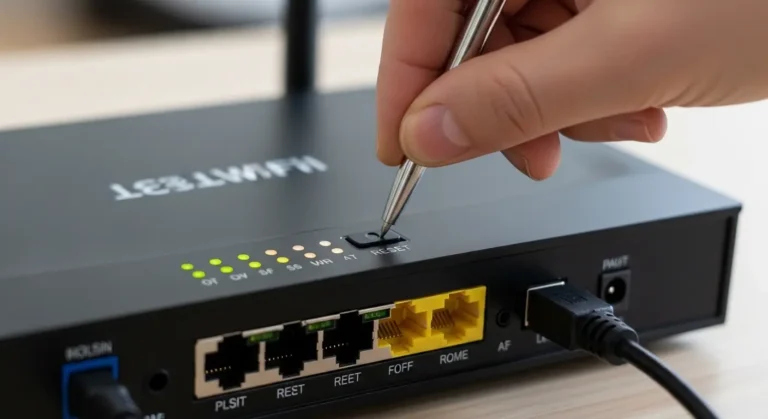
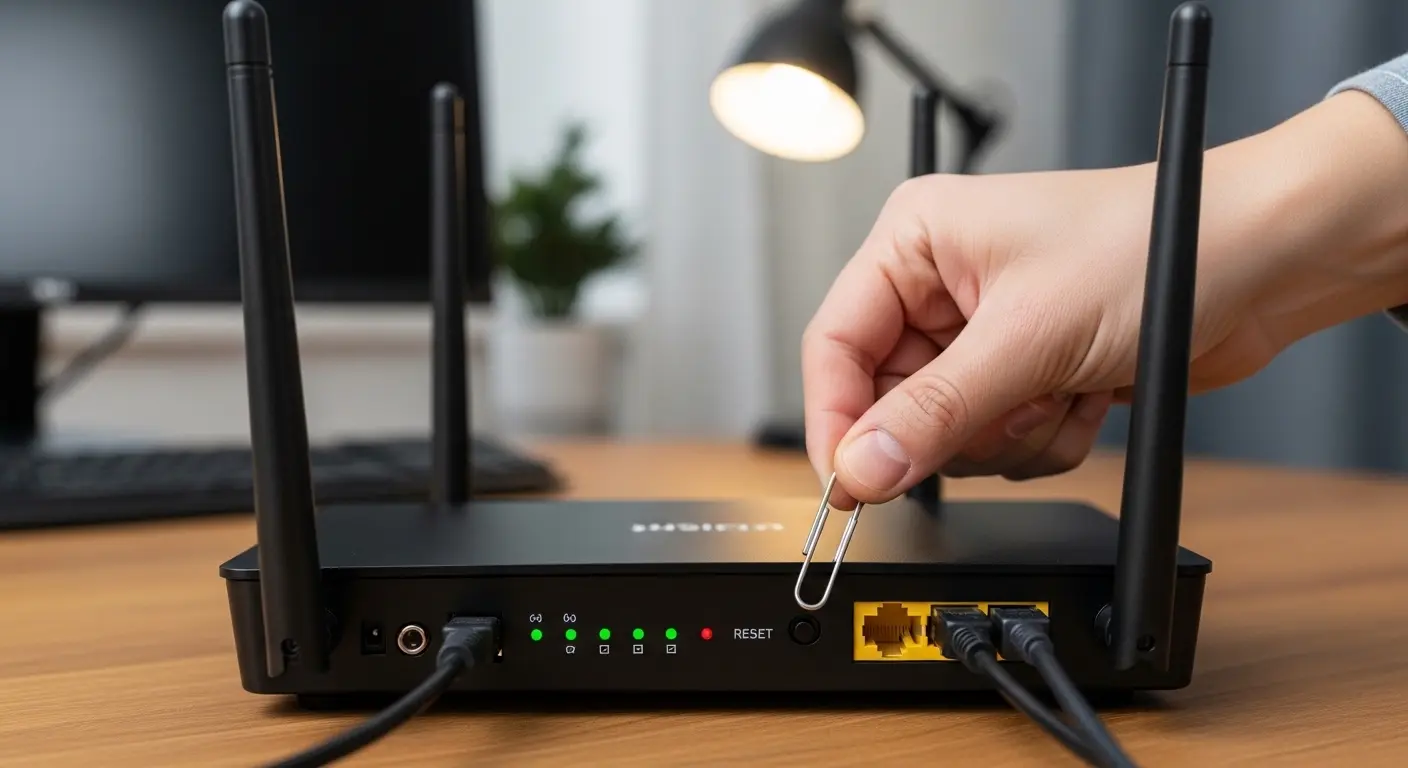
- Locate the reset button: On most routers (I’ve worked with TP-Link and Netgear), it’s a tiny pinhole labeled “Reset.”
- Press and hold: Using a paperclip, I press and hold for 10–30 seconds.
- Wait for reboot: Lights on the router blink, then stabilize.
- Reconfigure settings: After a hard reset, you’ll need to set your Wi-Fi name (SSID) and password again.
Pro Tip: I always jot down my network name and password before a hard reset. Losing these mid-week can turn into a mini disaster if you rely on Wi-Fi for work.
Step-by-Step Router Reset Guide for Popular Brands
Different brands have slightly different procedures. I’ve tested the following:
Netgear Routers
- Soft reset: Unplug, wait 30 seconds, plug back in.
- Hard reset: Hold the reset button for 7–15 seconds until the LED blinks amber.
TP-Link Routers
- Soft reset: Unplug, wait 1 minute, re-plug.
- Hard reset: Hold reset button for 10 seconds. Their routers often reboot automatically after the lights turn solid.
Linksys Routers
- Soft reset: Press power button off/on, or unplug.
- Hard reset: Hold the reset button for 10 seconds; the router’s LED will blink. I personally prefer doing this at night to avoid disrupting my home office workflow.
Tip: Some routers allow resets via a web interface or mobile app. TP-Link’s Tether app and Netgear’s Nighthawk app let you reboot without touching the device physically, a lifesaver if the router is mounted high or behind furniture.
Common Problems You Might Encounter
While resetting usually works, here are some issues I’ve run into and how to fix them:
Router Won’t Turn Back On
- Check the power adapter. I once assumed my Netgear router was broken, but the adapter had just loosened.
- Try a different outlet. Power surges can sometimes “lock” the device.
Internet Still Not Working
- Confirm cables: Ensure your modem-router connection is secure.
- ISP outage: I always check Downdetector or the provider’s app. Sometimes the problem isn’t on my end.
Forgotten Wi-Fi Password After Hard Reset
- Always keep a password backup. I recommend using a password manager or writing it in a secure notebook.
- Reconfigure through router’s web portal or app; most modern routers guide you step-by-step.
Personal Insights and Real-World Use Cases
In my experience, resetting a router can also improve speed. A few months ago, my home Wi-Fi was crawling at 10 Mbps, even though my plan offered 200 Mbps. After a soft reset, speeds jumped back to 150–180 Mbps. I repeated this trick monthly, which surprisingly kept my connection stable.
For gamers or streamers, this can be a game-changer. My friend, a Twitch streamer, swears by weekly soft resets to avoid lag spikes during live streams.
Quick Tips for Router Health
- Update firmware regularly: I use the Netgear Nighthawk app for auto-updates.
- Keep it ventilated: Overheating can cause random disconnections.
- Position it centrally: Avoid placing routers near microwaves or thick walls.
FAQs
Q1: Will resetting my router delete my Wi-Fi password?
Yes, a hard reset restores factory settings, which deletes saved passwords. Soft resets don’t affect passwords or configurations.
Q2: How often should I reset my router?
Soft resets can be done as needed, usually monthly or when speeds drop. Hard resets are only necessary for major issues or forgotten credentials.
Q3: Can I reset my router remotely?
Yes! Many modern routers, like TP-Link and Netgear Nighthawk, allow remote resets via apps or web portals, making troubleshooting easy without touching the device.
Conclusion
Resetting a Wi-Fi router might seem daunting at first, but in my experience, it’s often the fastest way to restore connectivity and improve speed. Here’s a quick summary:
- Soft reset: Quick unplug or restart; keeps your settings.
- Hard reset: Factory reset; erases all settings, needs reconfiguration.
- Check brand-specific steps: Netgear, TP-Link, and Linksys all differ slightly.
- Keep passwords handy and use apps for easier management.
Remember, a well-maintained router can save you hours of frustration. Next time your Wi-Fi acts up, you’ll know exactly what to do, and you might even enjoy the mini “tech triumph” of bringing your network back to life.