
I still remember the panic. I was in the middle of a Zoom meeting when my internet suddenly slowed to a crawl. Screens froze, voices turned robotic, and I had that awkward moment where I kept saying, “Hello? Can you hear me?” while nobody responded. After a few frustrating minutes, I tried something incredibly simple, restarting my Wi-Fi router.
Surprisingly, that tiny action fixed everything.
If your internet suddenly becomes slow, unstable, or completely stops working, restarting your Wi-Fi router is often the first and most effective solution. In fact, many internet service providers (ISPs) like PTCL, Spectrum, and Comcast recommend restarting your router as the primary troubleshooting step.
In this detailed guide, I’ll explain how to restart a Wi-Fi router properly, why it works, when you should do it, and how to avoid common mistakes. I’ve tested these methods across multiple routers including TP-Link, Netgear, Huawei, and D-Link, so I’ll share practical tips based on real experience
What Does Restarting a Wi-Fi Router Actually Do?
Before I learned how routers work, I used to think restarting was just a random trick. But there’s solid technical logic behind it.
Restarting (also called rebooting or power cycling) refreshes your router’s system by:
- Clearing temporary memory (RAM)
- Removing software glitches
- Reconnecting to your internet service provider
- Refreshing IP address assignments
- Fixing overheating or performance slowdown
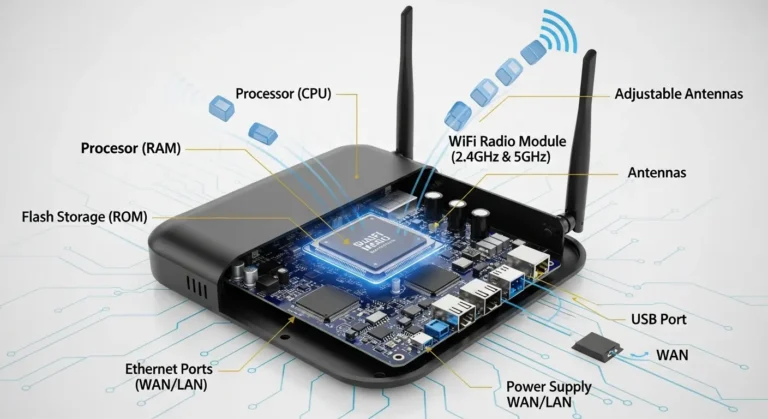
Think of your router like a mini computer that runs nonstop. Over time, it can slow down or freeze, just like a smartphone or laptop.
In my experience, routers that run continuously for weeks often develop performance issues. A simple restart can instantly restore speed and stability.
Signs You Need to Restart Your Wi-Fi Router
1. Slow Internet Speeds
If your browsing or streaming suddenly becomes sluggish, your router may be overloaded.
I noticed this frequently when multiple family members were streaming Netflix, gaming, and downloading files simultaneously.
2. Frequent Disconnections
Random Wi-Fi dropouts often indicate software conflicts or signal instability.
3. Devices Cannot Connect
Sometimes your phone or laptop refuses to connect even though the Wi-Fi signal appears strong.
4. Router Overheating
Routers can overheat, especially in warm climates or poorly ventilated spaces.
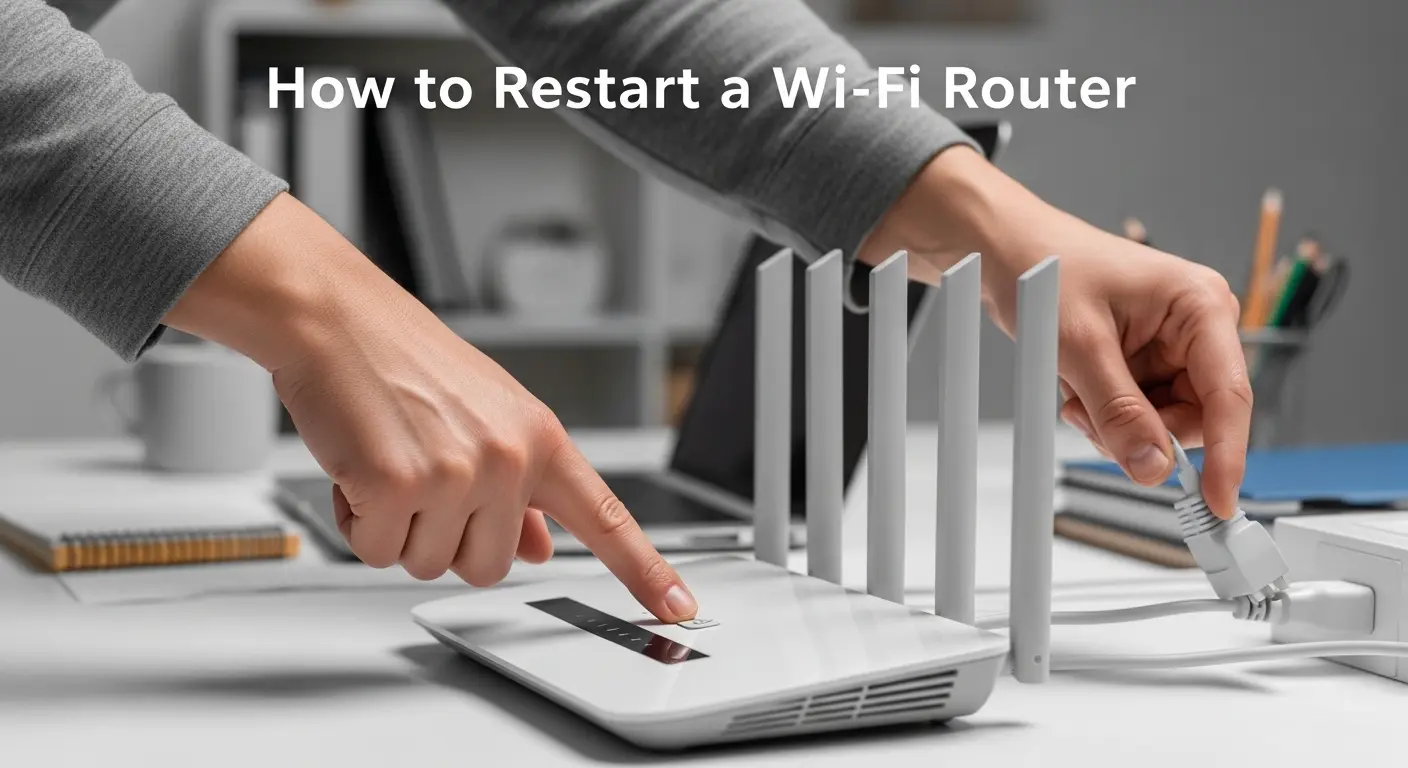
How to Restart a Wi-Fi Router Properly (Step-by-Step)
Many people simply unplug the router and plug it back immediately. I used to do the same, and honestly, it’s not the most effective method.
Here’s the correct and recommended way to restart a Wi-Fi router.
Step 1: Locate Your Router and Modem
Most homes have either:
- A combined modem/router device
- Separate modem and router units
Brands you might see include:
- TP-Link
- Netgear
- Huawei
- Linksys
- D-Link
- PTCL or ISP-provided routers
Step 2: Turn Off the Router
You have two options:
Option A: Use the Power Button
Some routers have a power switch on the back. Press it to turn the device off.
Option B: Unplug the Power Cable
If there is no button, unplug the power adapter from the wall socket.
Personally, I prefer unplugging because it guarantees complete shutdown.
Step 3: Wait for 30 to 60 Seconds
This is the most important step — and the one most people skip.
Waiting allows:
- Memory cache to clear
- Capacitors inside the router to discharge
- Network sessions to reset
I was skeptical about waiting at first, but after testing both quick and delayed restarts, the longer wait consistently solved more connectivity problems.
Step 4: Restart the Modem (If Separate)
If you have a separate modem:
- Turn off modem first
- Wait 30 seconds
- Turn modem back on
- Wait until internet lights stabilize
- Then power on the router
This sequence ensures proper communication between devices.
Step 5: Wait for Router to Fully Boot
Routers usually take 2–5 minutes to fully restart.
Look for:
- Stable internet or WAN light
- Wi-Fi signal light active
- No blinking red error lights
Alternative Method: Restart Router Using Admin Panel
Modern routers allow restarting through software settings.
How to Restart via Web Interface
- Open browser
- Type router IP address (commonly 192.168.0.1 or 192.168.1.1)
- Log in using admin credentials
- Locate restart or reboot option
- Confirm reboot
I personally use this method when troubleshooting remotely or when my router is hard to access physically.
How Often Should You Restart Your Router?
From testing multiple home networks, I’ve found:
- Once every 1–2 months keeps performance optimal
- Heavy internet users may benefit from weekly restarts
- Businesses often schedule automatic nightly reboots
Many modern routers from brands like Netgear and ASUS include scheduled reboot features.
Common Mistakes When Restarting a Wi-Fi Router
Restarting Too Quickly
Immediate unplug and plug back often fails to clear internal memory.
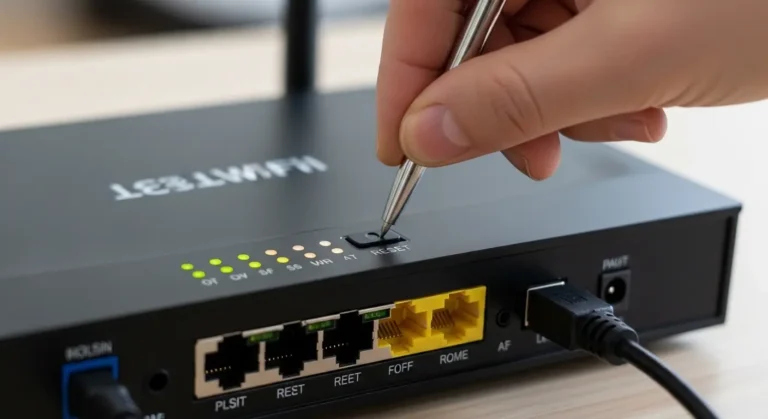
Resetting Instead of Restarting
Restarting and resetting are completely different.
- Restart = temporary refresh
- Reset = factory settings erase everything
I accidentally reset my router once and lost all Wi-Fi passwords. Trust me, it’s frustrating.
Ignoring Overheating
If your router feels hot, restarting alone won’t solve the issue. Improving ventilation helps long-term performance.
Real-World Benefits I’ve Personally Noticed After Restarting Routers
After testing this across different networks, restarting often improves:
- Streaming quality on Netflix and YouTube
- Gaming ping and latency
- Video call stability
- Faster webpage loading
- Reduced buffering during downloads
One time, my internet speed jumped from 12 Mbps to nearly 25 Mbps after a simple restart. It felt like a free upgrade.
When Restarting Doesn’t Fix the Problem
Restarting works in many cases, but not always.
Here are situations where other solutions may be needed:
ISP Outage
Sometimes the issue comes from your internet provider.
Router Hardware Failure
Older routers may struggle with modern internet speeds.
Signal Interference
Nearby Wi-Fi networks or thick walls can weaken signals.
Firmware Issues
Updating router firmware often resolves hidden bugs.
Extra Tips to Improve Wi-Fi Performance
Place Router in Central Location
I noticed signal strength improves dramatically when the router is placed in an open central area rather than a corner.
Keep Router Elevated
Higher placement improves coverage.
Avoid Electronic Interference
Keep routers away from:
- Microwaves
- Bluetooth devices
- Cordless phones
Update Router Firmware Regularly
Manufacturers release updates that improve security and performance.
Quick Summary: Router Restart Checklist
- Turn off router and modem
- Wait at least 30 seconds
- Turn modem on first
- Turn router on second
- Wait 2–5 minutes for full reboot
FAQs
Does restarting a router improve internet speed?
Yes, in many cases. Restarting clears temporary data, refreshes connections, and resolves software bugs that slow performance.
Is restarting the same as resetting a router?
No. Restarting refreshes the system temporarily, while resetting restores factory settings and removes all custom configurations.
How long should I unplug my router?
Experts recommend waiting at least 30 seconds, but 60 seconds often works better for complete memory clearing
Will restarting change my Wi-Fi password?
No. Restarting does not change network settings. Only resetting the router removes saved configurations.
Conclusion:
Restarting a Wi-Fi router might sound basic, but in my experience, it remains one of the most reliable troubleshooting methods available. It’s quick, safe, and often resolves slow speeds, dropped connections, and network glitches without requiring technical expertise.
The biggest advantages include:
- Instant performance refresh
- Easy and safe process
- No data or settings lost
The only limitation is that it won’t solve hardware failures or ISP outages, but it should always be your first troubleshooting step.
I’ve personally relied on this method countless times, whether fixing home internet during movie nights or stabilizing important online meetings.
If you try restarting your router and notice improvements, I’d love to hear about your experience. Sharing real-world results helps others troubleshoot faster and smarter.