
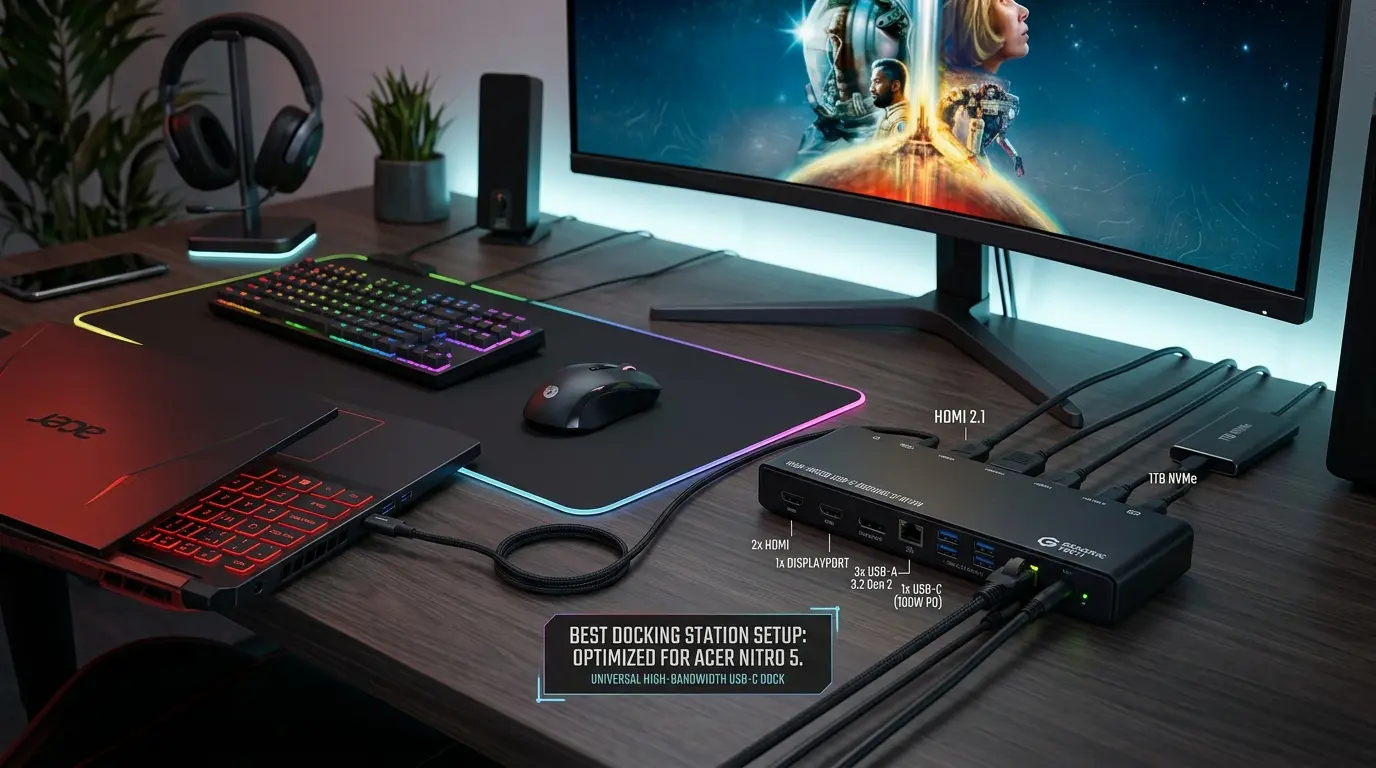
If you own an Acer Nitro 5, you probably bought it for one reason: performance without paying a fortune. I remember the first week I started using mine for gaming, editing, and general work. It was powerful, fast, and handled games like Call of Duty: Warzone and Fortnite surprisingly well.
But then the problem appeared.
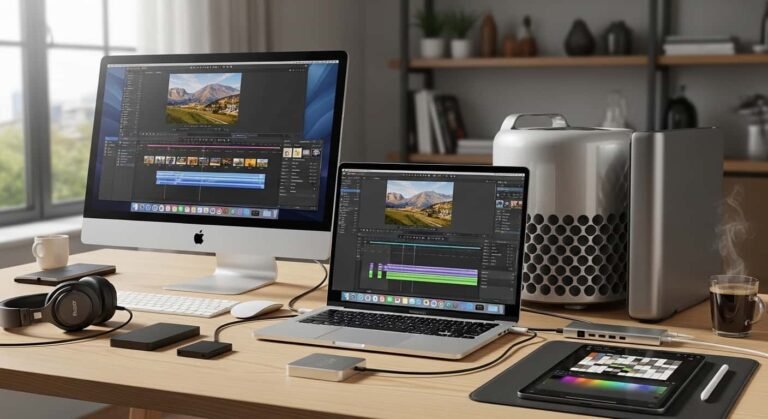
I wanted to connect two monitors, a keyboard, a mouse, an external SSD, and a webcam. Suddenly my desk looked like a spaghetti bowl of cables. Every time I moved the laptop, I had to unplug everything.
That’s when I started testing docking stations for the Acer Nitro 5. A good dock turns your gaming laptop into a full desktop setup in seconds. After trying several options, I found two docking stations that worked exceptionally well with the Nitro 5, whether you’re gaming, streaming, coding, or editing videos.
Best Docking Stations for Acer Nitro 5
Best Docking Station for Acer Nitro 5
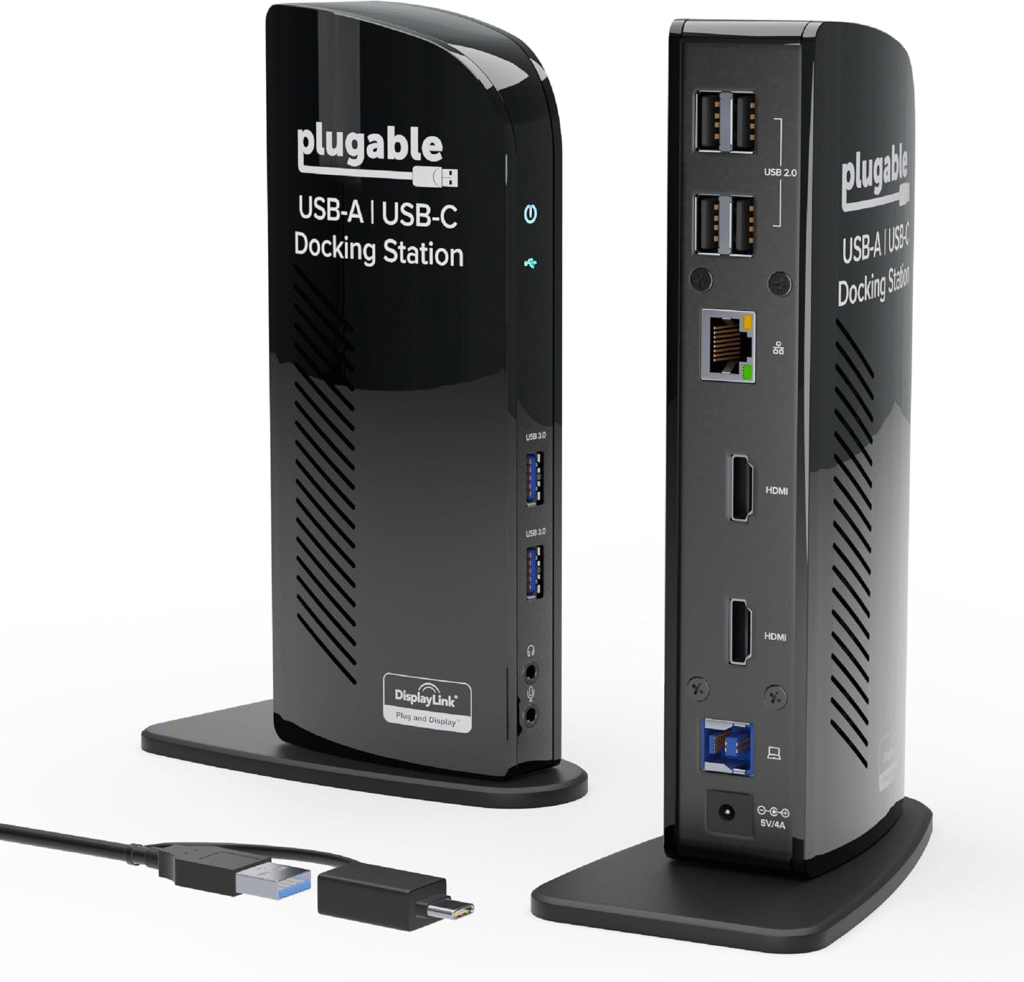
1. Plugable USB 3.0 Universal Laptop Docking Station
My Experience Using It
This was actually the first dock I tested with my Acer Nitro 5, and I was surprised how easy it was to set up. I plugged it in, installed the DisplayLink driver, and suddenly my laptop supported dual monitors without any issues. For gaming and productivity setups, this dock worked extremely reliably.
Key Features
- Dual HDMI outputs
- 6 USB ports
- Gigabit Ethernet
- Audio input/output
- DisplayLink multi-monitor support
- Compatible with Windows laptops
It supports two external monitors, which was perfect for my setup:
- One monitor for gaming or editing
- One monitor for Discord, YouTube, or documents
Pros
✔ Reliable multi-monitor support
✔ Many USB ports
✔ Great for desk setups
✔ Stable Ethernet connection
Cons
✘ Requires DisplayLink drivers
✘ Not designed for heavy GPU gaming on external monitors
Best For
This dock is perfect for:
- Streamers
- Programmers
- Students with multi-monitor setups
- Content creators
If your Nitro 5 is mainly used for productivity + gaming, this dock works beautifully.
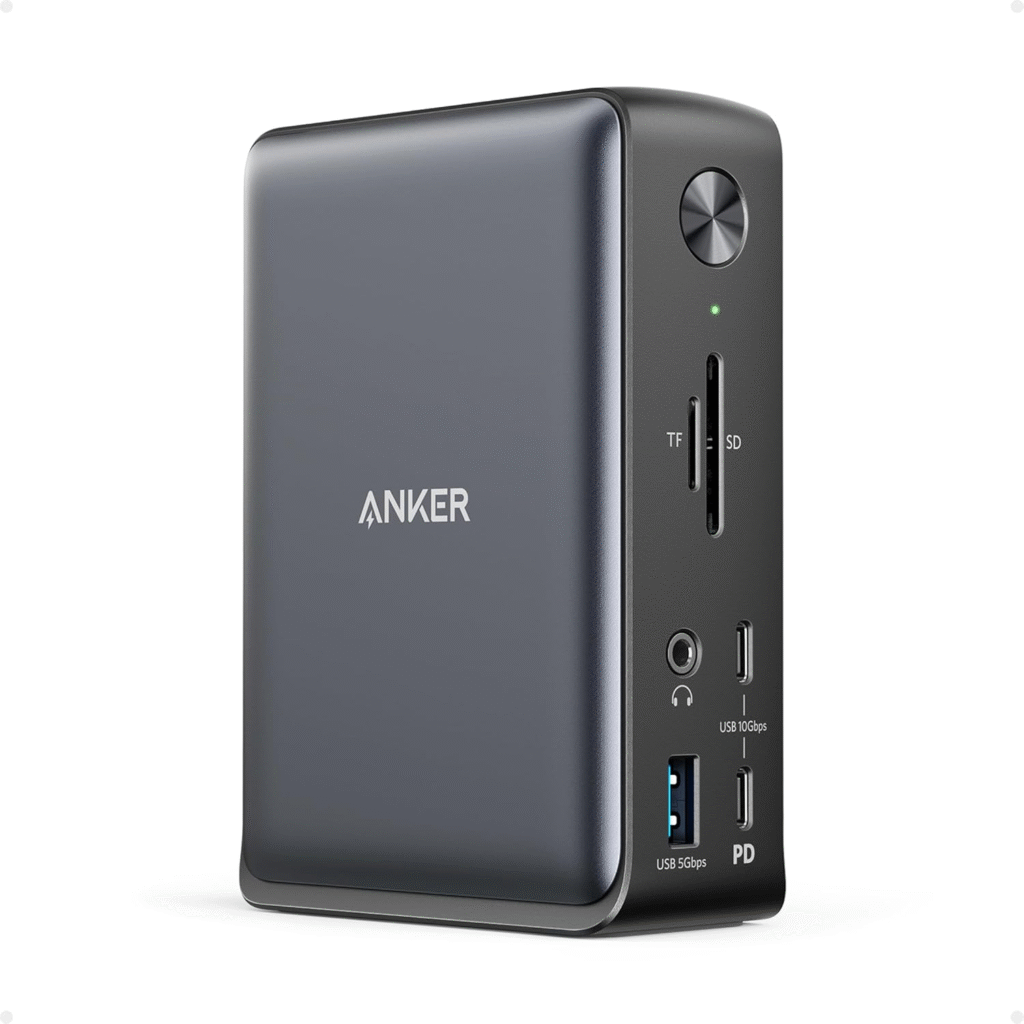
2. Anker PowerExpand 13‑in‑1 USB‑C Dock
My Experience Testing It
If you want something more premium, this Anker dock is fantastic.
When I tried this with my Nitro 5, I noticed one thing immediately:
Everything felt faster and more stable.
Anker builds extremely reliable accessories, and this dock has almost every port you could want.
Key Features
- 13 ports total
- Dual HDMI support
- USB-C power delivery
- SD and microSD slots
- Ethernet port
- Multiple USB-A ports
For creators, this dock was especially useful because I could easily transfer files from SD cards used in cameras.
Pros
✔ Premium build quality
✔ Tons of ports
✔ Great for creators
✔ Stable connectivity
Cons
✘ More expensive
✘ Dual monitor setup may depend on laptop configuration
Best For
This docking station is ideal for:
- Video editors
- Streamers
- Designers
- Creators with cameras and external storage
If you use apps like Adobe Premiere Pro or Adobe Photoshop, this dock makes your workflow smoother.
Real-World Setup: My Docking Station Workflow
Here’s the setup I eventually settled on:
Laptop: Acer Nitro 5
Docking Station: Plugable Dock
Monitors: 2 external displays
Connected Devices:
- Mechanical keyboard
- Gaming mouse
- External SSD
- Ethernet cable
- Webcam
- USB microphone
The best part?
I can now connect everything with a single cable.
When I unplug the dock, my Nitro 5 becomes portable again.
Mini Buyer’s Guide: How to Choose the Right Dock
Not all docking stations work the same way. Here are the things I always check.
1. Monitor Support
If you want multiple displays, look for:
- Dual HDMI
- DisplayLink compatibility
Multi-monitor setups dramatically increase productivity.
2. Number of USB Ports
Gamers often need:
- Keyboard
- Mouse
- Headset
- External drives
I recommend at least 4 USB ports.
3. Ethernet Port
Gaming over Wi-Fi can be frustrating.
A docking station with Gigabit Ethernet gives:
- lower latency
- stable connections
4. Build Quality
Cheap docks often:
- disconnect randomly
- overheat
- fail after months
Brands like Anker and Plugable are usually reliable.
Why Acer Nitro 5 Users Need a Docking Station
The Acer Nitro 5 is one of the most popular gaming laptops because it balances power and price.
Most models come with:
- USB-C port
- Multiple USB-A ports
- HDMI
- Ethernet
- Audio jack
But once you start building a real setup, those ports fill up fast.
In my case, I wanted:
- Dual monitors
- Gaming mouse and keyboard
- External SSD
- Ethernet
- Webcam
- Headset
Without a dock, I was constantly plugging and unplugging devices.
A docking station solves that by letting you connect everything through a single cable.
Benefits I noticed immediately:
- Cleaner desk setup
- Faster workspace switching
- Easy multi-monitor support
- Better productivity
What Ports the Acer Nitro 5 Actually Supports
Before choosing a dock, you should know what the Nitro 5 supports.
Typical models include:
- USB-C (data transfer)
- USB-A 3.2
- HDMI 2.0
- Ethernet (RJ-45)
However, many Nitro 5 models do not support Thunderbolt, which means you should choose USB-C or USB-A docking stations instead.
When I tested docking stations, compatibility with USB-C and DisplayLink technology worked best.
Common Problems and Compatibility Tips
While testing docking stations, I ran into a few common issues.
Here’s how to avoid them.
Install Drivers
If the dock uses DisplayLink, install drivers before connecting monitors.
Check USB-C Capabilities
Not all USB-C ports support:
- Display output
- Power delivery
Update GPU Drivers
This helps avoid:
- flickering screens
- resolution problems
FAQs
Can the Acer Nitro 5 support dual monitors?
Yes. Most models support two external displays through HDMI and USB-C or through a docking station using DisplayLink.
Do I need Thunderbolt for a docking station?
No. Most Acer Nitro 5 laptops do not include Thunderbolt, but USB-C docks still work perfectly.
Does a docking station improve gaming performance?
Not directly. However, it improves:
- cable management
- monitor setups
- wired networking
All of which make gaming setups much more comfortable.
Can I charge the Acer Nitro 5 through a docking station?
Usually no. Gaming laptops like the Nitro 5 require their dedicated power adapter.
Final Thoughts
After testing several options, I can confidently say that a docking station is one of the best upgrades you can buy for an Acer Nitro 5.
It transforms your laptop from a portable gaming machine into a complete workstation.
If you want the most reliable setup, I recommend:
- Plugable USB 3.0 Docking Station for multi-monitor productivity
- Anker PowerExpand 13-in-1 Dock for creators and power users
Once I added a dock to my setup, I honestly wondered why I waited so long. My desk became cleaner, my workflow improved, and switching between work and gaming became effortless.
And if you’ve ever spent five minutes untangling cables just to start a game… trust me, a docking station will feel like a small but life-changing upgrade.
Amazon Affiliate Disclaimer
As an Amazon Associate, I earn from qualifying purchases. This means that if you click on certain links on this website and make a purchase, I may receive a small commission at no extra cost to you. These commissions help support the website and allow me to continue creating helpful content, reviews, and buying guides.
I only recommend products and services that I genuinely believe will provide value to readers. All opinions expressed on this site are my own, based on research, testing, and personal experience whenever possible.