
Every photographer eventually hits the same wall: a laptop that used to fly through Lightroom Classic now chugs on a single Denoise pass, batch exports take a coffee break, and fan noise becomes the soundtrack to your editing session. If you’re shopping for a new machine this year, the good news is that both Apple Silicon and the latest Windows chips have made huge strides in exactly the areas that matter for photo work — sustained performance, GPU-accelerated AI tools, and colour-accurate displays. Here’s how the current crop stacks up.
Apple MacBook Pro 16 (M5 Pro): Best Mac — Most Powerful Laptop for Photo Editing
If money isn’t the deciding factor, the 16-inch MacBook Pro with M5 Pro is the machine to beat. Apple’s M5 generation brought a genuine architectural shift — six new “super cores” alongside performance cores — and the company claims roughly 30% faster CPU throughput for pro workloads compared with the M4 Pro, plus a GPU with a Neural Accelerator built into every core for AI-heavy tasks like Lightroom’s Denoise and Photoshop’s Generative Fill. Paired with up to 64GB of unified memory and a stunning Liquid Retina XDR display, this is a laptop built for photographers who shoot high-megapixel raw files and can’t afford the machine to be the bottleneck.
Amazon Affiliate Disclaimer
As an Amazon Associate, I earn from qualifying purchases. This m eans I may earn a small commission if you buy through links on this page, at no extra cost to you. This helps support the research and content I create.
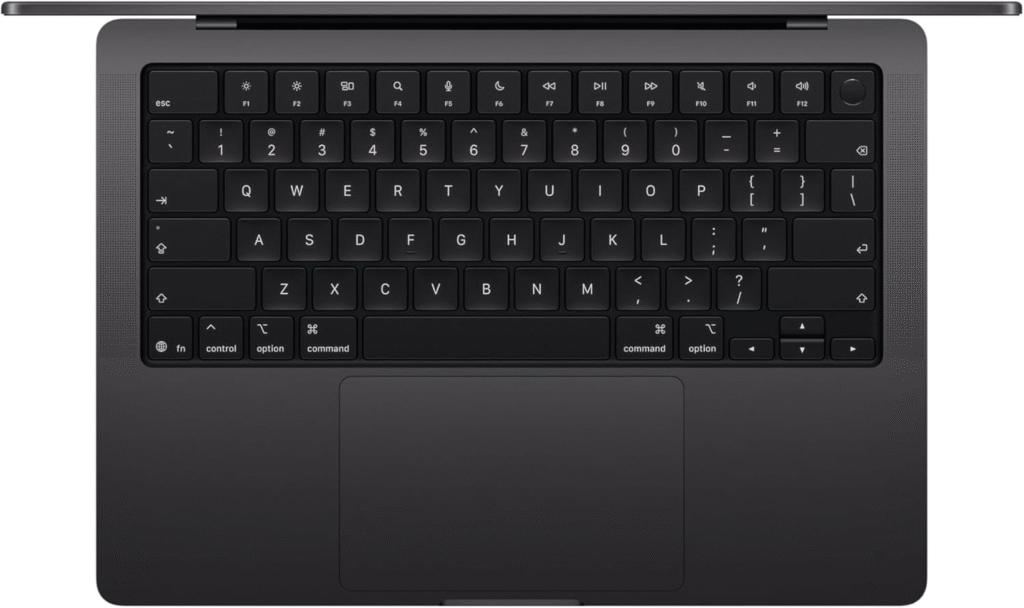
1. Apple MacBook Pro 14 (M5 Max)
Specifications
- Chip: Apple M5 Max, 18-core CPU (6 super cores + 12 performance cores), up to 40-core GPU
- Memory: 36GB–128GB unified memory
- Storage: 2TB standard, up to 8TB
- Display: 14.2-inch Liquid Retina XDR, 3024×1964, 120Hz ProMotion, 1,000 nits sustained / 1,600 nits peak HDR
- Ports: 3x Thunderbolt 5, HDMI, SDXC card slot, MagSafe 3
- Battery: Apple-estimated 16–24 hours
Reasons to buy
This is, by most independent benchmarks, the fastest laptop you can put in a bag for photo and video work. With 128GB of unified memory, the GPU can address enormous pools of RAM directly, which matters if you batch-process thousands of raw files or run local AI tools alongside Lightroom. The SSD is also up to twice as fast as the previous generation, which shortens import and export times noticeably when you’re culling a wedding shoot.
Reasons to avoid
It’s genuinely excessive for most photographers. A fully configured M5 Max with 128GB of RAM and 8TB of storage pushes well into desktop-workstation pricing, and reviewers have noted that sustained Cinebench-style loads still trigger thermal throttling in the compact 14-inch chassis. Unless you’re also doing 8K video or local LLM work, a MacBook Pro with M5 Pro (or even the standard M5) will feel nearly as fast for Lightroom and Photoshop specifically.
Best Photo Editing Laptop for Most People
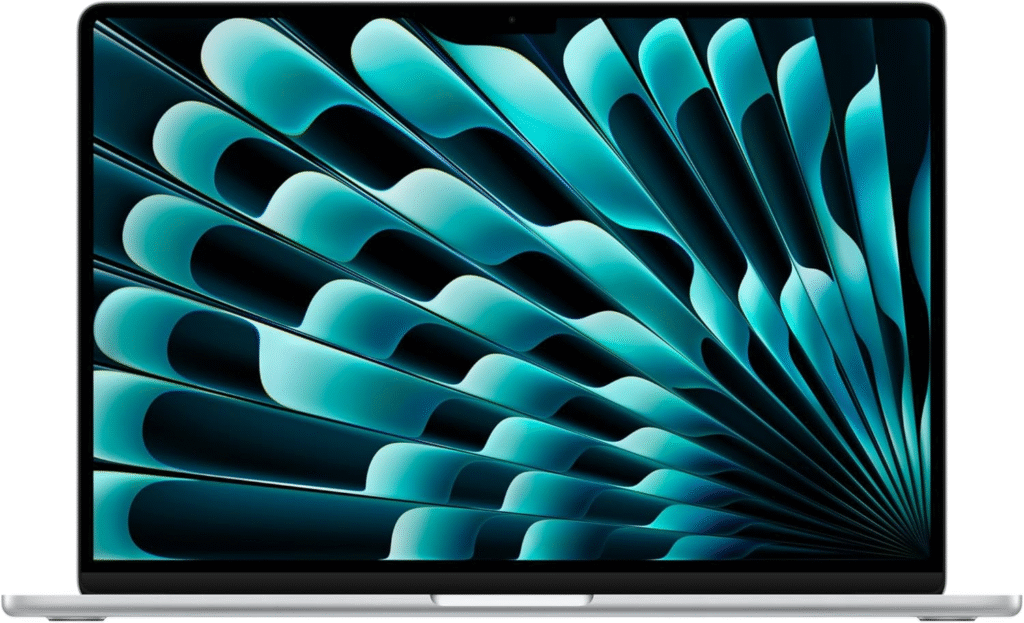
2. MacBook Air 15-inch (M4, 2025)
Specifications
- Chip: Apple M4, 10-core CPU, 10-core GPU
- Memory: 16GB standard, configurable to 24GB or 32GB
- Storage: 256GB standard, up to 2TB
- Display: 15.3-inch Liquid Retina, 2880×1864, P3 wide colour, 500 nits
- Ports: 2x Thunderbolt 4, headphone jack, MagSafe 3
- Battery: Up to 18 hours
Reasons to buy
This is the laptop that gets recommended over and over in photography forums, and for good reason — it delivers desktop-class Lightroom performance in a fanless, half-inch-thick body that doesn’t throttle when you unplug it. That last point is the real differentiator over Windows rivals: a MacBook Air performs essentially the same on battery as it does plugged in, which most gaming-oriented Windows laptops still can’t claim. For culling, basic retouching, and even moderate batch exports, it’s more than enough.
Reasons to avoid
Denoise and other GPU-bound AI tools are noticeably slower than on a Pro-chip Mac or a discrete-GPU Windows laptop, since there’s no active cooling to sustain peak clocks. If you shoot high volumes of 45MP+ raw files and lean heavily on AI Denoise for every image, budget for a Pro model instead — or accept the wait during export.
Also Read: Best Budget Laptops
Lenovo Yoga Pro 9i 16 (Gen 10): Best for Lightroom
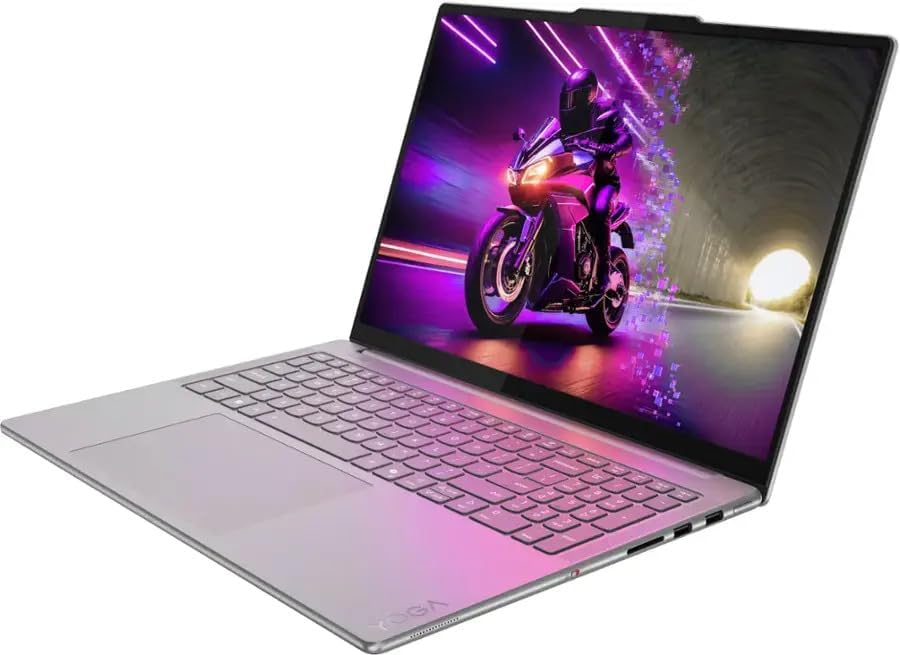
For photographers who want to stay on Windows, the Yoga Pro 9i 16 Gen 10 is one of the strongest all-rounders available. It pairs an Intel Core Ultra 9 285H with an NVIDIA RTX 5060 or RTX 5070 discrete GPU and up to 64GB of RAM — a combination that plays directly to Lightroom Classic’s GPU-accelerated Denoise and Enhance features, which several photographers online have found to run several times faster on a modern discrete NVIDIA GPU than on Apple Silicon. It also offers a 3.2K Tandem OLED display option with excellent colour depth and contrast, useful for judging shadow detail during editing. The trade-off is battery life and portability: at around 4.5 pounds and with far shorter unplugged runtime than a MacBook, it’s a laptop you’ll want to keep near an outlet.
Read More About: Best Laptops for DJing on a Budget: Which Laptop for Runs Rekordbox Smoothly?
Asus ProArt PX13: Best for Colour-Critical Work
The ProArt PX13 is built specifically around one idea: accurate colour in a portable, convertible body. Its 3K OLED touchscreen is factory-calibrated to Delta E <1 accuracy with 100% DCI-P3 and around 95% Adobe RGB coverage, PANTONE-validated, and backed by ASUS’s Creator Hub software for ongoing calibration — all rare at this size. Under the hood, the AMD Ryzen AI Max+ 395 processor and unified memory architecture (configurable up to 128GB) give it surprisingly strong multi-threaded performance for exports and batch operations, and the 360-degree hinge with stylus support is genuinely useful for retouching or dodge-and-burn work by hand. The catch is the 60Hz refresh rate, which feels dated on an otherwise premium panel, and the compact chassis runs warmer under sustained GPU loads than larger 16-inch alternatives.
HP Spectre x360 16: Best 2-in-1 and Touchscreen
HP has folded the Spectre name into its newer OmniBook Ultra lineup, but 16-inch Spectre x360-style convertibles remain widely available and still make sense for photographers who want touchscreen and pen input alongside a full-size keyboard. The 16-inch OLED panel (2.8K, 100% DCI-P3, up to 120Hz) is vivid and accurate enough for casual colour-critical work, and configurations with a discrete NVIDIA GPU handle Lightroom and light video editing comfortably. It’s not the fastest option here, and battery life and peak brightness both trail the MacBook Air, but as a flexible, all-in-one hybrid for photographers who also sketch, annotate, or present client galleries in tablet mode, it’s a strong niche pick.
Microsoft Surface Laptop 5
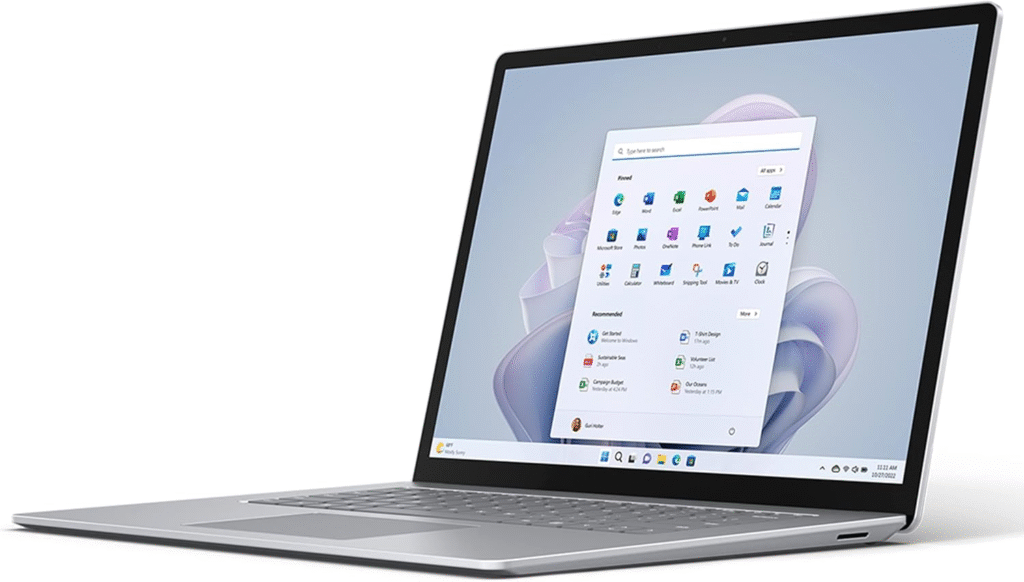
Specifications
- Chip: Intel Core i5/i7 (12th Gen)
- Memory: 8GB–32GB
- Storage: 256GB–1TB SSD
- Display: 13.5-inch or 15-inch PixelSense touchscreen, 3:2 aspect ratio
- Ports: USB-C, USB-A, Surface Connect, headphone jack
- Battery: Up to 18 hours (rated)
Reasons to buy
The Surface Laptop’s tall 3:2 display is genuinely well-suited to photo editing — you see more of a vertical image and more of Lightroom’s panel-heavy interface without scrolling. Build quality is excellent, and it’s light enough to carry all day.
Reasons to avoid
Without a discrete GPU, it leans entirely on integrated graphics, which makes AI Denoise and video-heavy workflows slow. It’s best treated as a culling-and-light-editing machine rather than a primary workstation, and it’s now a generation or two behind Microsoft’s current Surface lineup, so newer alternatives may offer better value.
7. Acer Predator Helios 300
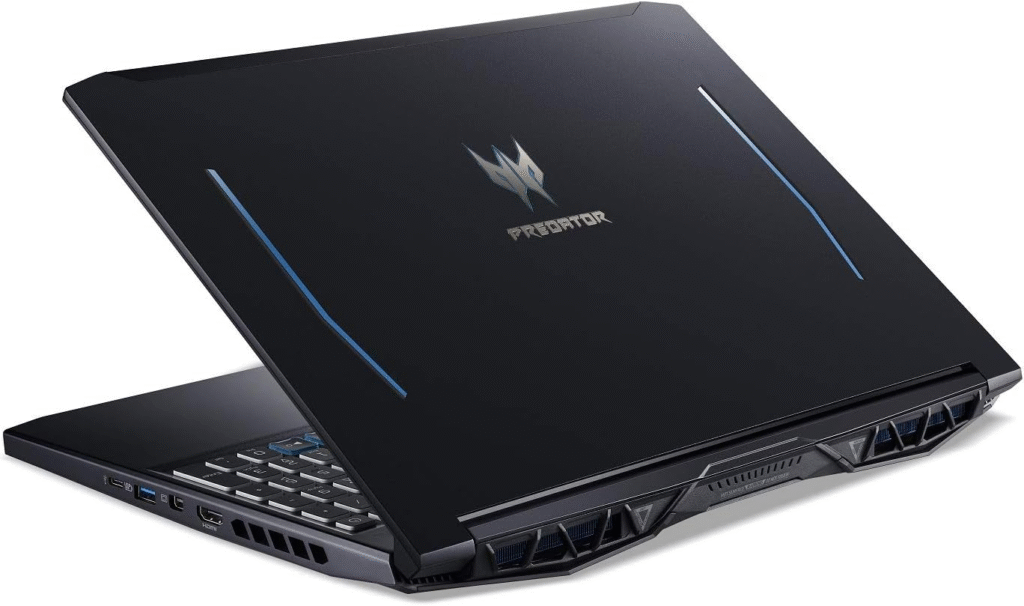
Specifications
- Processor: Intel Core i7/i9 (varies by generation) or Ryzen equivalent
- Graphics: NVIDIA GeForce RTX-series discrete GPU (varies by configuration)
- Memory: 16GB–32GB DDR5, expandable
- Storage: 512GB–2TB NVMe SSD, dual M.2 slots
- Display: 15.6-inch or 17.3-inch IPS, up to QHD resolution, 100% DCI-P3 on higher-tier panels
- Battery: Modest — built for plugged-in use
Reasons to buy
This is a gaming laptop first, but its discrete GPU and expandable RAM/storage make it a genuinely capable budget option for GPU-accelerated Lightroom and Photoshop tasks — often outperforming similarly priced “creator” laptops on raw Denoise and export speed. If you already lean toward PC gaming and want one machine that does both, it’s a pragmatic choice.
Reasons to avoid
Battery life is weak, the chassis is bulky, and colour accuracy on base-model panels isn’t calibrated for professional work out of the box. Fan noise under sustained load is also considerably louder than any of the ultrabooks on this list.
MacBook Air M5: Best Budget Mac
Apple’s newest MacBook Air brings the M5 chip’s Neural Accelerator-equipped GPU to the entry-level Mac lineup, with Apple claiming up to 4x faster AI performance than the M4 model. It now starts with 512GB of storage as standard (double the previous base), Wi-Fi 7, and the same fanless, all-day-battery design that’s made the Air a favourite among travelling photographers. Starting at $1,099 for the 13-inch and $1,299 for the 15-inch, it undercuts the MacBook Pro by a wide margin while still comfortably handling Lightroom Classic culling, basic edits, and moderate batch exports — just don’t expect Pro-chip speeds on Denoise-heavy workflows.
Which Laptop Should You Buy?
- Working pro who shoots high volumes and needs zero bottlenecks: MacBook Pro 14 or 16 (M5 Pro/Max)
- Most photographers, most of the time: MacBook Air 15-inch (M4) or the newer M5 Air
- Windows loyalist who wants GPU-accelerated Denoise: Lenovo Yoga Pro 9i 16
- Colour-critical retouching and design work on the go: Asus ProArt PX13
- Touchscreen, pen input, and hybrid flexibility: HP Spectre x360 16
- Tight budget, willing to trade GPU power for value: Acer Predator Helios 300 or MacBook Air M5
What Actually Matters in a Laptop for Photo Editing
Processor: Single-Core Speed Matters More Than You’d Think
Lightroom Classic and Photoshop still rely heavily on single-core performance for scrolling the Develop module, applying local adjustments, and general UI responsiveness — not just raw multi-core horsepower. This is one reason Apple Silicon Macs feel snappier in everyday editing than their multi-core benchmark scores alone would suggest, and why a high-clock Intel Core Ultra 9 or Ryzen AI chip will outperform a lower-clocked chip with more cores for the actual click-and-drag experience of editing.
RAM: 24GB Is the 2026 Sweet Spot
The old rule of thumb — “there’s never enough RAM for Lightroom” — is less true than it used to be, because photo files measured in megabytes are dwarfed by RAM measured in gigabytes even on high-resolution sensors. For most photographers, 24GB (or 32GB if your budget allows) hits the point of diminishing returns; beyond that, Lightroom itself rarely uses the extra headroom. The exception is Photoshop, where layered PSDs and Smart Objects are genuinely more RAM-hungry, and anyone doing heavy compositing should lean toward 32GB or more.
Storage: Get an SSD, 1TB if You Can
An SSD isn’t optional in 2026 — it’s the baseline for reasonable Lightroom Catalog performance and fast previews. Capacity matters more than raw speed for most photographers: a 512GB drive fills up fast once you factor in raw files, exported JPEGs, Lightroom’s preview cache, and your OS and applications. If your budget allows it, 1TB gives meaningful breathing room without needing to constantly offload to external drives mid-project.
Graphics and the NPU: Useful, Not Essential
A discrete GPU (or, on Apple Silicon, more GPU cores) accelerates GPU-bound features like Denoise, Enhance Details, and Photoshop’s Neural Filters significantly — sometimes by a factor of four or more compared with integrated graphics. On Windows, aim for at least 8GB of VRAM if AI-accelerated editing is a priority. That said, for photographers who don’t lean heavily on Denoise or video work, integrated graphics on a modern chip (Apple Silicon or Intel/AMD’s latest integrated GPUs) is genuinely sufficient — don’t overspend on GPU power you won’t use.
Screen: Colour Accuracy Beats Resolution
A laptop with a modest resolution but accurate, wide-gamut colour (100% sRGB, ideally close to 100% DCI-P3 or high Adobe RGB coverage, low Delta E) will serve your editing far better than a sharper panel with poor calibration. OLED panels tend to offer excellent contrast and colour depth but can vary in brightness and calibration between models, so check reviews for factory calibration data rather than assuming “OLED” automatically means “accurate.” Whatever you buy, plan to calibrate the display yourself with a hardware colorimeter before doing client-facing work.
Weight, Battery and Heat: The Laptop-Only Trade-offs
This is where the “best specs on paper” laptop often loses to the practical choice. Fanless designs like the MacBook Air run cooler and quieter but throttle under sustained heavy loads; gaming-style laptops with big GPUs run faster but generate real heat and noise, and rarely maintain full performance unplugged. If you travel for shoots — weddings, events, location work — battery life and weight aren’t nice-to-haves, they’re workflow requirements. Decide honestly whether you need sustained desktop-class power or portable, reliable “good enough” performance, and let that guide the whole purchase.
Ports: Don’t Forget the SD Card Reader
It’s a small thing until you’re standing at a venue without one. A built-in SDXC card reader saves you from carrying (and losing) a dongle, and it’s genuinely faster for offloading shoots than most external USB card readers. Thunderbolt or USB4 ports matter too, both for fast external SSD backups on location and for driving a colour-accurate external monitor back at your desk. If a laptop you’re considering has dropped the SD slot in favour of thinness, factor the cost and hassle of a hub into your final decision.