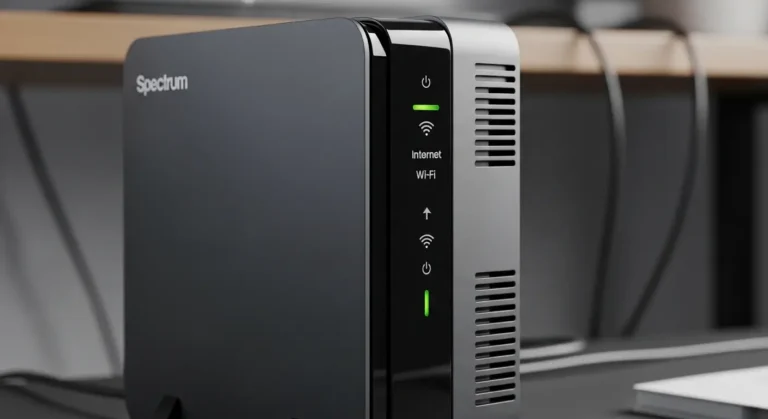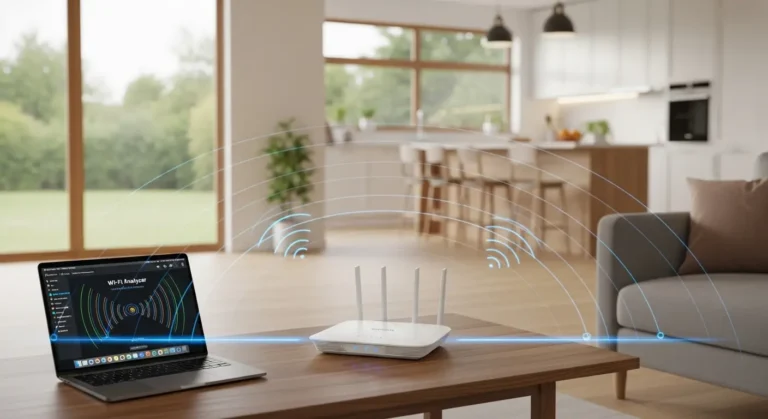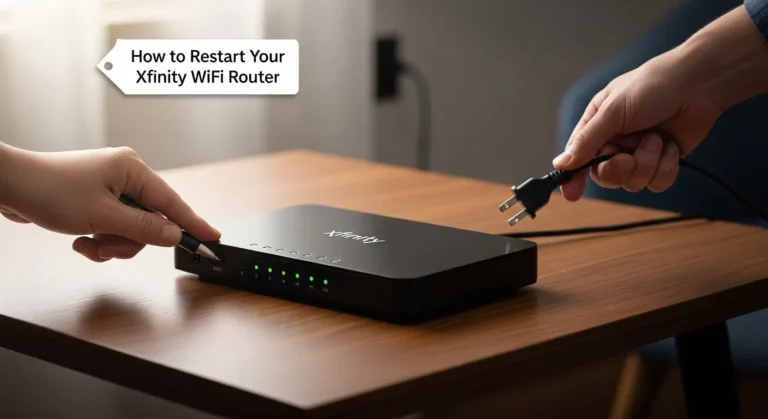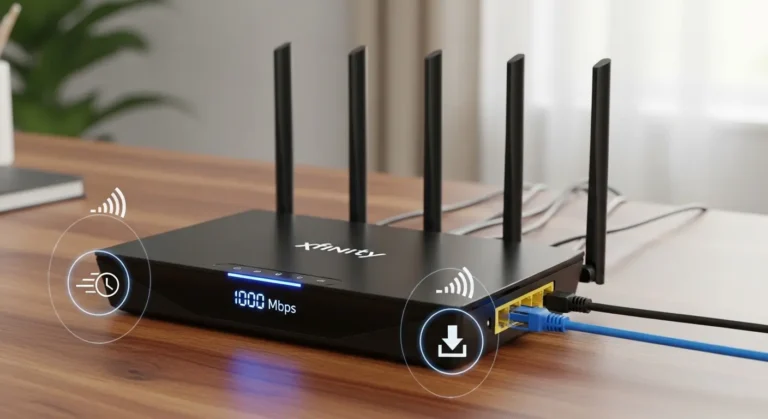

I still remember the exact moment I decided to stop renting my Xfinity gateway. I was on a video call, the picture froze mid-sentence, and my kid was two rooms over yelling that the Wi-Fi was “broken” because their game had lagged out. That was the week I started actually researching Xfinity-compatible routers instead of just accepting whatever box Comcast had shipped me years earlier.
This article is the guide I wish I’d had back then. I’ll walk through how router compatibility with Xfinity actually works, which routers are worth your money in 2026, depending on your home size and internet plan, the mistakes people commonly make when switching, and the questions I see asked over and over in Reddit threads and neighborhood Facebook groups. No fluff, no table full of specs you have to squint at — just a straightforward walkthrough.
First, Let’s Untangle a Common Myth
A lot of people assume they need to buy a router with an “Xfinity Approved” sticker on the box. That’s not quite how it works. Xfinity maintains an approved device list, but that list governs modems, since the modem is the piece of hardware that physically communicates with Comcast’s cable network. Your router — the box that broadcasts your Wi-Fi signal — connects behind the modem, which means it doesn’t need Comcast’s blessing at all.
Practically speaking, this means you can pair almost any modern router with an Xfinity-approved modem, or with Xfinity’s own xFi Gateway if you’re not ready to ditch it entirely. The real question isn’t “will this router work with Xfinity” — it’s “will this router actually perform well for my home and my plan.”
Modem, Router, or Gateway — Which Do You Actually Need to Replace?
Before buying anything, figure out what’s actually causing your problem:
- If your internet feels slow everywhere, the bottleneck could be your modem, especially if it’s older DOCSIS 3.0 hardware that can’t keep up with newer Xfinity speed tiers.
- If your internet is fast in one room and terrible in another, that’s a router/coverage issue, not a speed issue.
- If you want to do both at once with minimal hassle, a combo modem-router (sometimes called a gateway) handles everything in a single box.
Once I figured out my issue was mostly coverage — not raw speed — it saved me from overspending on a router with specs I didn’t need.
See More About: Best Modem Router Combo for Optimum Internet
The Best Xfinity-Compatible Routers Worth Considering in 2026
I’ve broken these down by the kind of household they actually fit, because the “best” router genuinely depends on how you use your internet.
For Power Users and Smart Homes: TP-Link Archer BE900
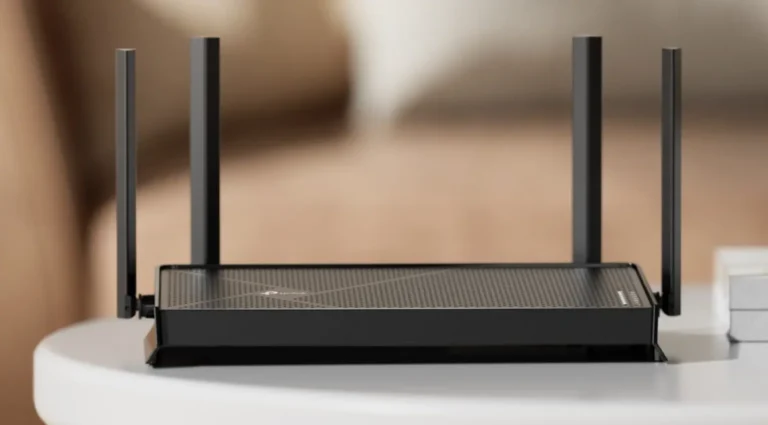
This is TP-Link’s flagship Wi-Fi 7 router, and it’s built for households where “a few devices” actually means twenty-plus once you count phones, laptops, smart plugs, doorbell cameras, and streaming boxes. It runs four separate wireless bands — 2.4GHz, two 5GHz bands, and a 6GHz band — which in plain terms means less congestion when everyone in the house is online at the same time. I’d only recommend this if your household genuinely has a lot of connected devices; otherwise you’re paying for headroom you won’t use.
For Feature Hunters Who Hate Subscriptions: ASUS RT-BE96U
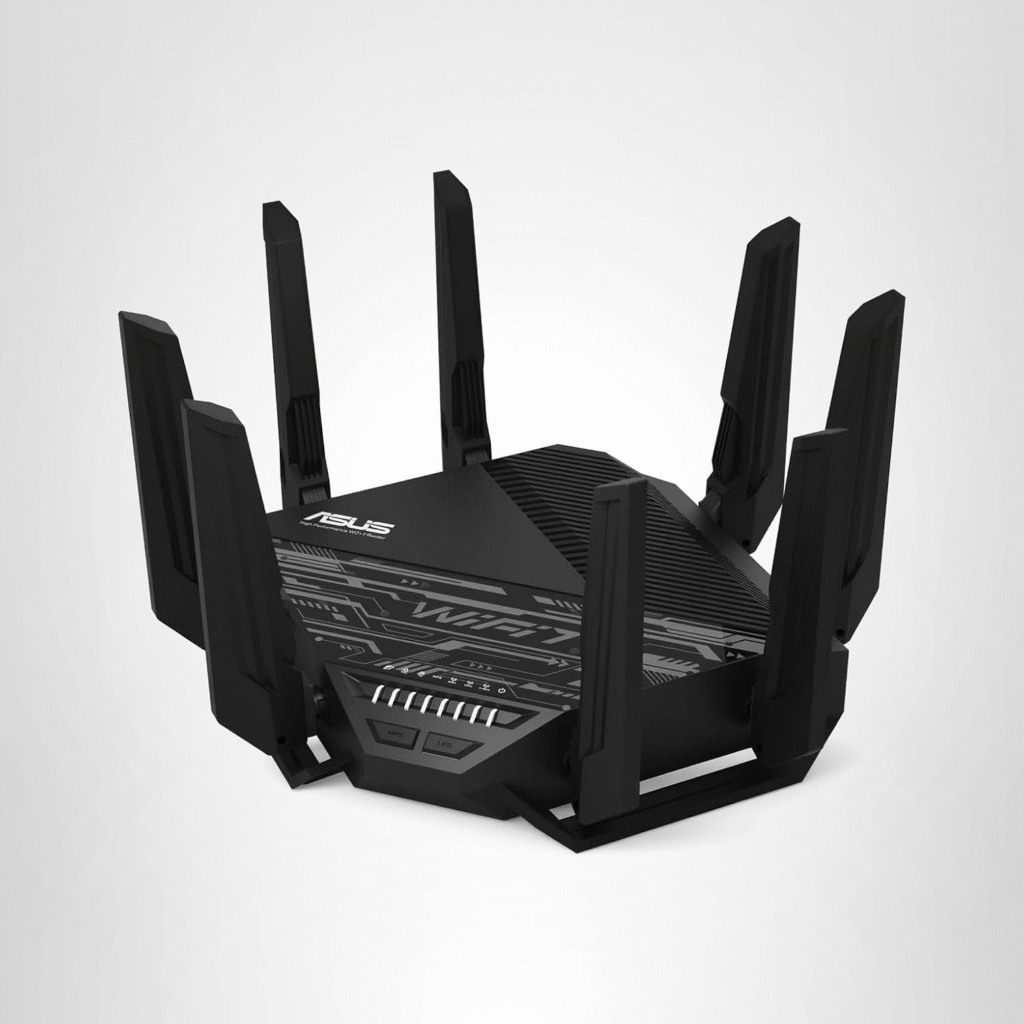
What stood out to me researching this one is how much it includes for free. The RT-BE96U supports speeds up to 9,400 Mbps — far beyond what any current Xfinity plan requires — and bundles VPN tools and parental controls without a monthly fee, unlike some competitors that lock those features behind a subscription. It also works with ASUS’s AiMesh system, so you can expand coverage later without replacing your main router.
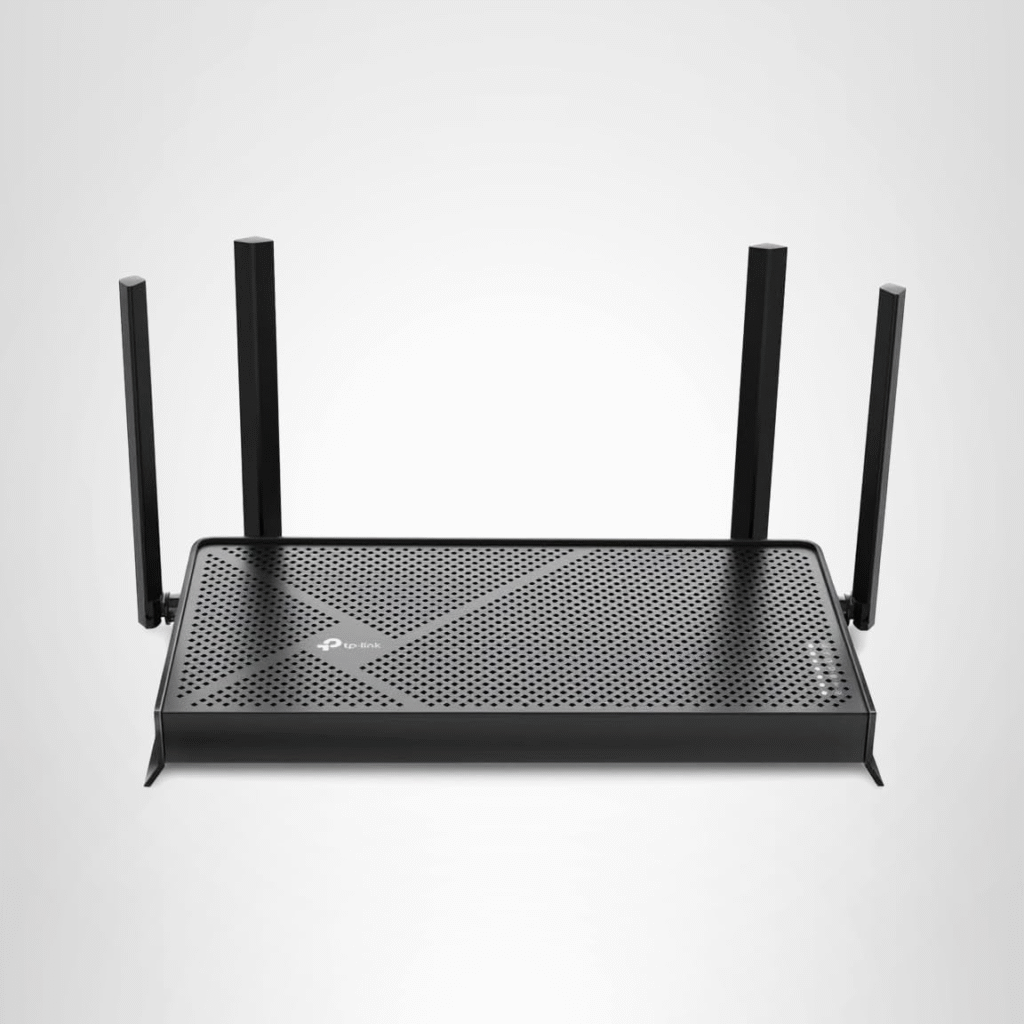
For Anyone on a Budget: TP-Link Archer BE230
Check the Price on Amazon
Not everyone wants to spend three or four hundred dollars just to get their Wi-Fi working properly, and honestly, most people don’t need to. The Archer BE230 trims down to two wireless bands instead of three but still delivers strong speeds along with VPN support and multiple network profiles. If your main goal is “stop paying rental fees” rather than “build the ultimate home network,” this is a sensible starting point.
For the “I Just Want One Box” Crowd: NETGEAR Nighthawk CAX80
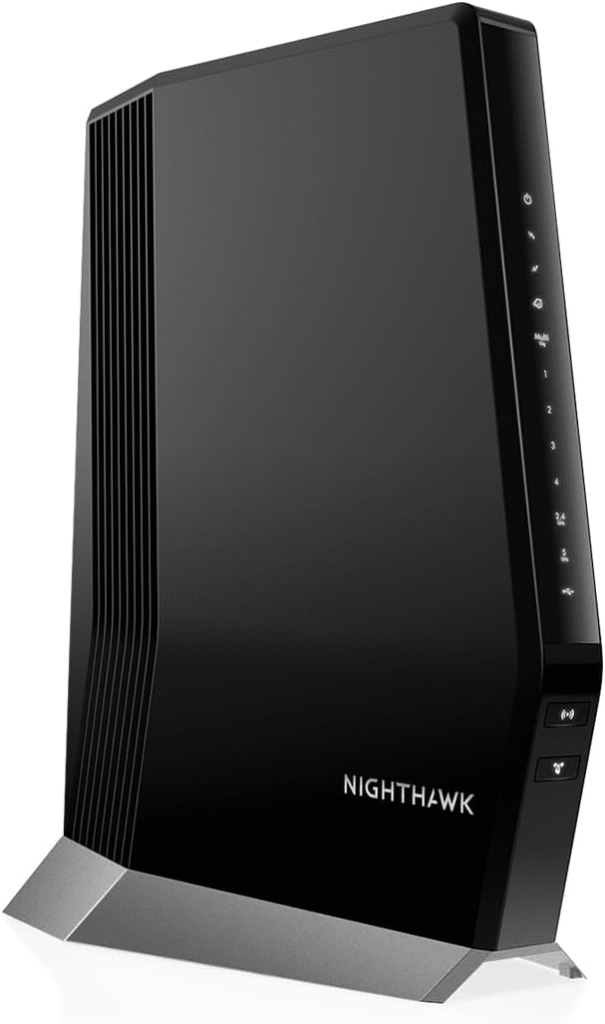
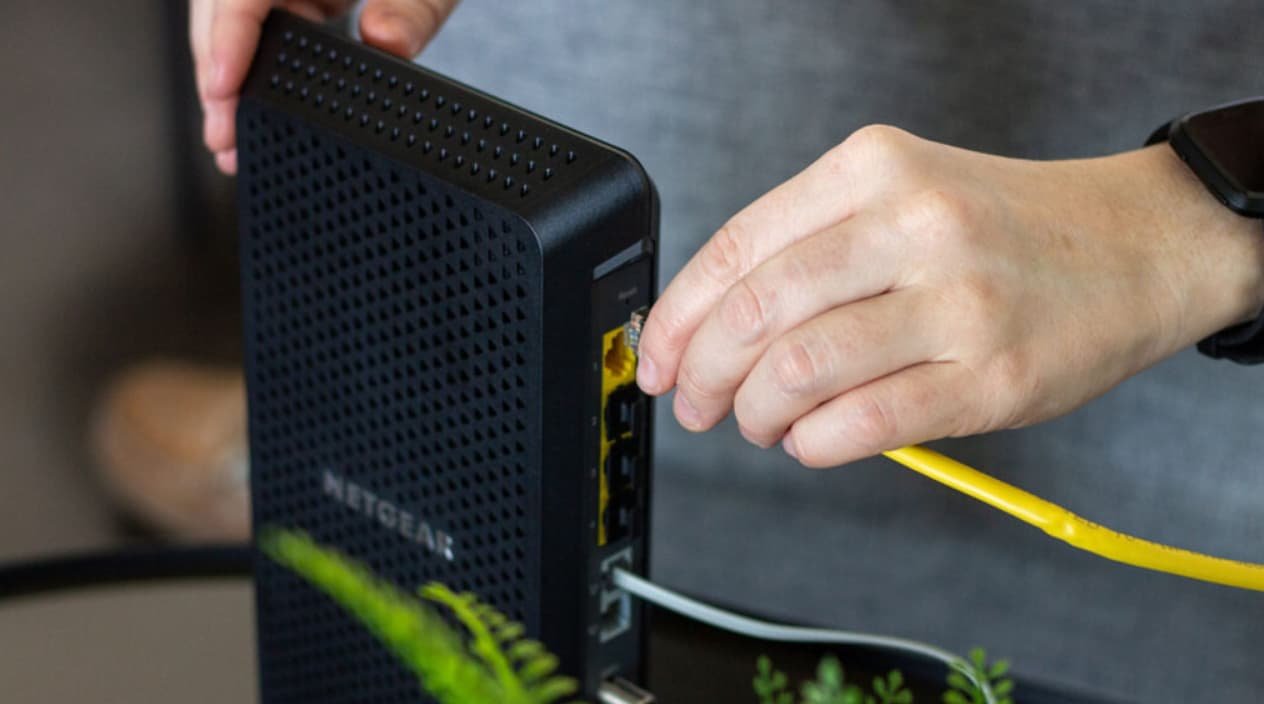
Combo units get a bad reputation for being underpowered, but the CAX80 is the exception people keep recommending for a reason. It pairs a DOCSIS 3.1 modem with a Wi-Fi 6 router rated for coverage up to 2,500 square feet, handles 30+ devices, and includes a 2.5 Gbps port alongside four Gigabit Ethernet ports. If you’re renting an apartment and don’t want two separate devices tangled in cables behind your TV stand, this solves that neatly.
For Bigger or Multi-Level Homes: Mesh Systems Like NETGEAR Orbi
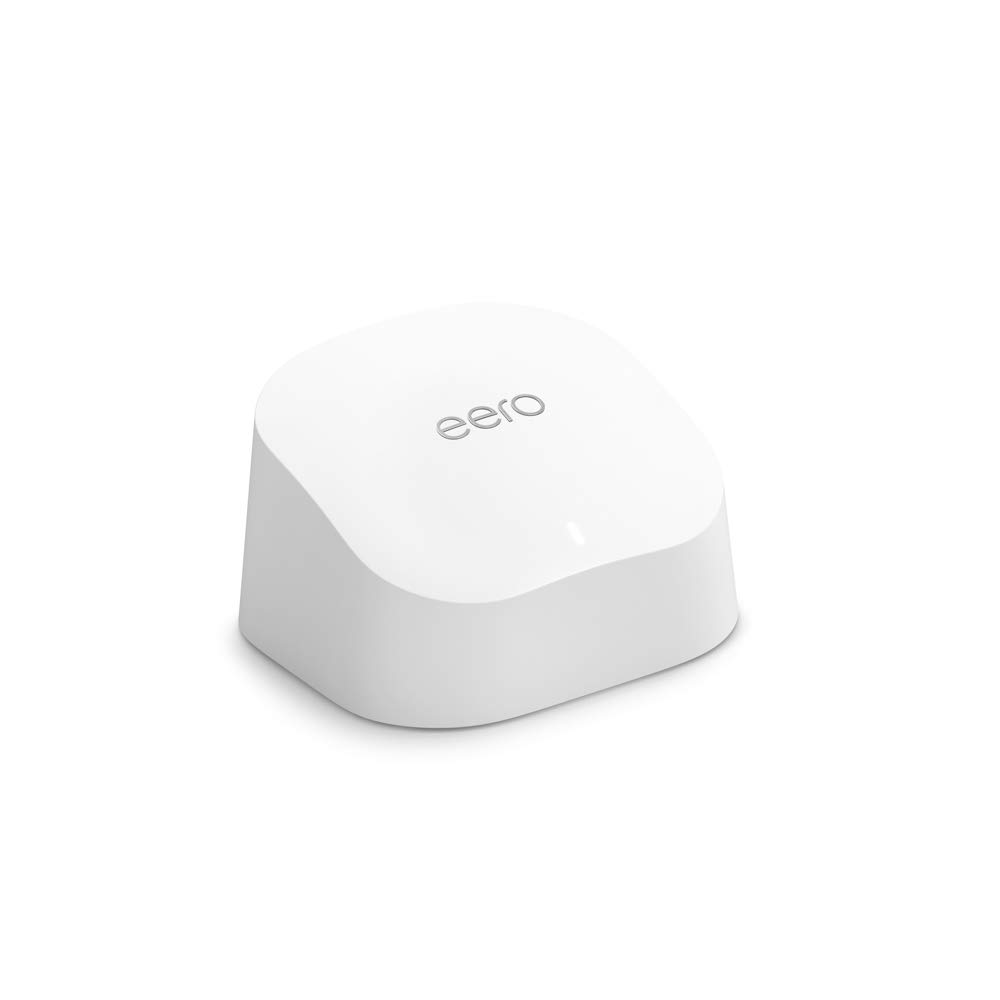
Here’s something I learned the hard way — a more powerful single router does not fix a coverage problem. If your Wi-Fi is strong near the router and weak upstairs or in the garage, a mesh system solves that far more reliably by spreading multiple access points around the house instead of relying on one unit to push a signal through walls and floors.
What Actually Matters (Beyond the Marketing Numbers)
Match the Router to Your Actual Plan
A router rated for 600 Mbps will bottleneck a 1.2 Gig Xfinity plan, full stop. Check your plan’s advertised speed and choose a router rated at or above it, with a bit of headroom if you expect to upgrade your plan later.
Wi-Fi 6 Is the Realistic Minimum Now
Anything older struggles with the sheer number of connected gadgets in a modern home. Wi-Fi 6E and Wi-Fi 7 add access to the 6GHz band, which is especially helpful if you live somewhere with a lot of overlapping neighbor networks, like an apartment complex.
Ports Still Matter in a Wireless World
Wired connections remain faster and more stable than Wi-Fi, especially for gaming consoles or a home office setup. Prioritize routers with a 2.5 Gbps port plus multiple Gigabit Ethernet ports if you regularly plug in devices directly.
Security Becomes Your Job
Xfinity bundles some security features into paid add-ons like xFi Complete. Once you switch to your own equipment, that protection is on you — so look for routers offering free, ongoing firmware and security updates rather than a subscription model.
A Real Example From My Own Setup
When I finally swapped out my rented gateway for a standalone router and a compatible modem, the improvement wasn’t dramatic overnight — it was more of a slow realization over a couple of weeks that I’d stopped thinking about my Wi-Fi at all. No more random disconnects during calls, no more walking to the closet to reboot the gateway. That quiet reliability ended up being worth more to me than any speed test number.
Frequently Asked Problems People Run Into
“I bought a new router and it won’t connect to the internet.” This is almost always a modem registration issue. Unplug your modem for about 30 seconds, plug it back in, wait a few minutes, then connect your new router. If it still won’t connect, you may need to register the new device’s MAC address with your Xfinity account.
“My old gateway feels slower than my plan promises.” Older gateways, especially anything running DOCSIS 3.0, simply can’t keep up with newer Xfinity speed tiers. This is usually a modem limitation, not a Wi-Fi problem.
“Is it actually worth the upfront cost?” For most households, yes. At roughly $15 a month in rental fees, a $150–$250 router or combo pays for itself within a year to eighteen months, and after that, it’s pure savings.
Quick Takeaways Before You Buy
- Confirm your modem (not your router) is on Xfinity’s approved device list.
- Buy Wi-Fi 6 or newer — don’t settle for older hardware even if it’s cheaper.
- Choose mesh over a single powerful router if you have coverage dead zones.
- Prioritize routers with free, ongoing security updates instead of paid add-ons.
- Match your router’s rated speed to your actual internet plan, with some room to grow.
Wrapping Up
Switching away from a rented Xfinity gateway isn’t nearly as complicated as it feels before you start. Once you understand that your modem — not your router — is the piece that actually needs Xfinity’s approval, the whole process gets a lot less intimidating. Whether you go for a high-end Wi-Fi 7 router, a no-frills budget pick, or a combo unit that simplifies everything into one box, you’re trading a permanent monthly fee for hardware you actually own.
What’s your experience been like — still on the rented gateway, or have you already made the switch? I’d genuinely like to hear which router worked for your setup, so drop a comment below, and feel free to share this with anyone still stuck paying that rental fee every month.
Affiliate Disclaimer: As an Amazon Associate, I earn from qualifying purchases. This means I may receive a small commission (at no extra cost to you) if you buy through my links. I only recommend products I genuinely believe offer value and performance.